In the modern digital landscape, the constant friction of switching between applications to track time-sensitive information has become a significant productivity drain. Whether you are monitoring the progress of a food delivery, waiting for a flight gate change, or checking the score of a high-stakes match, the act of unlocking your device and navigating to a specific app is cumbersome. Apple’s introduction of "Live Activities"—tightly integrated with the Dynamic Island and the Lock Screen—has fundamentally transformed how we interact with persistent, real-time data.
The Evolution of the Dynamic Island
To understand the utility of Live Activities, one must first appreciate the hardware evolution that birthed them. When the iPhone 14 Pro was released, it introduced a departure from the traditional notch, opting instead for a pill-shaped cutout to house the sophisticated TrueDepth camera system and Face ID sensors. While competitors in the Android ecosystem had largely migrated to minimal hole-punch cutouts, Apple chose a more expansive design.
Rather than attempting to camouflage this hardware constraint, Apple leaned into it, creating the "Dynamic Island." This software-driven interface morphs and expands, turning a static hardware cutout into a fluid notification center. By the time the iPhone 18 Pro series arrived, this feature had been refined, becoming a smaller, more efficient component of the user experience. Live Activities function as the lifeblood of this interface, providing a persistent, glanceable window into the status of background processes.
Main Facts: What Are Live Activities?
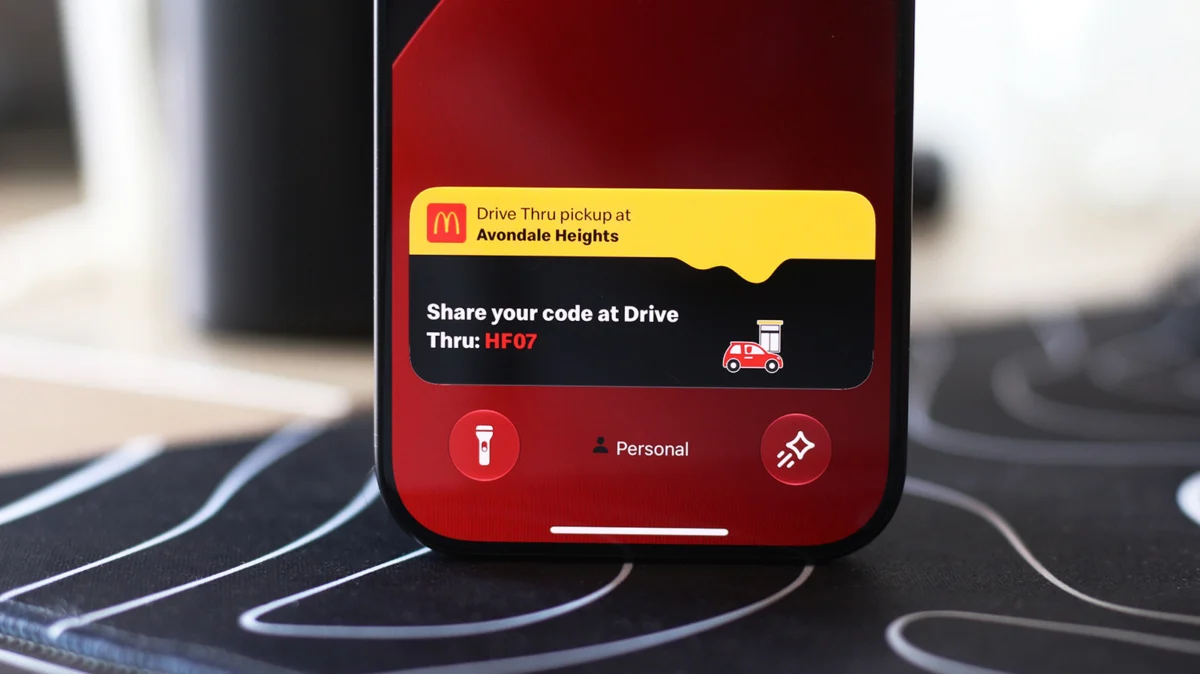
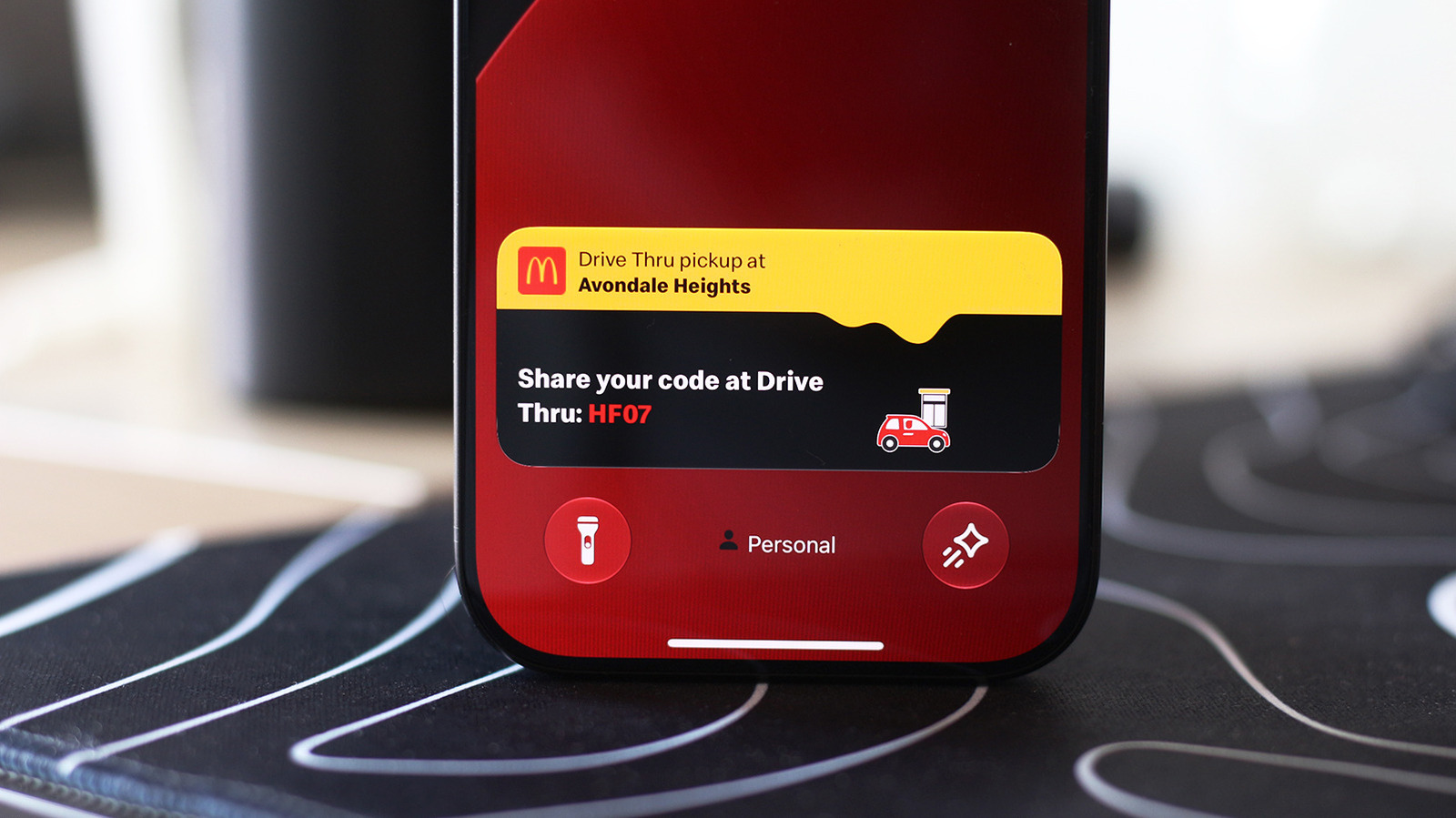
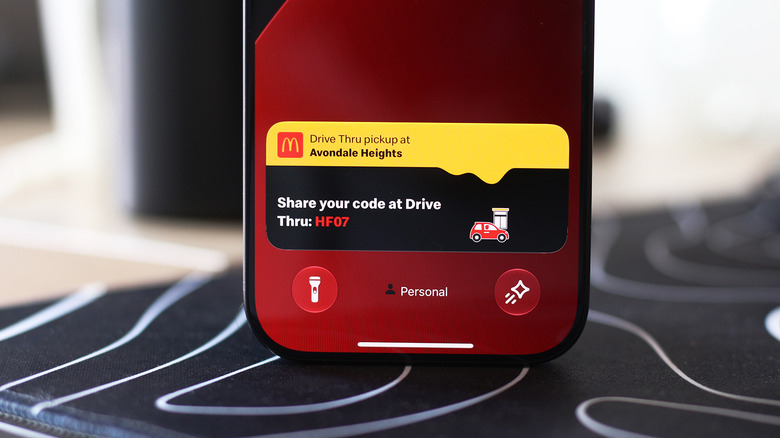
Live Activities are a feature of iOS that allows apps to display up-to-the-minute information on the Lock Screen and within the Dynamic Island. Unlike standard push notifications, which are transient and disappear once dismissed, Live Activities remain pinned to your interface for as long as the event is ongoing.
Core Capabilities:
- Persistent Monitoring: Keep tabs on ride-sharing arrivals, sports scores, or workout timers without opening the source app.
- Dynamic UI: The interface adjusts its size and appearance based on the data provided, providing a richer visual experience than text-based notifications.
- Third-Party Integration: Developers have widely adopted this API, allowing food delivery platforms, airline apps, and fitness trackers to provide a unified experience across the iOS ecosystem.
Setting Up and Troubleshooting
While Live Activities are designed to be "set it and forget it," users may occasionally find that their favorite apps are not appearing as expected.
Enabling on iPhone
If you find that an application is not displaying its Live Activity, perform the following diagnostic steps:
- Navigate to Settings: Open the main Settings app on your iPhone.
- App-Specific Permissions: Scroll down to locate the specific application in question.
- Toggle Verification: Ensure the "Live Activities" slider is toggled to the "On" position.
- Notification Dependencies: While Live Activities operate independently of standard notifications, keeping general notifications enabled for the app is often a prerequisite for the system to process real-time updates.
Lock Screen Visibility
If your activities are appearing in the Dynamic Island but vanish from the Lock Screen, the issue likely resides in your security settings:
- Navigate to Settings > Face ID & Passcode.
- Enter your device passcode.
- Scroll to the "Allow Access When Locked" section.
- Verify that the "Live Activities" toggle is active. This ensures that even when your phone is locked, you can glance at your information without needing to authenticate.
Seamless Integration: Using Live Activities on CarPlay
The value proposition of Live Activities extends far beyond the handheld device; it is arguably most critical when driving. Apple CarPlay was designed to reduce driver distraction, and by bringing Live Activities into the vehicle, Apple has minimized the need to reach for a phone while on the road.
CarPlay Dashboard Integration
Live Activities are automatically surfaced on the CarPlay Dashboard—the split-screen view typically found to the left of your primary app list. If you are running an app in full-screen mode, these updates appear as unobtrusive notifications at the bottom of the display.
Troubleshooting CarPlay
If you are struggling to see these updates in your vehicle:
- Check Settings: Open the Settings app directly within the CarPlay interface and ensure the Live Activities toggle is active.
- Suggestions: Verify that "Suggestions in CarPlay" (or "Suggestions in Dashboard") is enabled.
- Driving Focus: If you have an automated "Driving Focus" profile running, it may suppress certain types of notifications or activities to prioritize road safety. Try disabling this mode temporarily to see if the data populates.
Supporting Data and User Experience Implications
The implementation of Live Activities represents a strategic shift in Apple’s design philosophy. By prioritizing "glanceability," Apple is addressing the cognitive load placed on users. Research into human-computer interaction suggests that constant task-switching creates "attention residue," where the brain struggles to refocus after an interruption. By providing a persistent, low-effort way to track data, Live Activities mitigate the urge to engage in deeper, more distracting app interactions.
Furthermore, the expansion of these features into CarPlay acknowledges the reality of the modern commuter. With millions of vehicles now supporting the platform, the ability to monitor a flight status or a delivery arrival without ever looking away from the road for more than a fraction of a second is a measurable improvement in both convenience and safety.
Official Responses and Developer Adoption
Apple’s developer guidelines encourage apps to use Live Activities sparingly and with high data fidelity. The company emphasizes that these activities should be reserved for high-value, time-sensitive information. The widespread adoption by major service providers—ranging from Uber and Lyft to major airlines and sports broadcasters—signals that this API has become an essential part of the modern mobile toolkit.
Implications for the Future
Looking ahead, we can expect the integration of Live Activities to deepen. As Apple continues to iterate on its hardware, the boundary between the "app" and the "operating system" will likely continue to blur. We may see more interactive elements within the Dynamic Island, perhaps allowing users to perform simple actions (like "extend timer" or "cancel order") directly from the persistent notification without ever launching the full application.
The trajectory of this technology points toward a "context-aware" operating system. Imagine a scenario where your phone, detecting your location and time of day, automatically surfaces the relevant Live Activity for your upcoming commute or meeting, effectively acting as a digital concierge.
Conclusion
Live Activities represent a sophisticated blend of hardware-software synergy that simplifies the user experience. By mastering the settings on your iPhone and ensuring your CarPlay configuration is optimized, you can reclaim the time previously lost to app-switching. As Apple continues to refine these features, the focus remains clear: providing the information you need, exactly when you need it, with the least amount of friction possible.
Whether you are a power user looking to optimize your workflow or a casual user hoping to streamline your daily drive, the tools are readily available within your iOS settings. Take the time to configure your preferences, and you will find that your device becomes far more than just a phone—it becomes a highly efficient personal assistant.