In the fast-paced world of digital marketing, waiting hours for a site-wide crawler to finish its report isn’t always an option. Whether you are troubleshooting a product page that has suddenly plummeted in search rankings, analyzing a competitor’s winning strategy, or trying to understand why a high-traffic landing page has stopped converting, you need actionable data—and you need it now.
You don’t always need a massive, complex crawl to begin your diagnostic process. Often, the answers to your most pressing SEO questions are hidden in plain sight, embedded within the technical signals and on-page elements of the page itself.
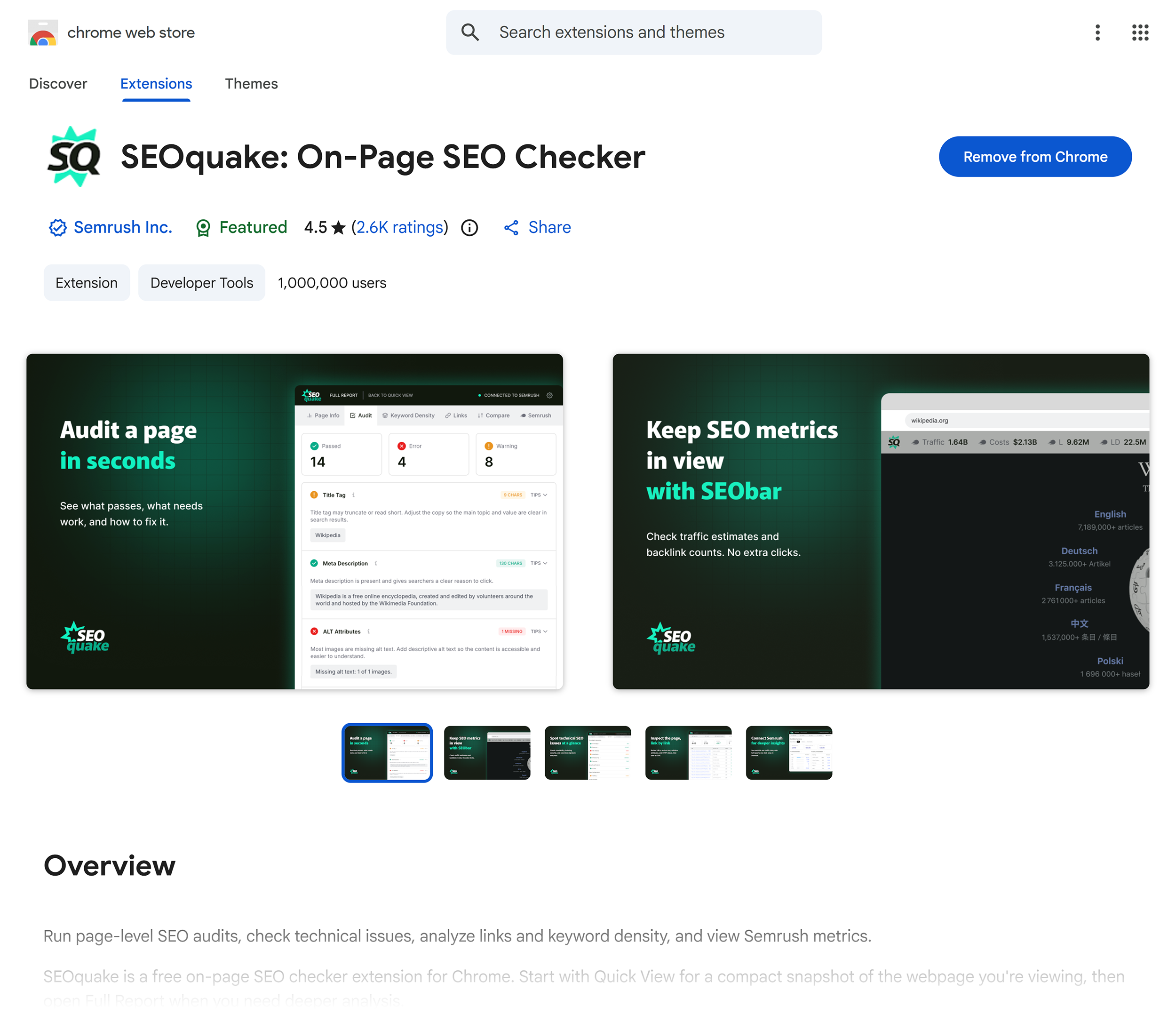
The SEOquake Chrome extension, developed by Semrush, is a powerful, free tool that allows you to audit any webpage instantly. It provides a comprehensive view of your technical SEO, content structure, linking strategy, and core metrics without requiring you to leave your browser tab. In this guide, we will break down a high-efficiency, three-minute workflow that takes you from initial triage to actionable diagnosis.
What Is SEOquake?
SEOquake is a robust SEO Chrome extension designed to streamline the research and auditing process. By simply clicking the extension icon while viewing any webpage, you gain immediate access to technical data and performance metrics.
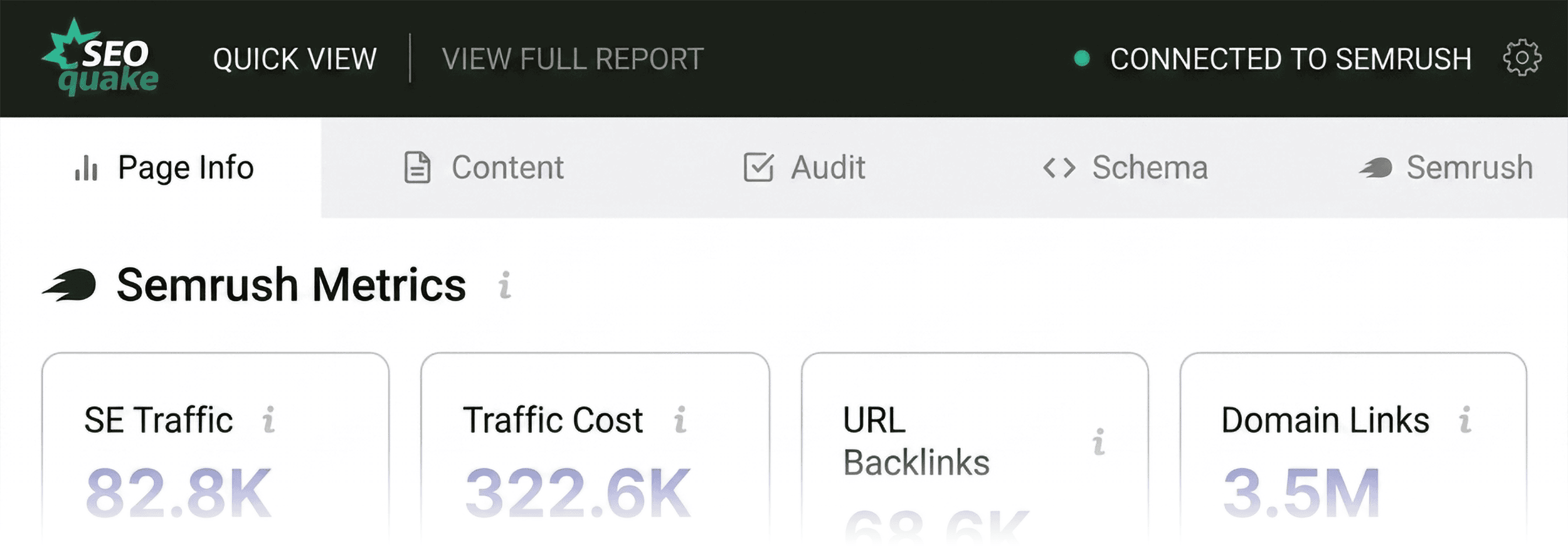
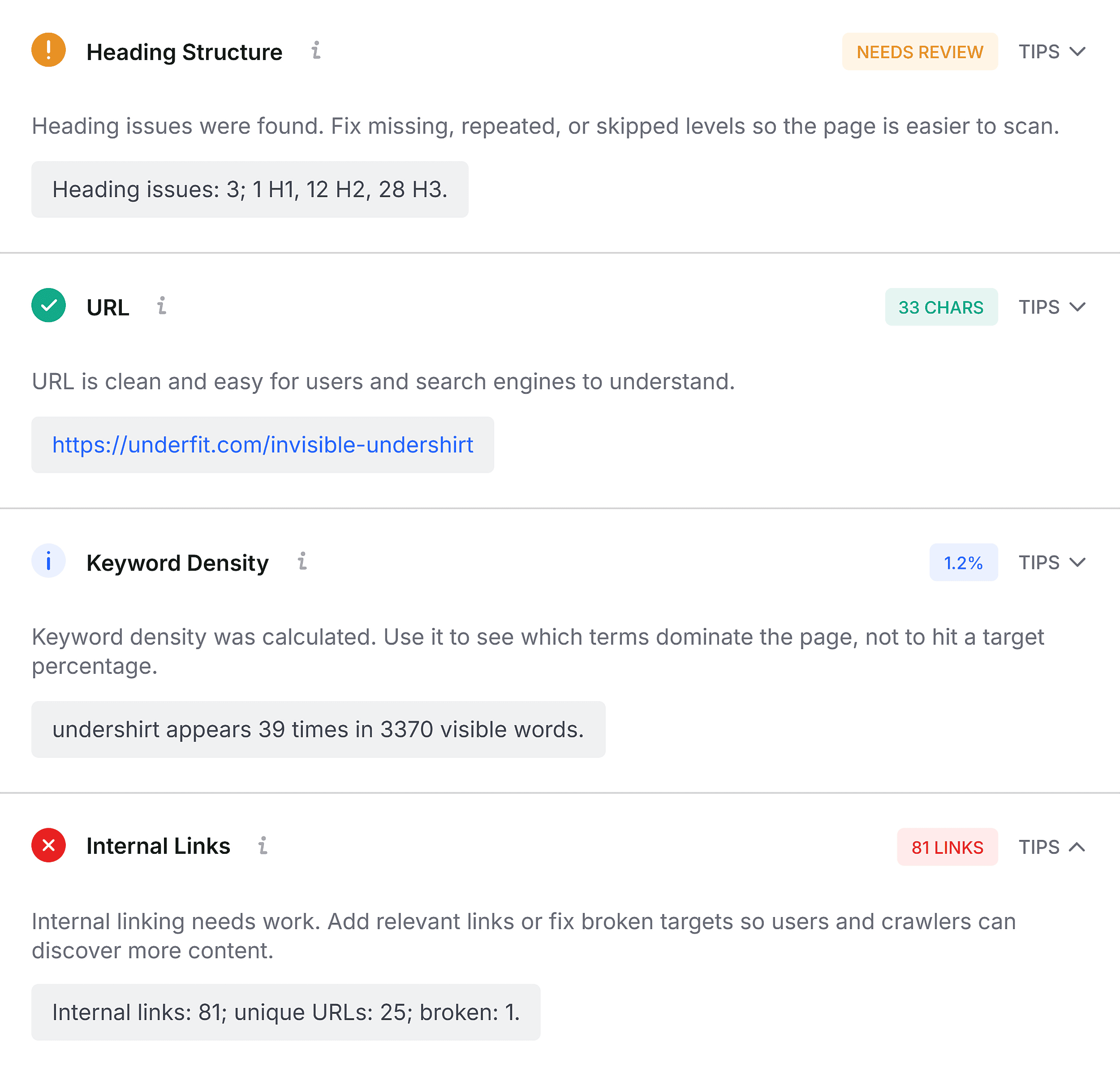
The tool offers two primary ways to audit: a Quick View pop-up for instant insights and a Full Report for deep-dive diagnostics. Throughout both, SEOquake uses a helpful, color-coded system to signal the health of various elements:
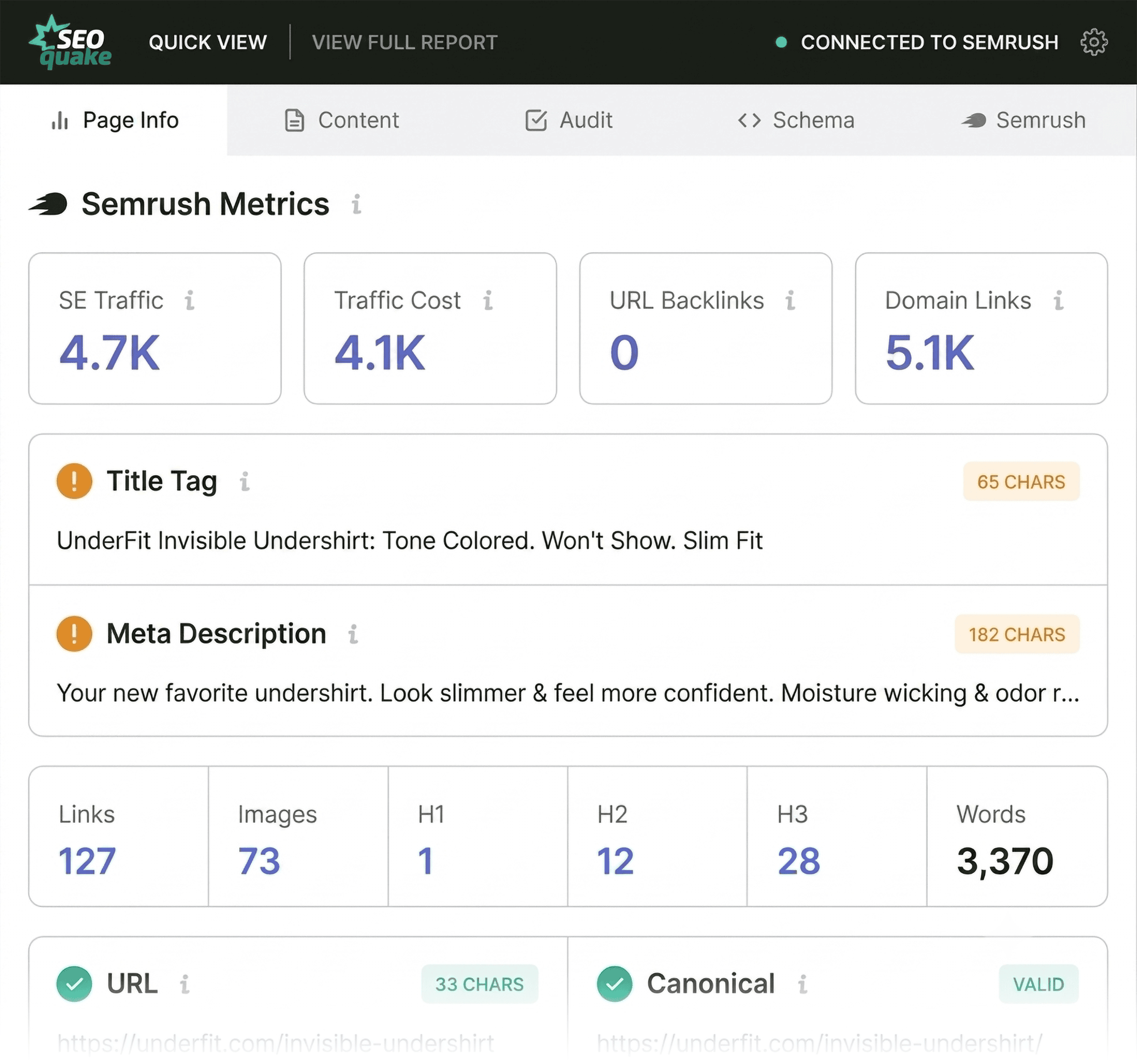
- Green: Everything is functioning as expected.
- Orange: These items are warnings that require human judgment to determine if they are impacting your specific SEO goals.
- Red: These are critical flags that indicate potential errors or non-compliance with search engine best practices.
By focusing on these color cues, you can avoid analysis paralysis and prioritize your efforts where they will have the most significant impact.
Triage: The First Minute of Your Audit
Triage is the crucial first step. In 60 seconds or less, your goal is to answer a single, high-level question: Is there anything fundamentally wrong with this page?
The Quick View pop-up features five distinct tabs, but for an efficient triage, you should focus on three: Page Info, Audit, and Content. Spending roughly 20 seconds on each provides a clear, snapshot-level understanding of the page’s health.
Starting with Page Info
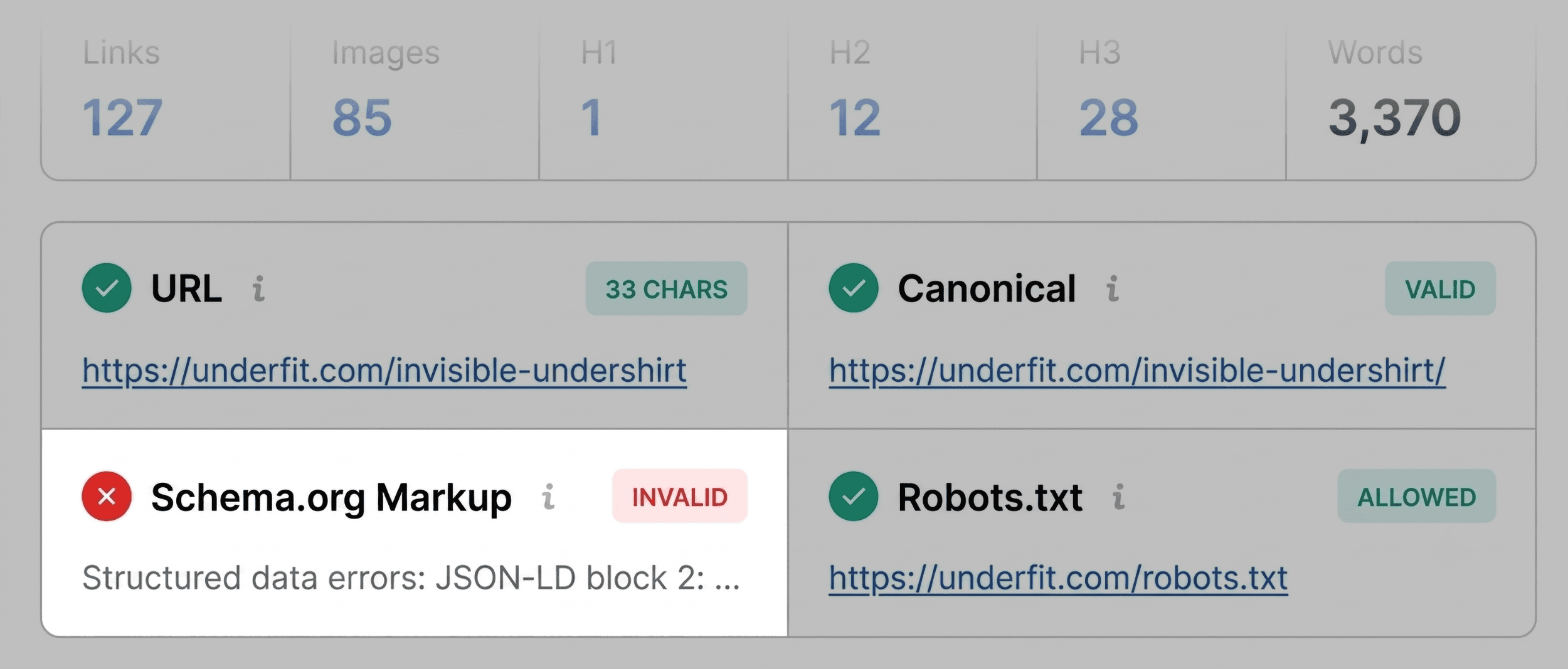
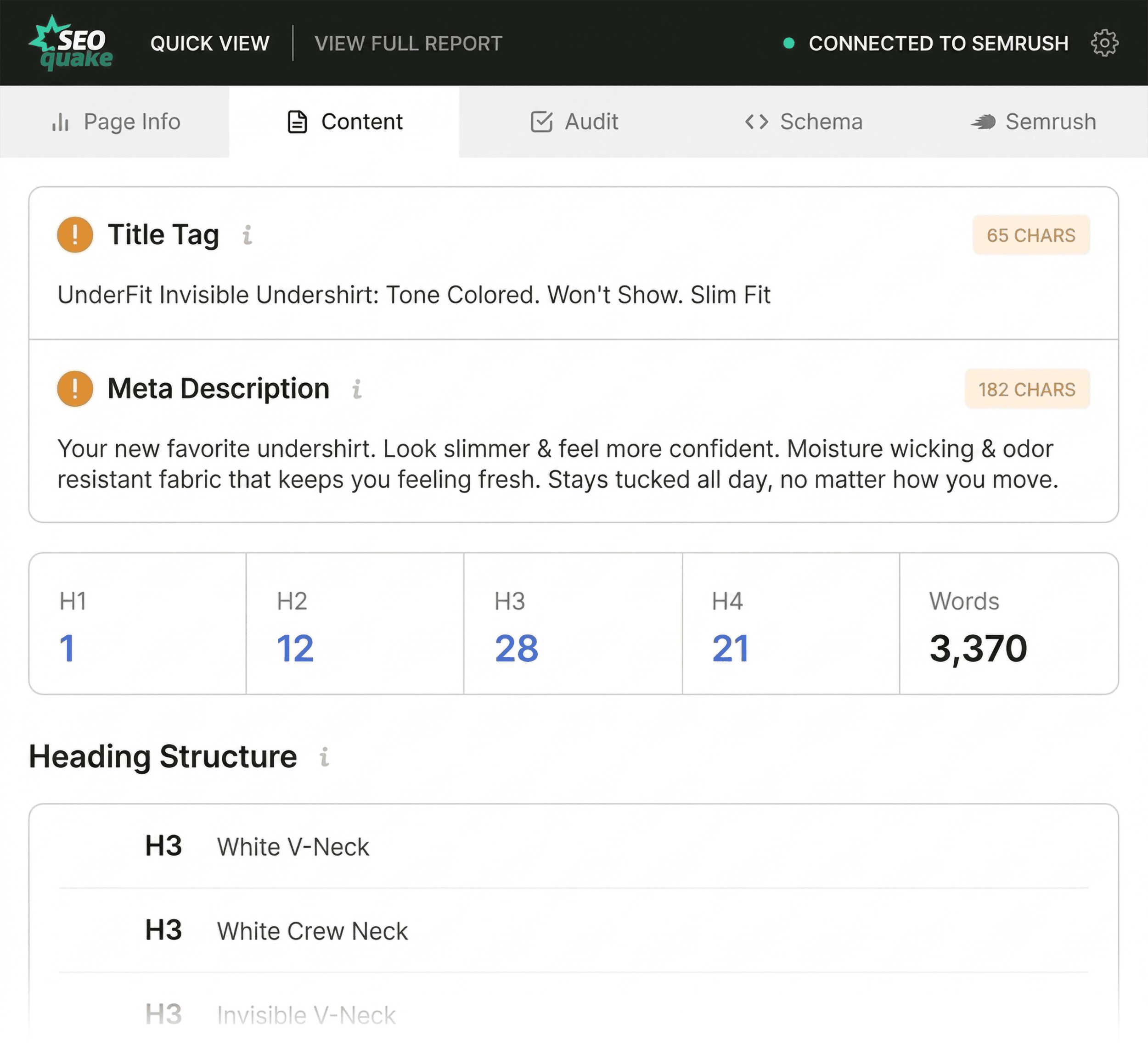
The Page Info tab acts as the dashboard for your core SEO pillars. When auditing a page—for instance, a product page—you should prioritize five key elements:

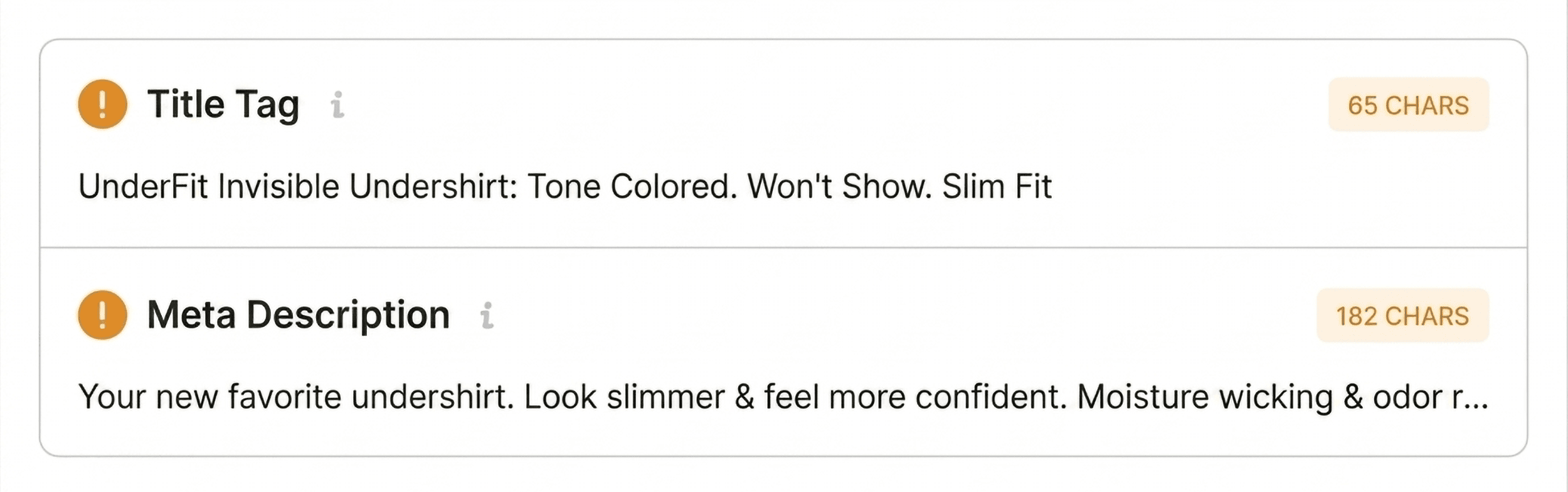
- Title Tag: Does it include your primary keyword? Is it within the ideal character limit?
- Meta Description: Is it compelling and relevant to the user intent?
- Canonical URL: Is the canonical tag pointing to the correct version of the page?
- Meta Robots: Is the page set to "index, follow"?
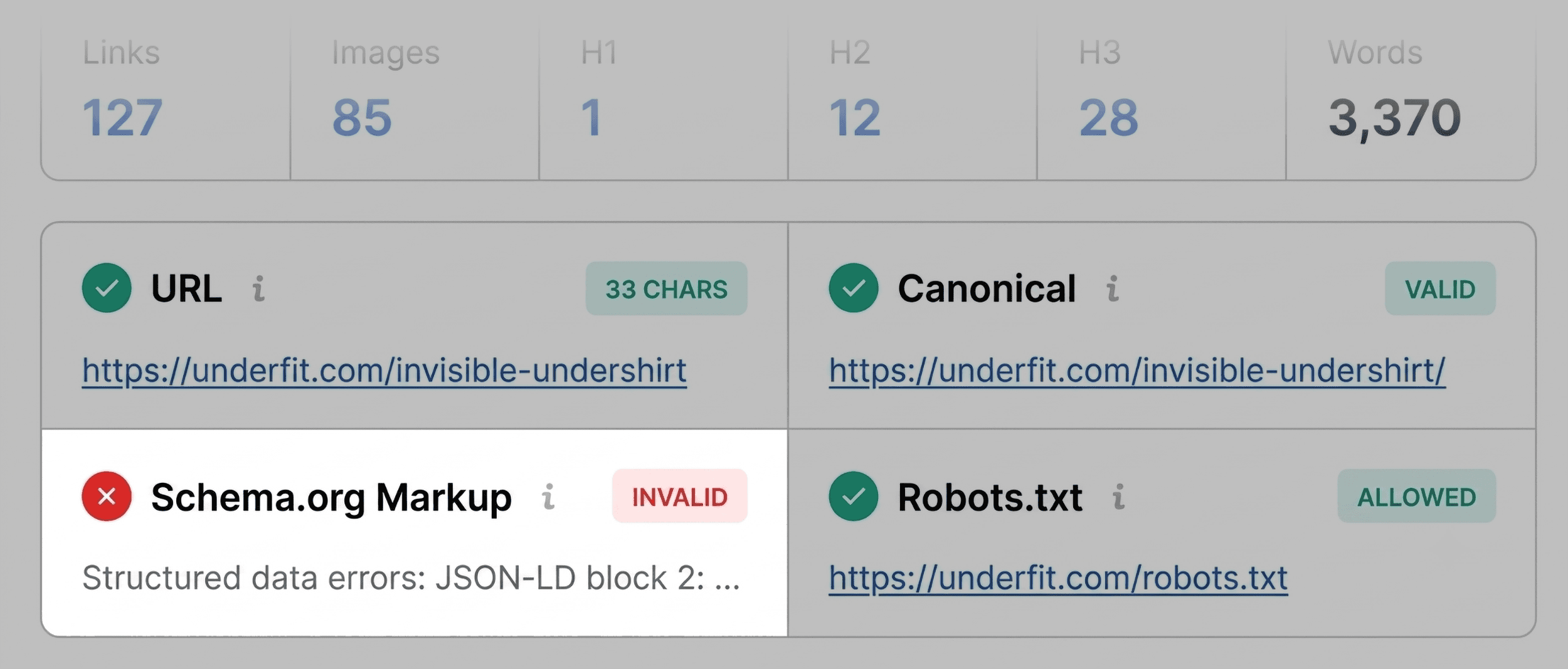
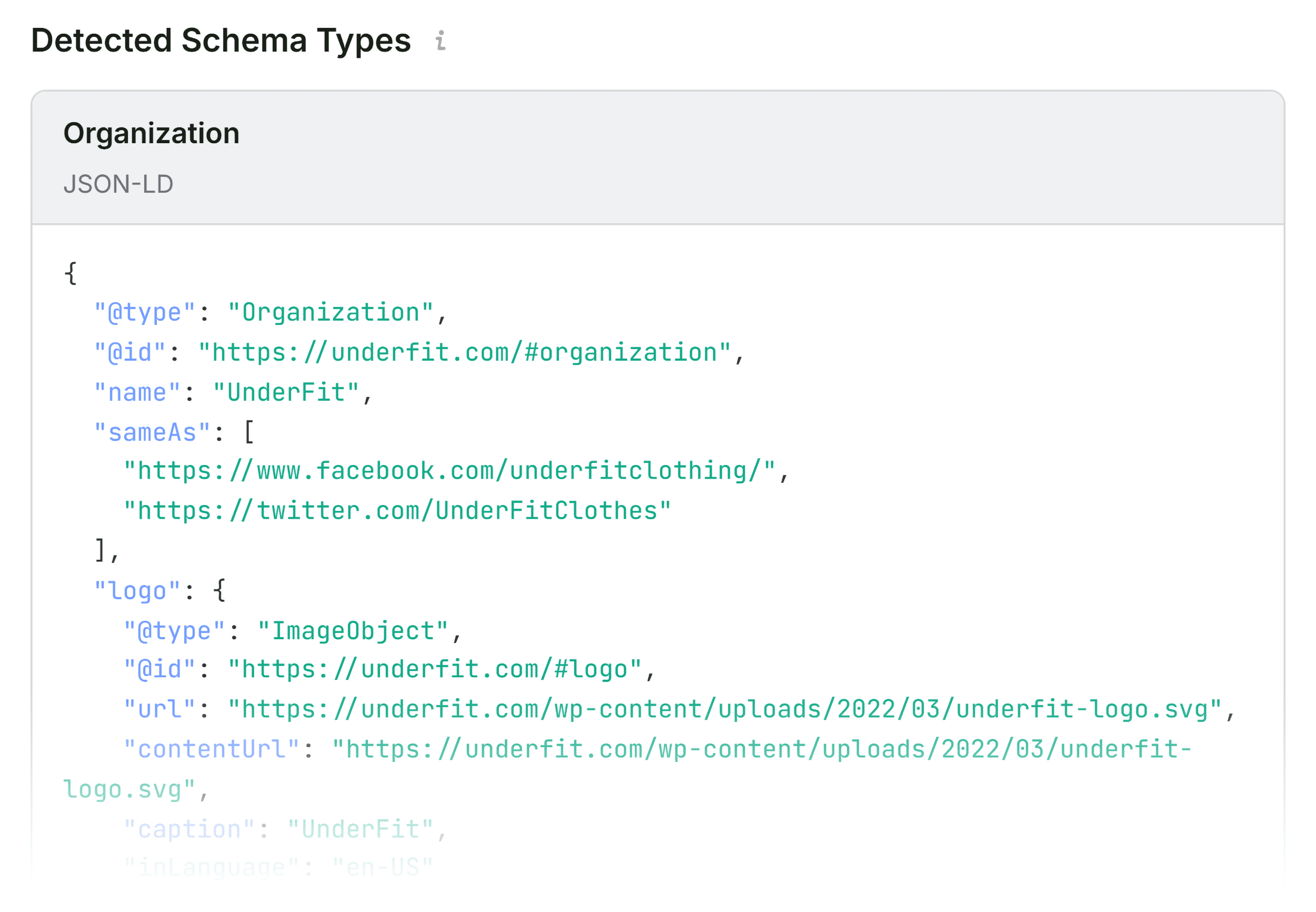
- Schema Markup: Is structured data present and valid?
During this scan, pay close attention to red flags. For example, if the Schema markup is flagged in red, it often signals JSON-LD errors. This is a significant issue for product pages, as it may render the page ineligible for rich snippets—like price, availability, or star ratings—in search results.
Scanning the Audit Tab
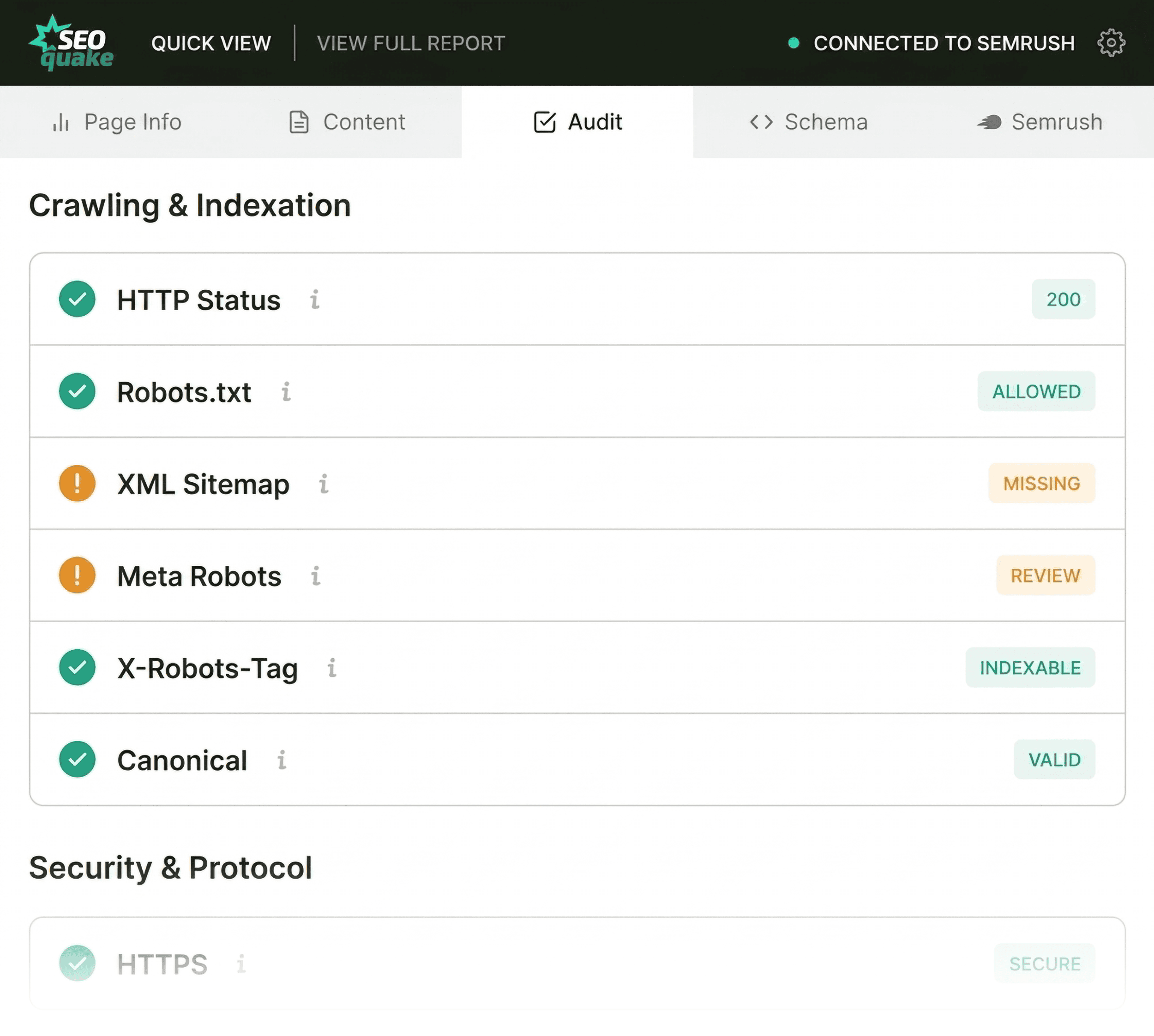
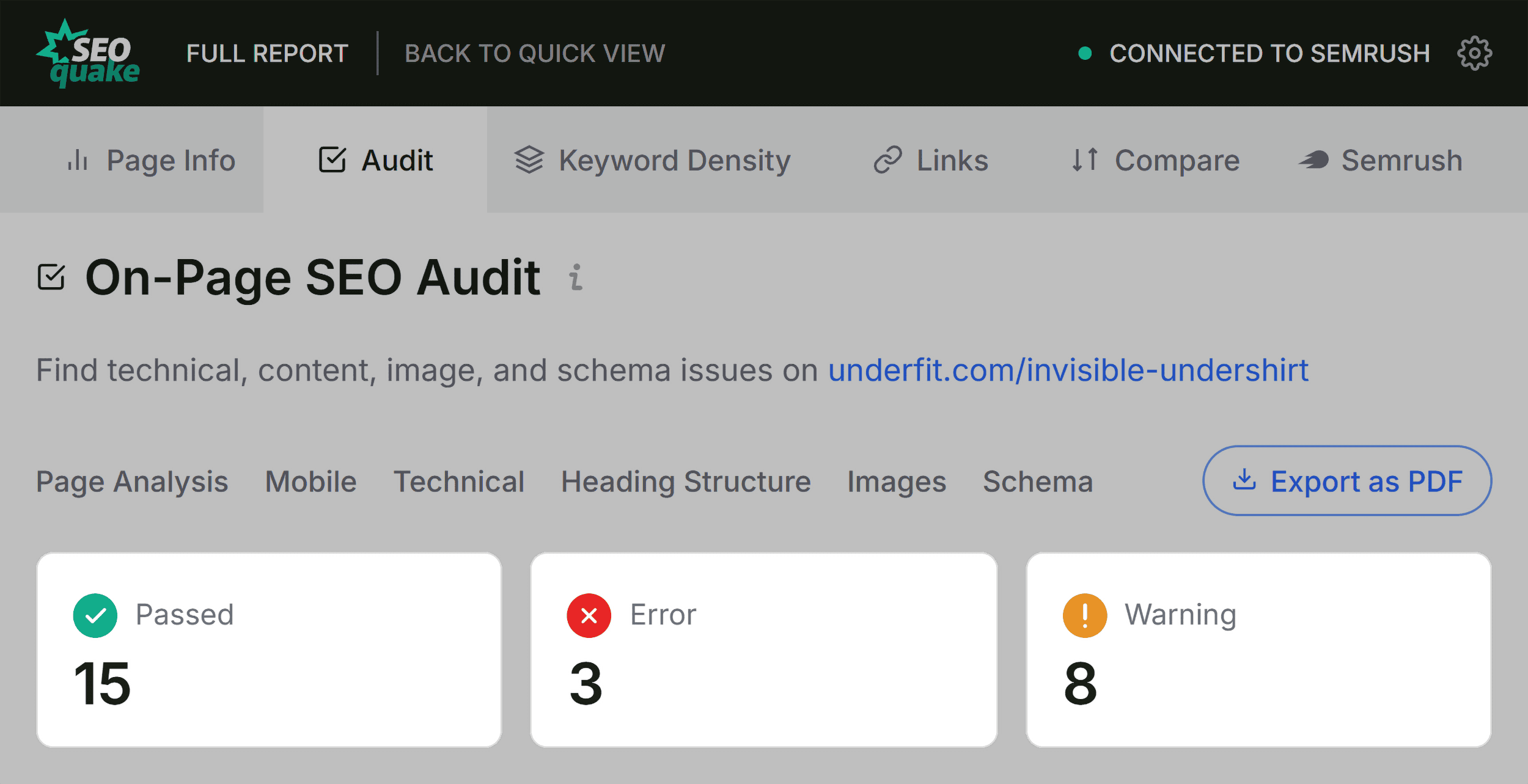
Some technical issues are invisible to a standard page check. The Audit tab focuses on technical essentials such as crawlability, indexation, and mobile-friendliness. While seeing green is ideal, do not ignore orange warnings. For example, a missing hreflang tag on a site that serves multiple countries is an orange flag that, while not a "break," requires immediate strategic attention.
Reviewing the Content Tab
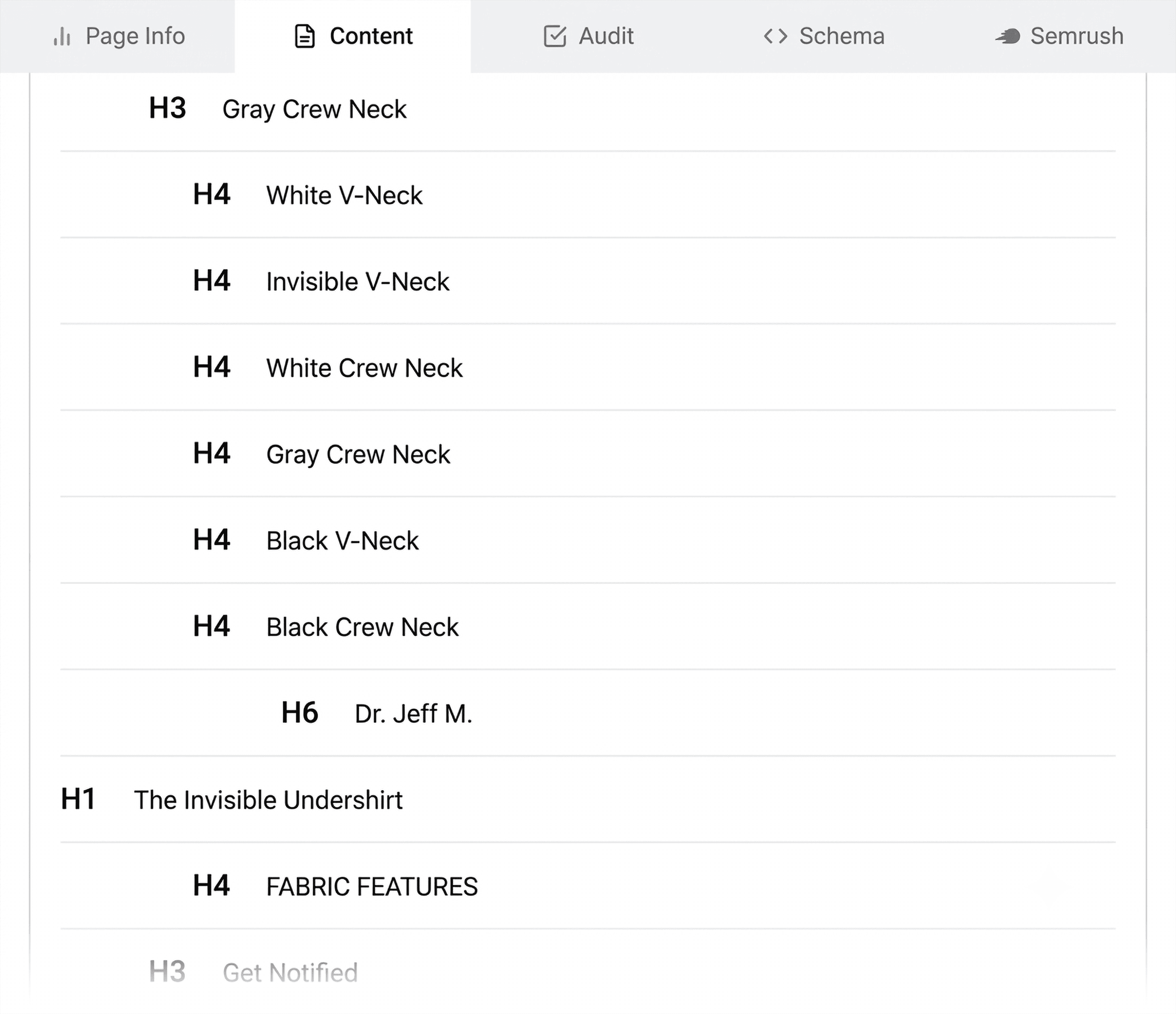
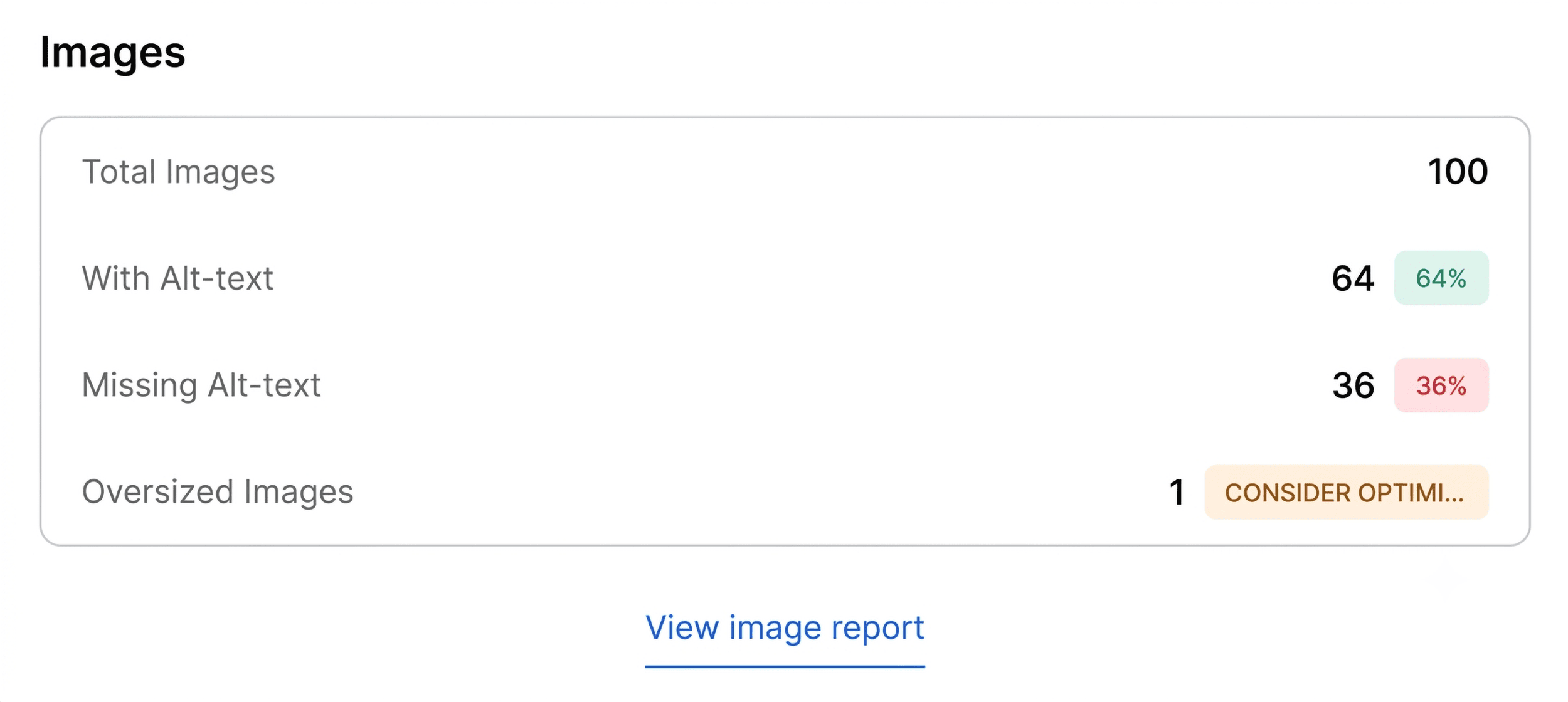
The Content tab allows you to evaluate structure and keyword placement. A clear heading hierarchy (H1, H2, H3) is vital not only for user experience but also for search engine and AI systems to interpret your content. If you see an H1 appearing at the bottom of the page or a jump from H1 directly to H4, you have identified a structural weakness that likely hampers readability. Additionally, check for images missing "alt text." On product pages, images are often the primary driver of conversion; missing alt text makes the page less accessible and limits your reach in image search.
Diagnosis: The Final Two Minutes
After completing your one-minute triage, you should have a clear list of potential issues. Minutes two and three are dedicated to the "Full Report," where you move from surface-level identification to understanding the root cause of these issues.
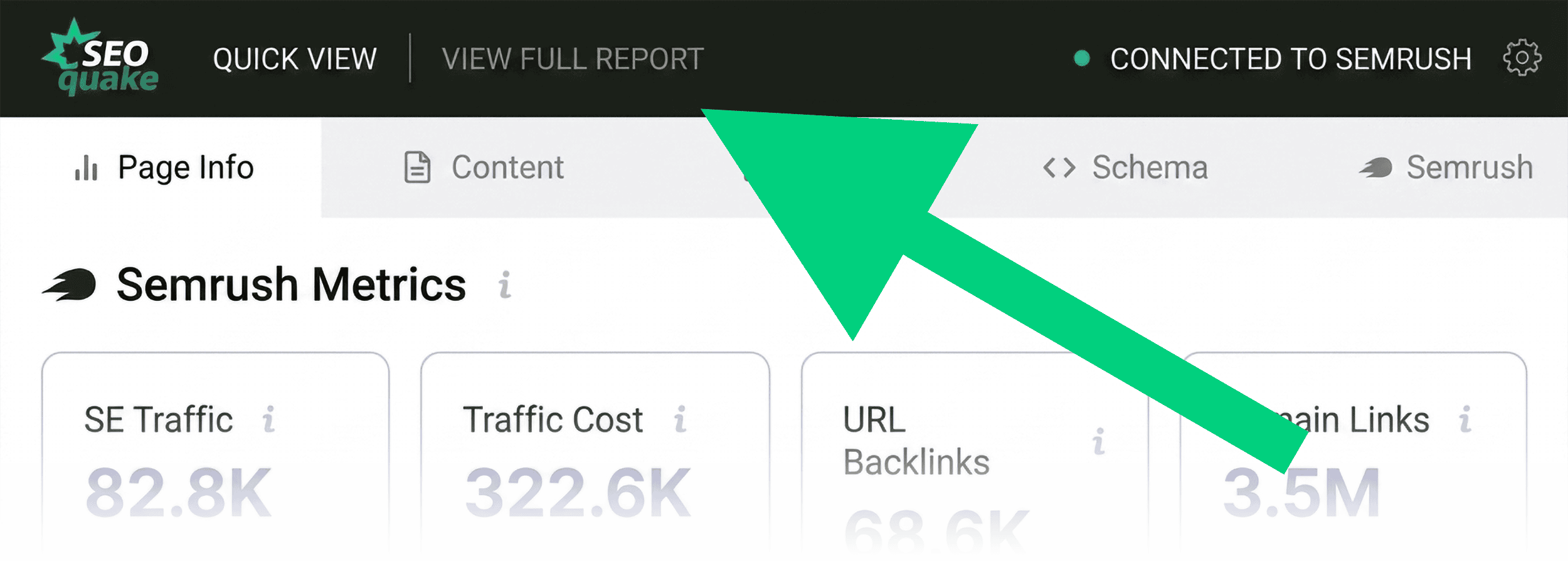
Clicking "View Full Report" takes you to a more granular interface featuring six panels: Summary, Diagnosis, Density, Internal/External Links, Social, and Semrush.
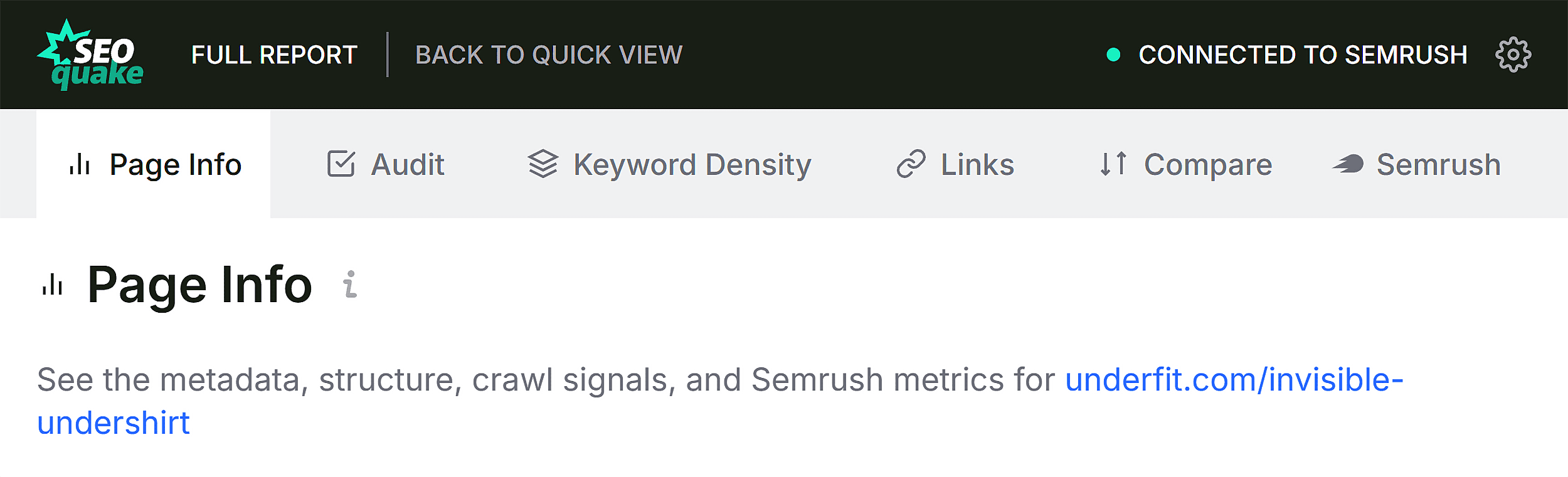
Deep-Diving into Technical Issues
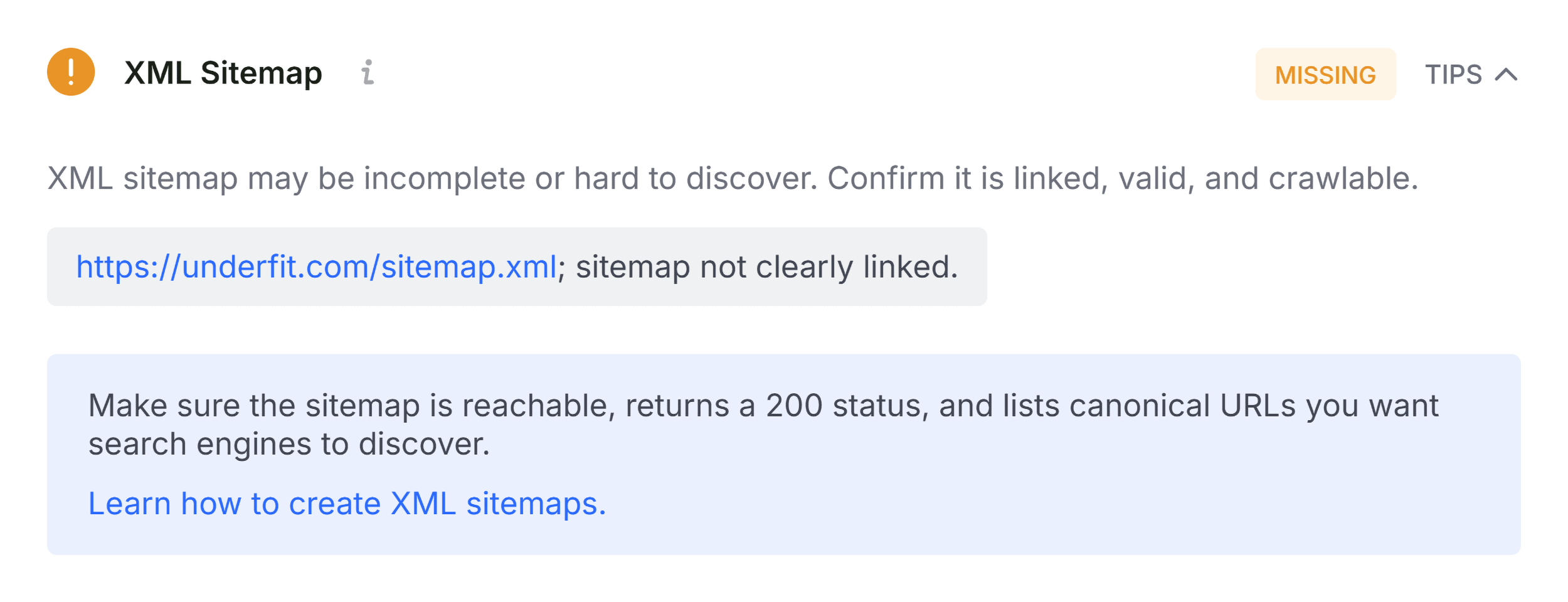
In the Audit panel of the Full Report, you can jump directly to the specific sections flagged during your triage. If you found a sitemap issue, the report will likely confirm that while the sitemap.xml exists, it is not being properly referenced in your robots.txt file or search console.
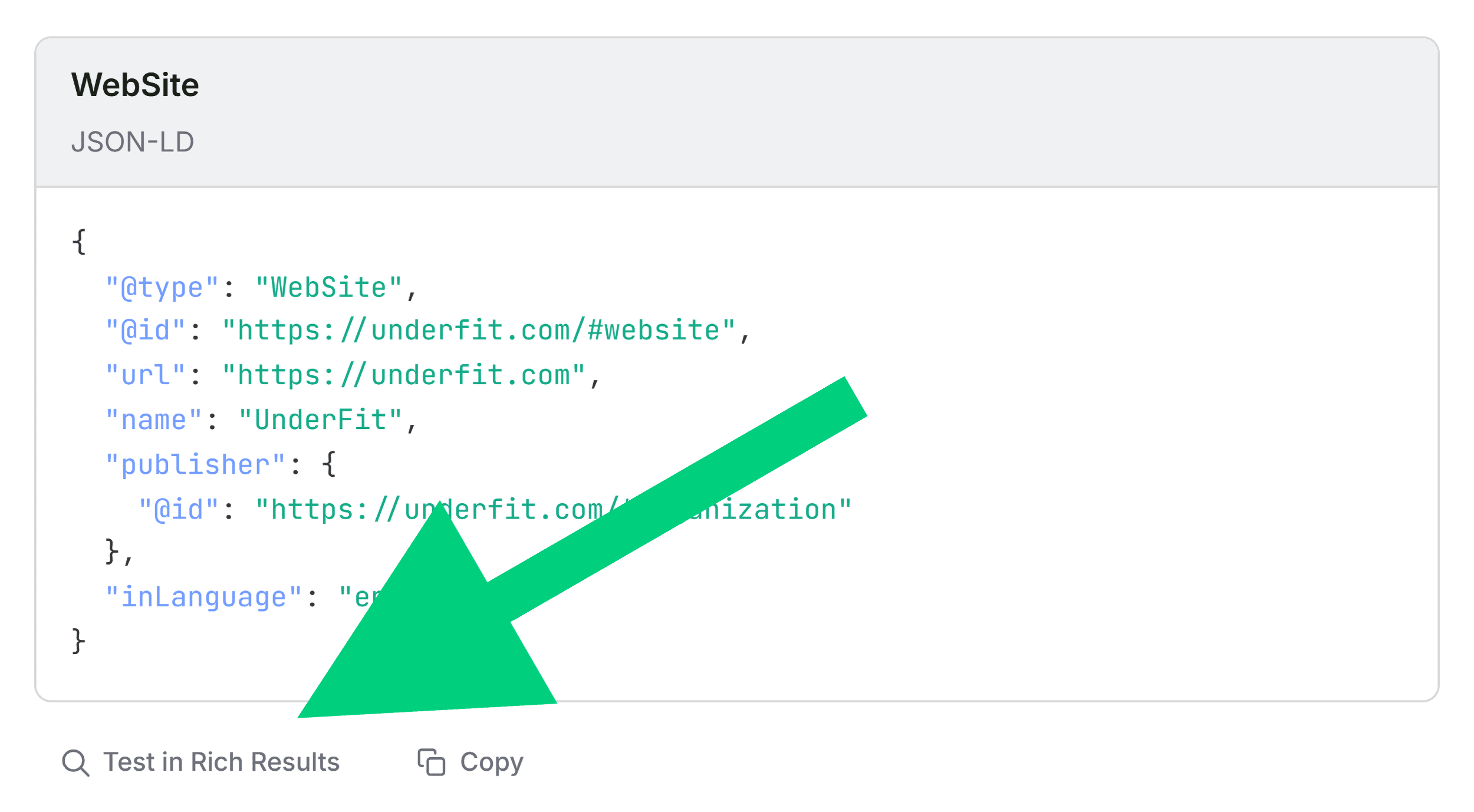
For Schema errors, you can use the "Test in Rich Results" button to trigger Google’s native testing tool directly from the report. This validates your initial hypothesis and provides the exact code lines that are causing the failure, allowing your development team to fix the issue in minutes rather than hours.
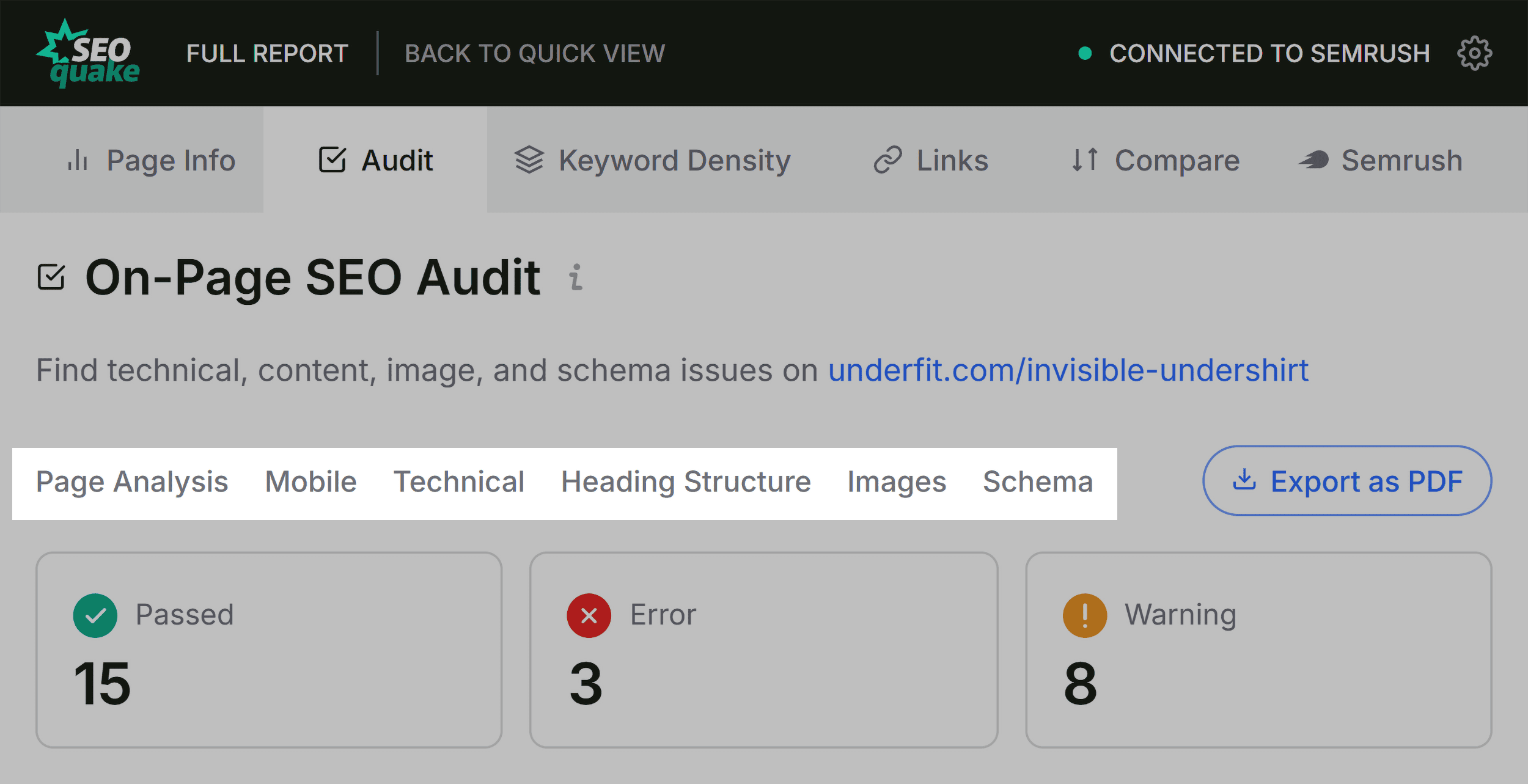
Identifying Content Gaps
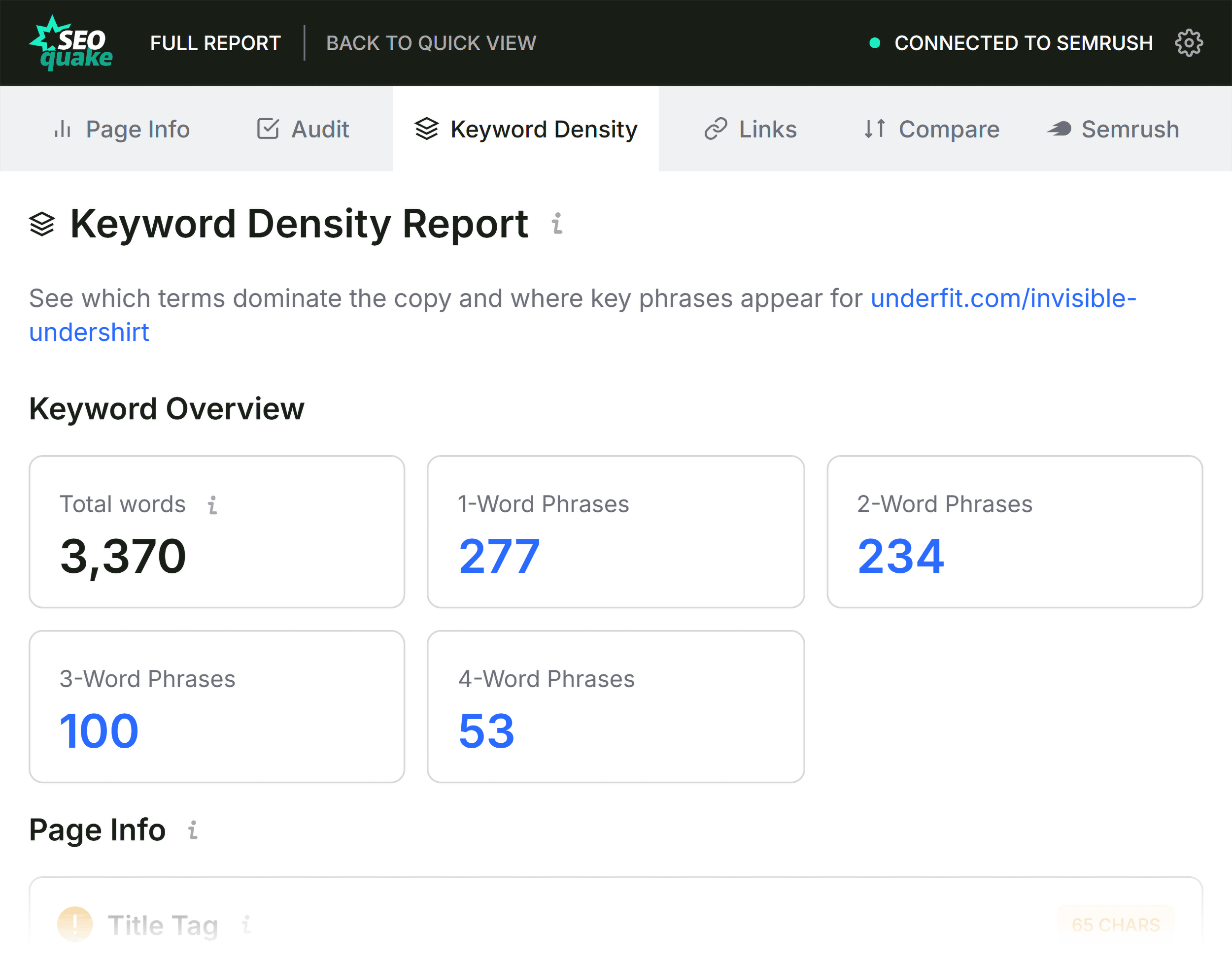
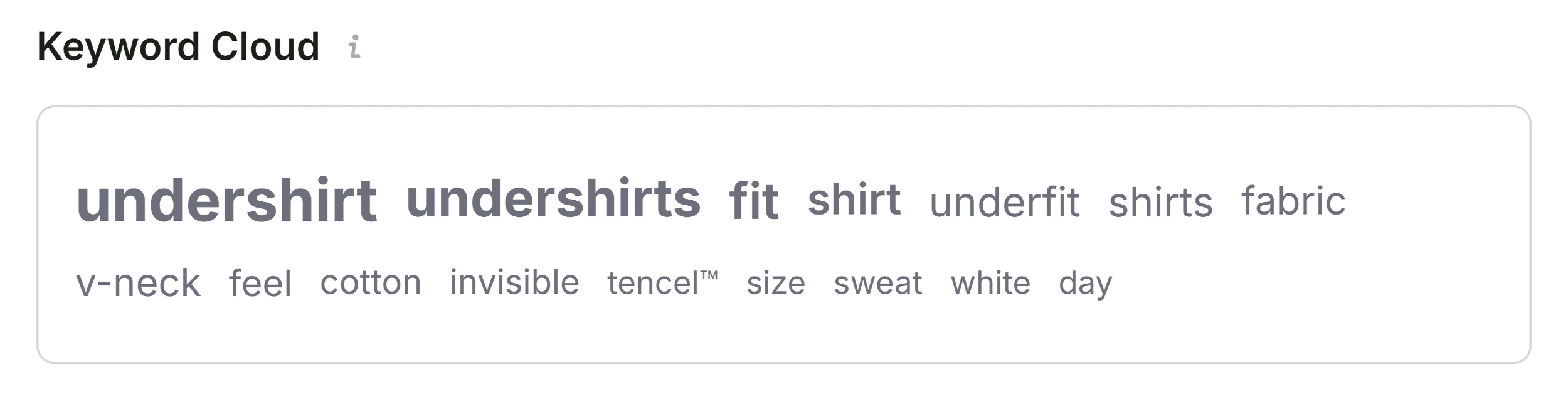
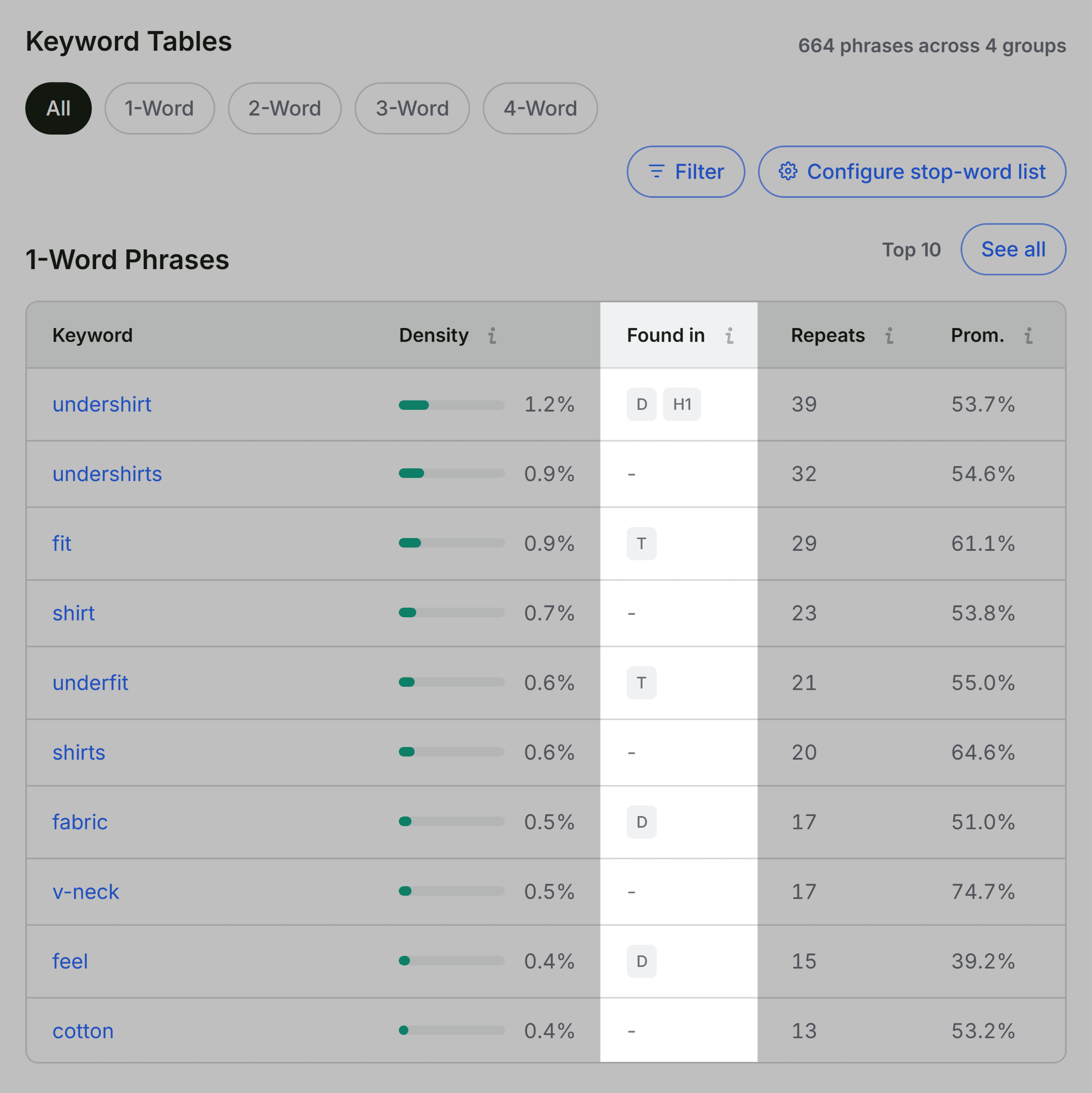
The Keyword Density panel is an excellent tool for identifying topic coverage. The "Keyword Cloud" provides a visual representation of the most prominent terms. If you are auditing a "v-neck undershirt" page, you should expect terms like "fabric," "breathable," and "fit" to be prominent. If the cloud is dominated by generic or off-topic words, it suggests your content is not focused enough on the user’s search intent.
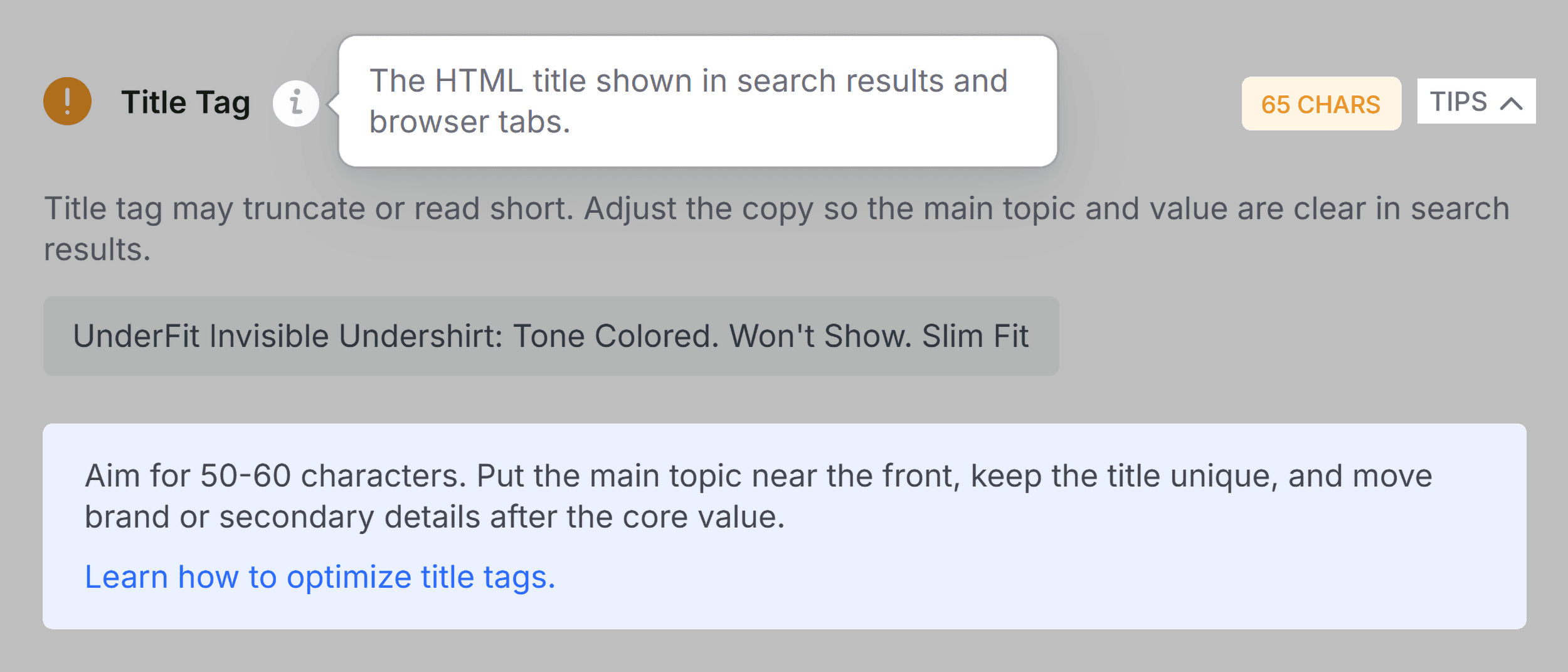
Analyzing Link Health
Broken links are a silent killer of SEO authority. The Links panel provides a downloadable list of all internal and external links. If you discover dozens of broken external links, you are likely dealing with outdated references or broken JavaScript calls. Addressing these is a quick win that improves both your site’s crawl efficiency and user trust.
Implications and Next Steps
The goal of this three-minute audit is to distinguish between page-level fixes and site-wide problems.
If you find that your issues are limited to a single URL—such as a missing meta description or a few unoptimized headings—you can implement these changes immediately. However, if your audit reveals missing sitemaps, widespread Schema errors, or systemic broken links, these are site-wide architectural issues.
When you encounter these larger problems, your next step should be a full-scale crawl. Tools like Semrush’s Site Audit allow you to scale your findings from a single page to your entire domain, ensuring that the problems you fixed on your product page aren’t still plaguing the rest of your site.
Conclusion
The ability to diagnose SEO issues on the fly is a superpower for the modern marketer. By leveraging the SEOquake extension, you can effectively triage, diagnose, and prioritize your SEO tasks in a single sitting. This not only saves time but ensures that your optimization efforts are rooted in data rather than guesswork.
Start by installing the extension, running a quick audit on your most critical pages, and building your fix list today. Remember, consistent, incremental improvements to your technical and on-page SEO are the foundation of long-term search success. Whether you are a solo consultant or part of a global marketing team, this three-minute workflow is your key to maintaining a healthy, high-performing website.
Backlinko is owned by Semrush. We are dedicated to providing world-class SEO insights, backed by hands-on experience and industry-leading research. Unless otherwise noted, this content was produced by the professional marketing team at Semrush Inc.