When a high-priority landing page suddenly slips in the search engine rankings, or a competitor starts outperforming your best-converting product page, you don’t always have the luxury of time. Traditional SEO tools often require a full site crawl, which can take hours or even days to process. In the world of high-stakes digital marketing, you need answers fast.
This is where the SEOquake Chrome extension—a powerhouse tool developed by Semrush—becomes an essential part of an SEO professional’s toolkit. By allowing you to perform a comprehensive audit of any webpage without ever leaving your browser, SEOquake transforms the way we approach triage, diagnosis, and optimization.
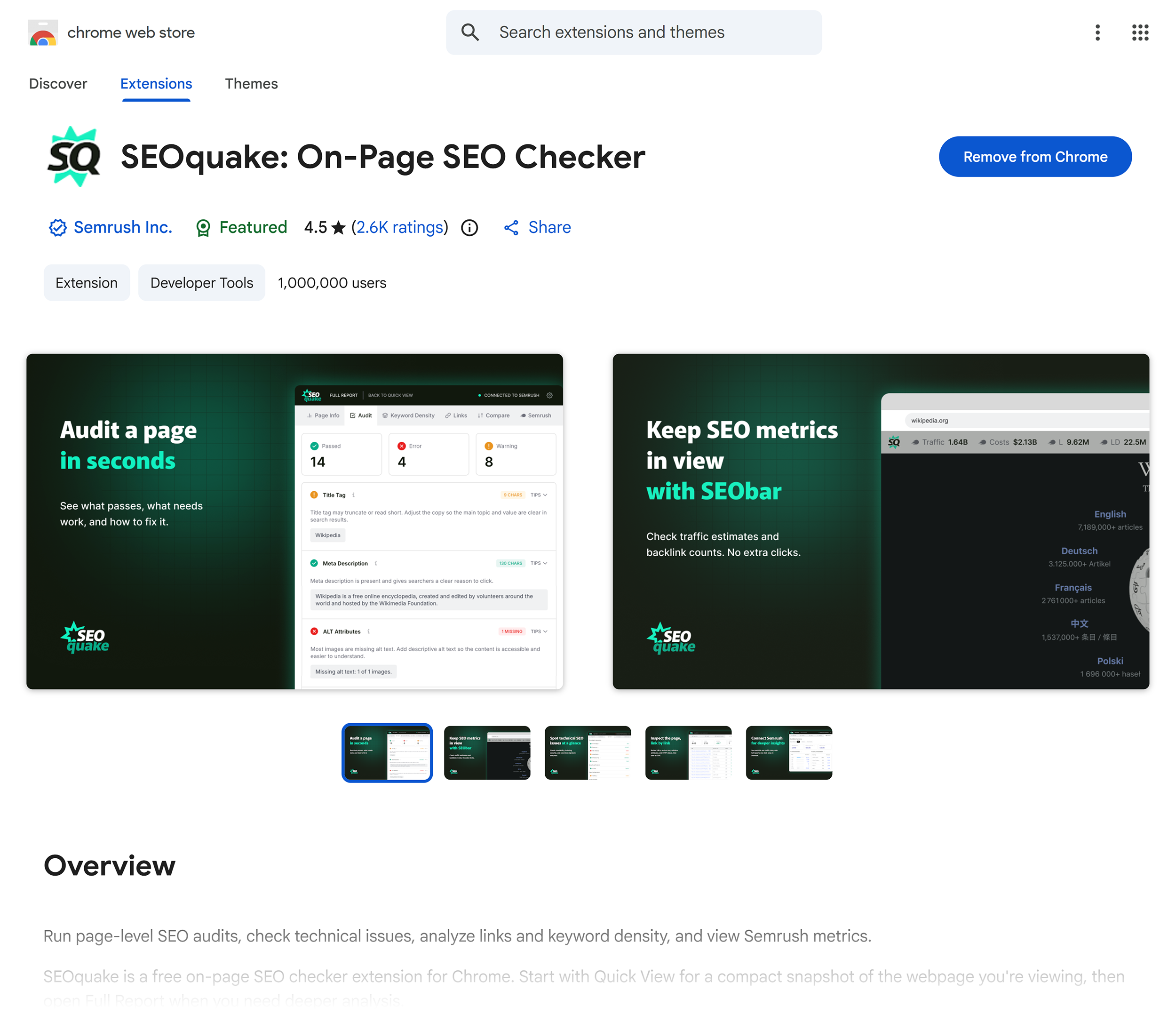
What Is SEOquake?
SEOquake is a robust, free SEO Chrome extension designed to provide instant, granular insights into a webpage’s technical health. Whether you are checking on-page SEO signals, analyzing internal and external link structures, or pulling critical metrics from the Semrush database, SEOquake serves as a bridge between raw data and actionable strategy.
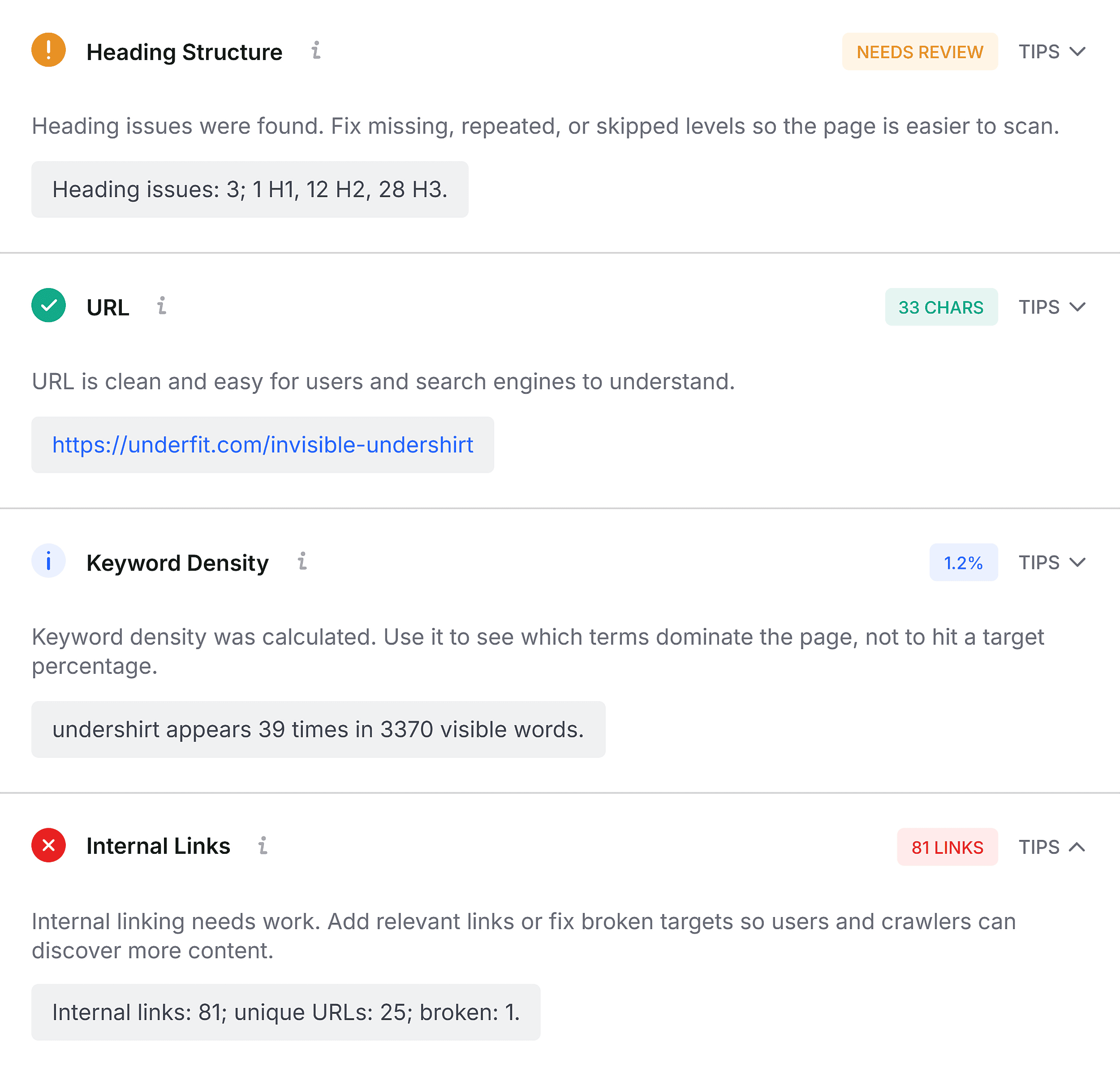
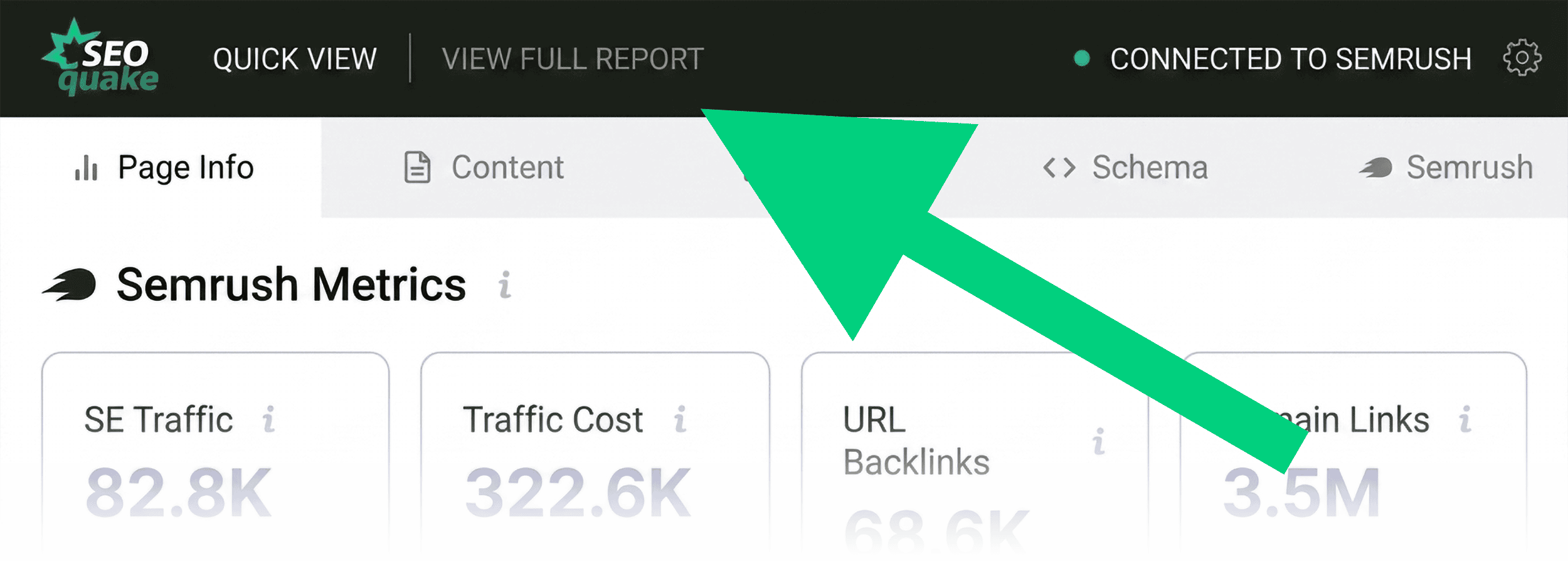
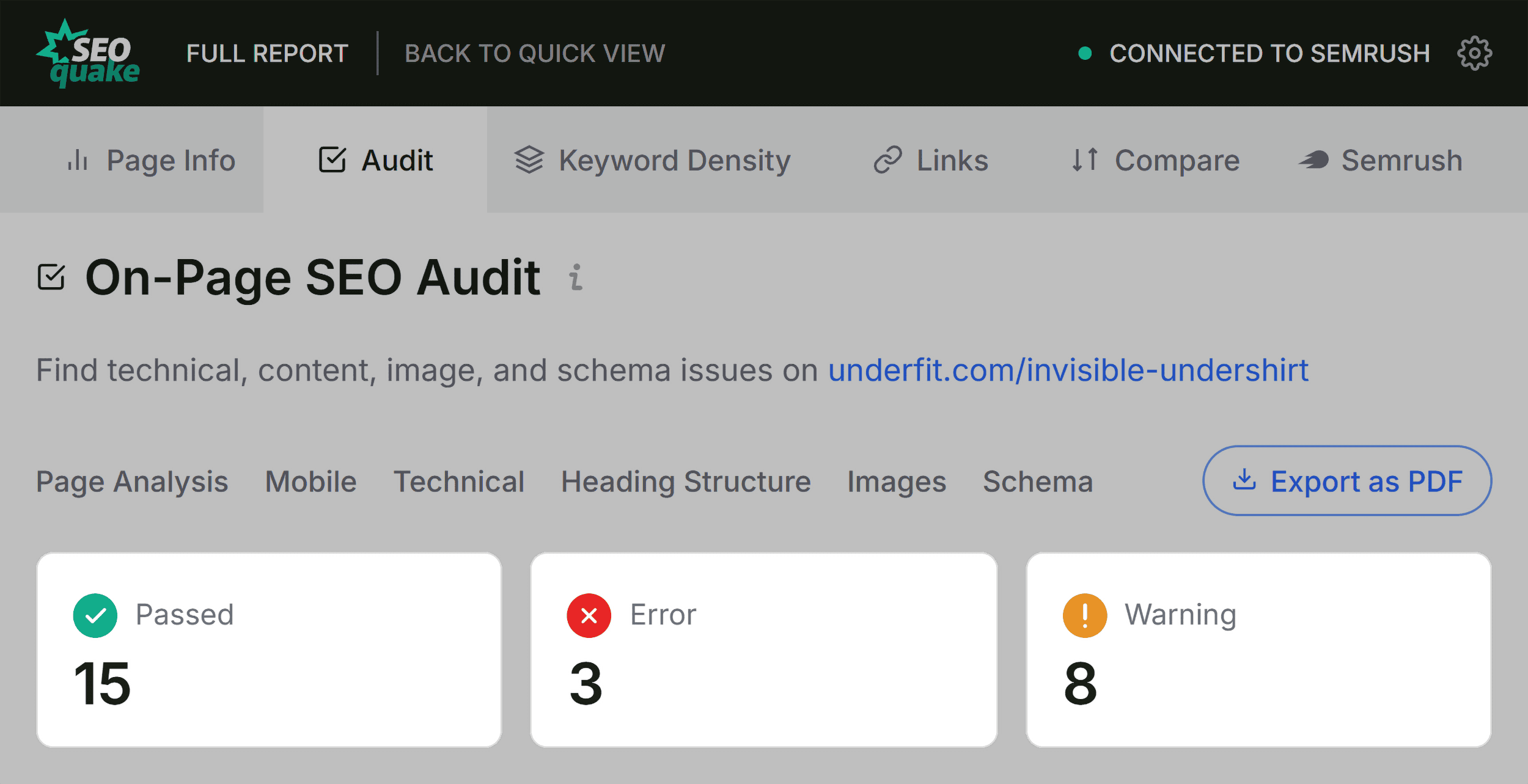
Once installed, simply navigating to a page and clicking the extension icon provides a "Quick View" dashboard. This interface is built for speed, allowing users to move from initial triage to deep-dive diagnosis in as little as three minutes.
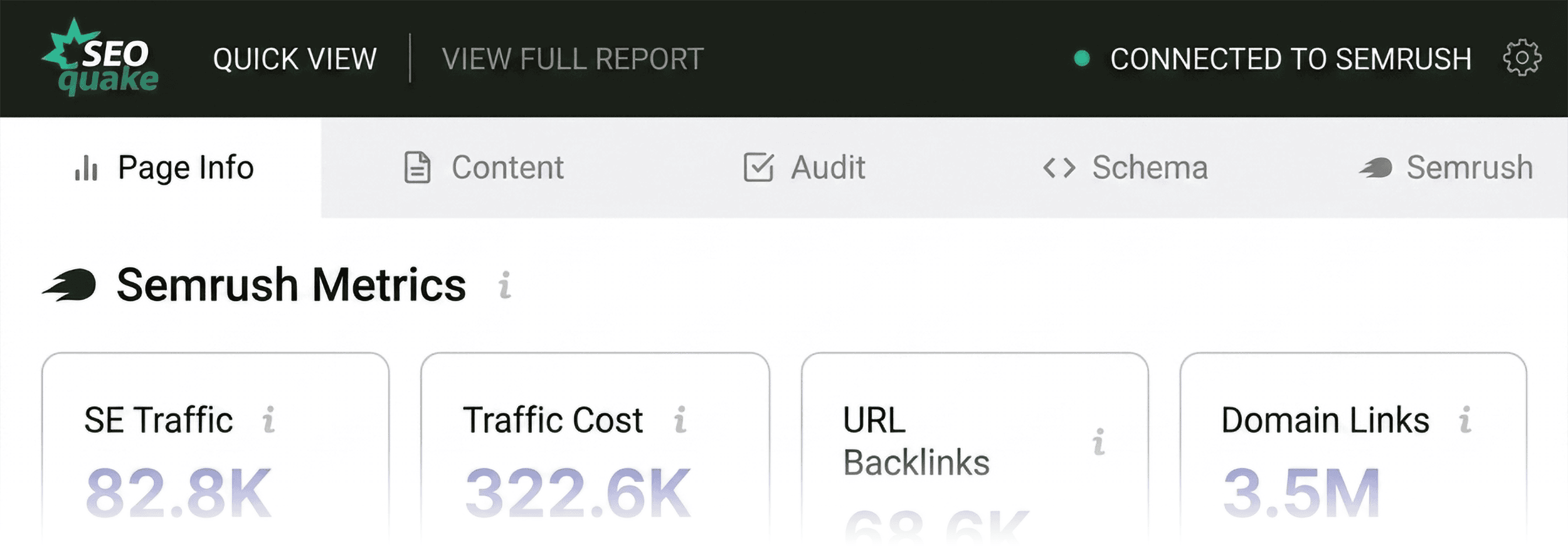
The Triage Phase: Initial Assessment (Minute One)
The first 60 seconds of your audit should be dedicated to answering a single question: Is there something obviously wrong with this page?
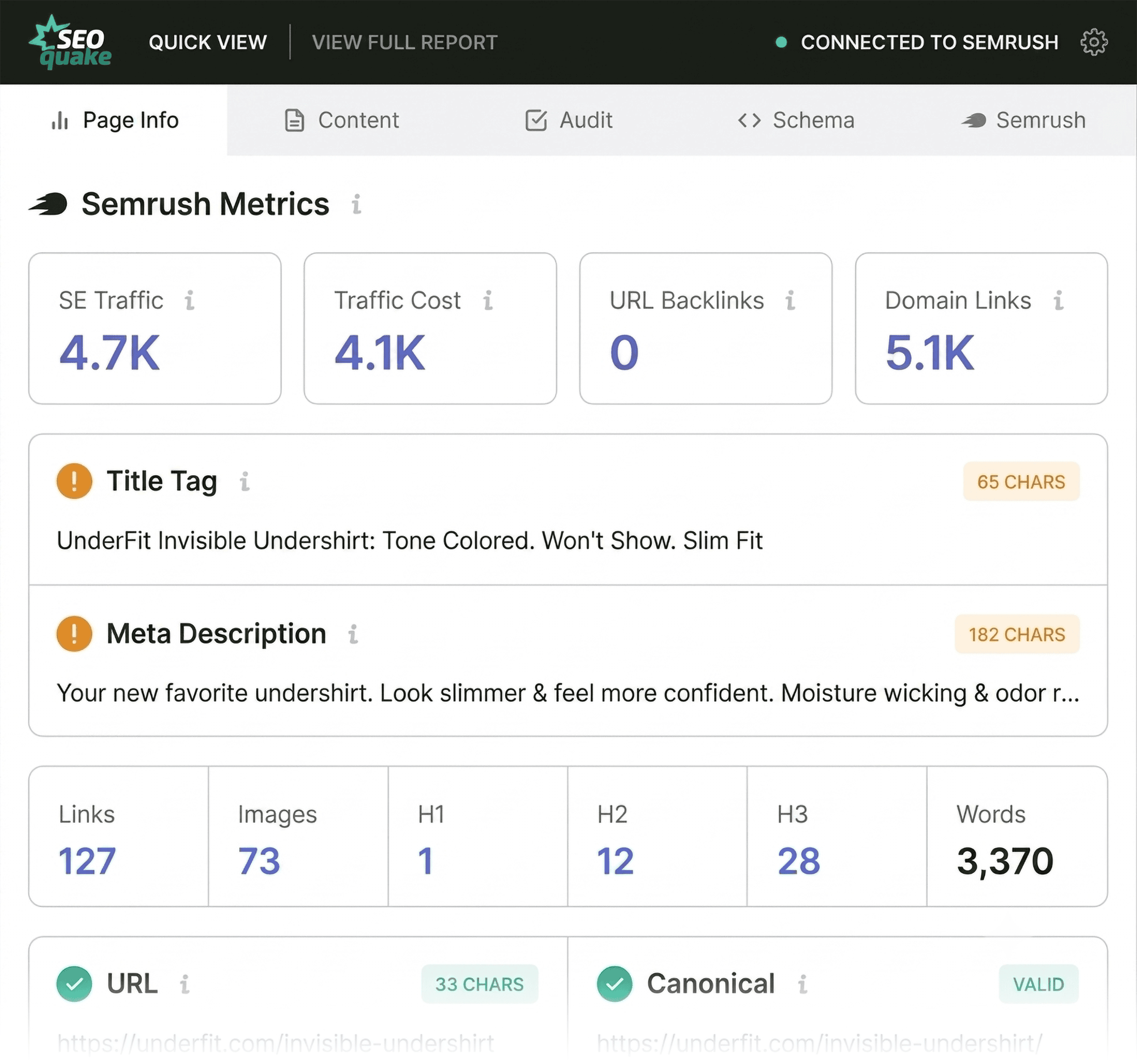
SEOquake categorizes its findings using a color-coded system:
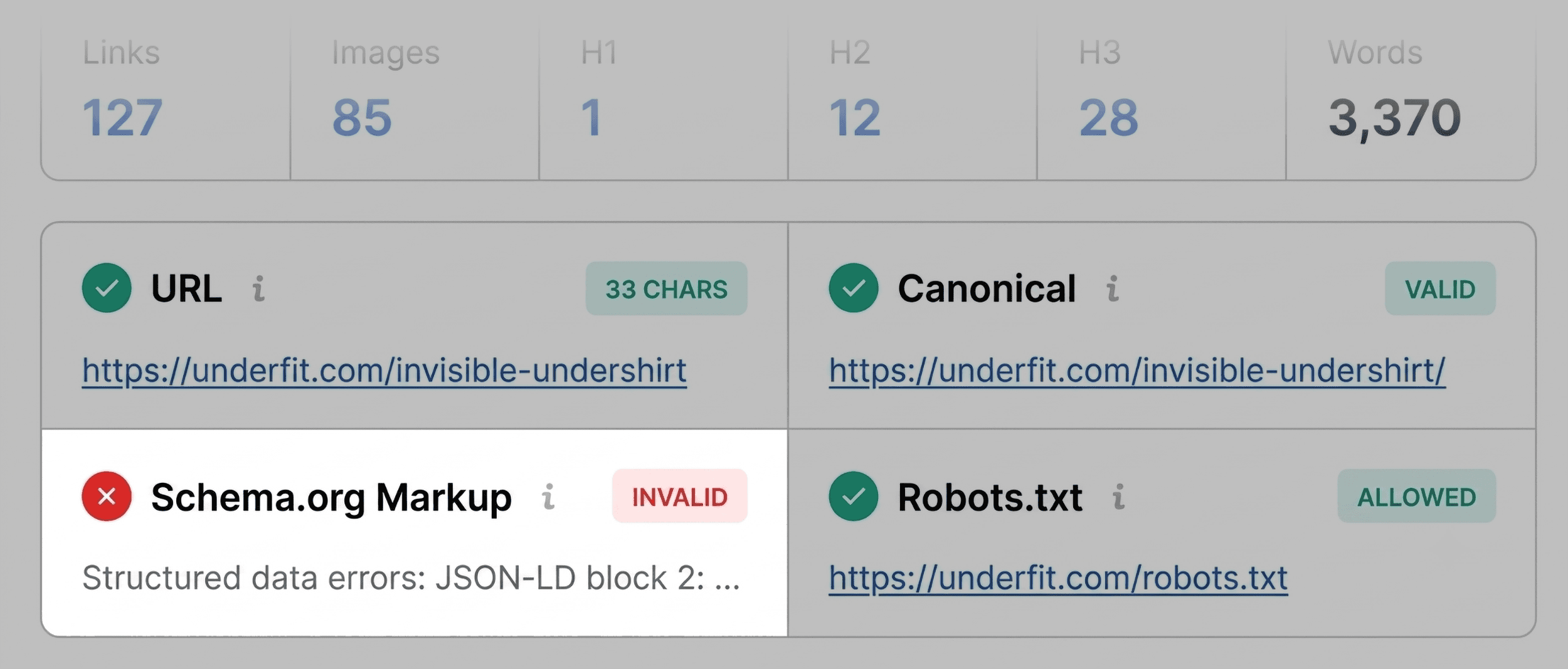
- Green: Everything appears to be in line with standard best practices.
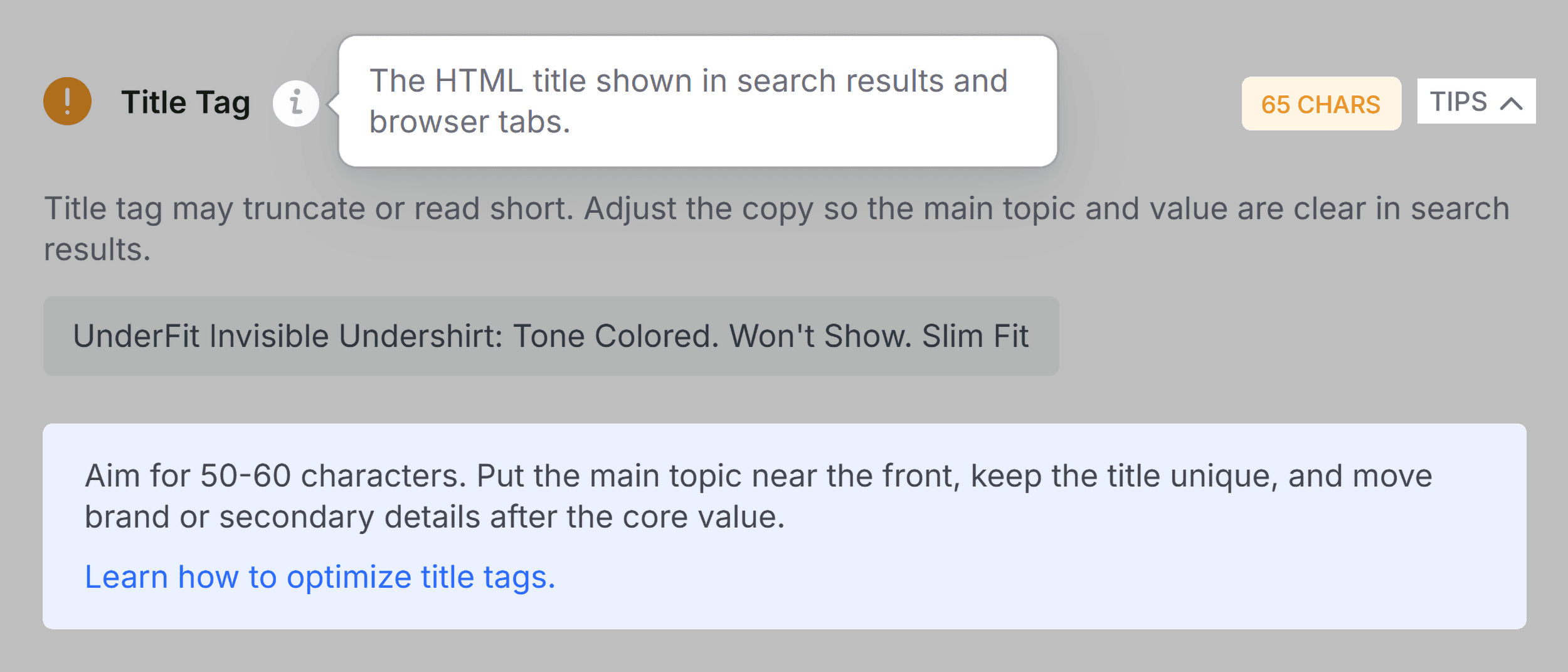
- Orange: These are warnings that require human judgment. They may not be "broken," but they could be impacting your performance.
- Red: These are critical flags. They indicate technical errors or severe misconfigurations that need immediate attention.
The Quick View Workflow
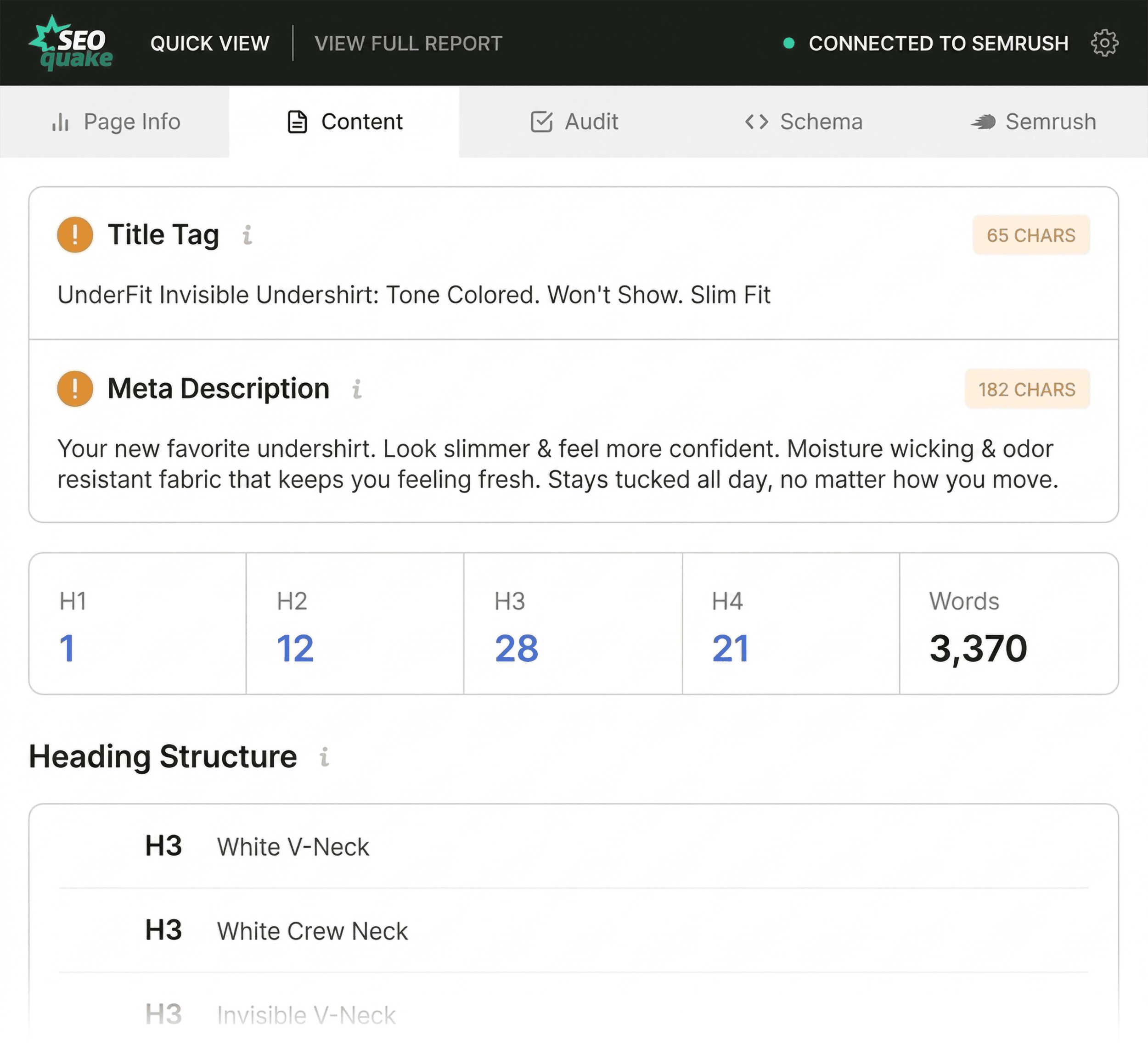
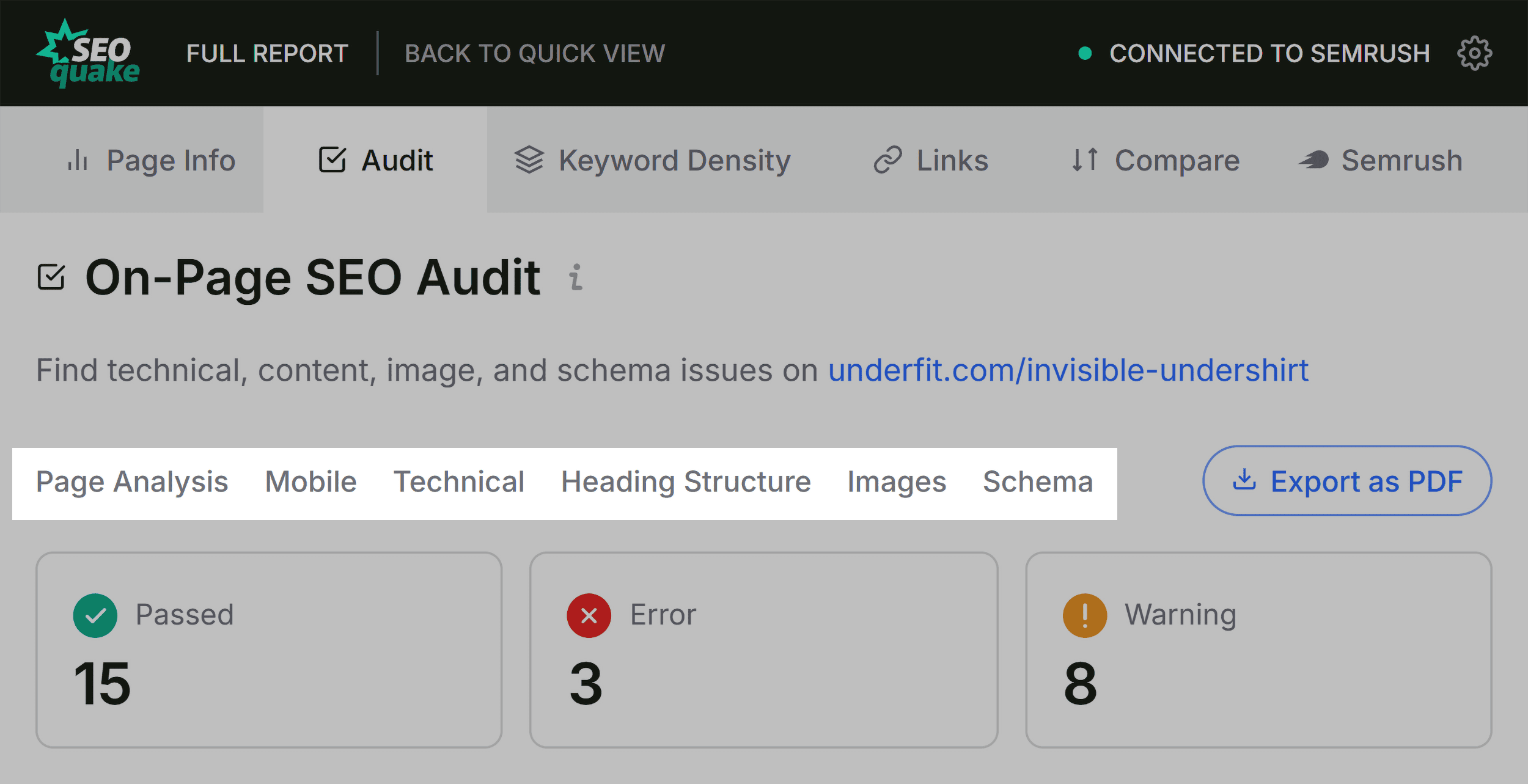
When auditing a page—for example, a product page—you should focus on three specific tabs in the Quick View pop-up: Page Info, Audit, and Content.
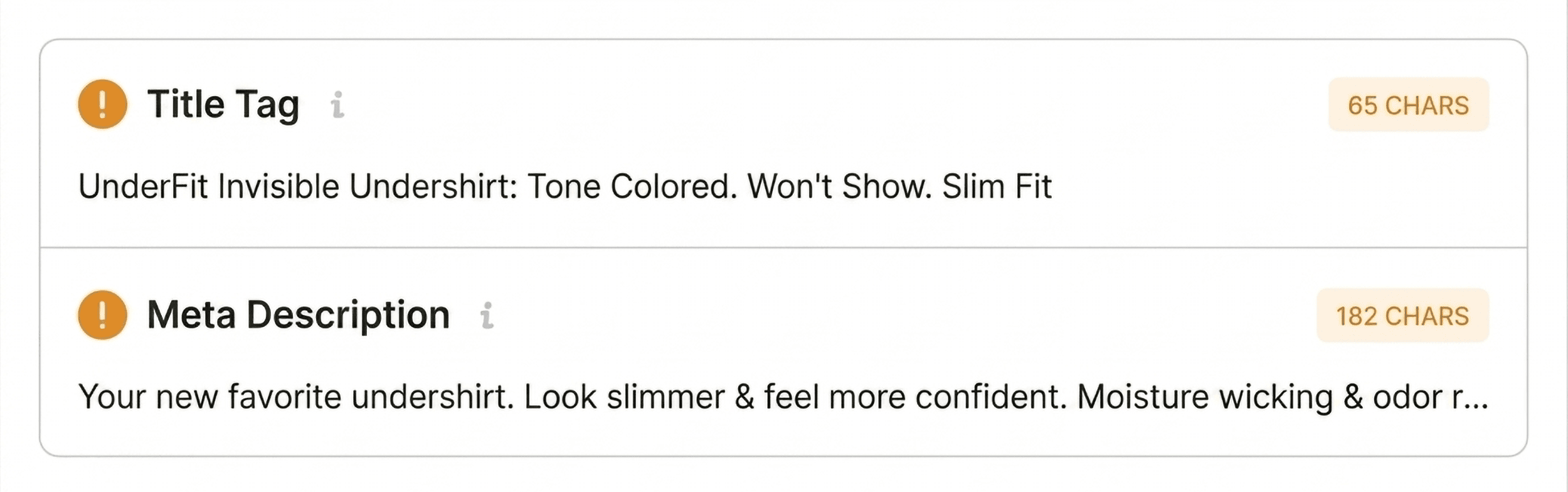
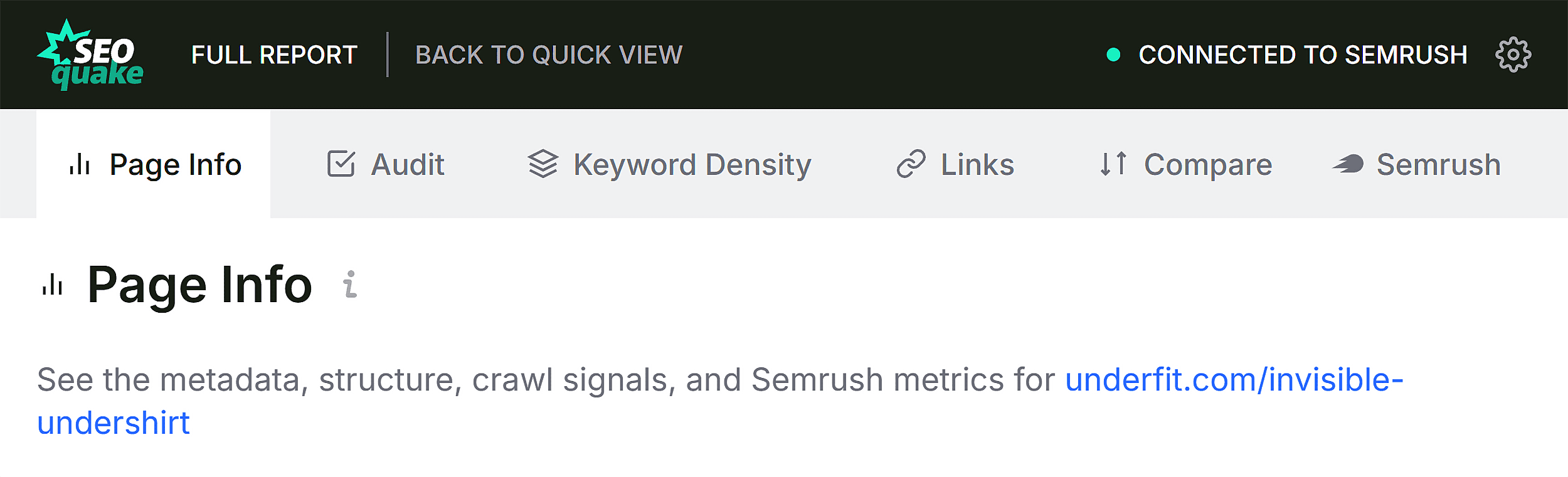
- Page Info: Start here to get a high-level view of core SEO elements. Check the Title tag, Meta Description, canonical URLs, and robots tags. Anything highlighted in red here—such as a missing meta description or a canonical pointing to a different domain—is a "stop-the-presses" issue.
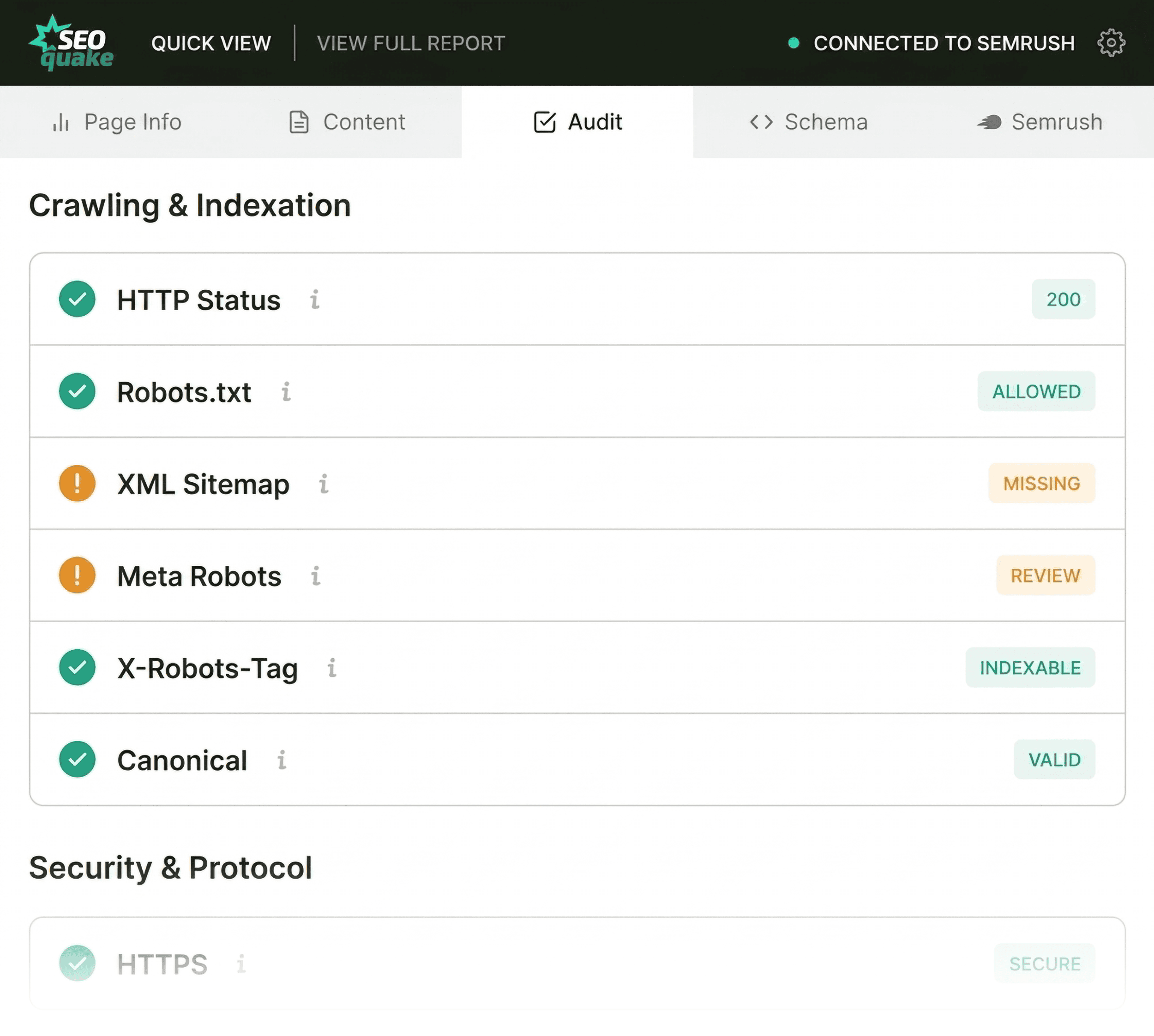
- Audit Tab: This tab is the pulse of the page’s technical health. It checks for mobile responsiveness, HTTPS security, and basic crawlability.
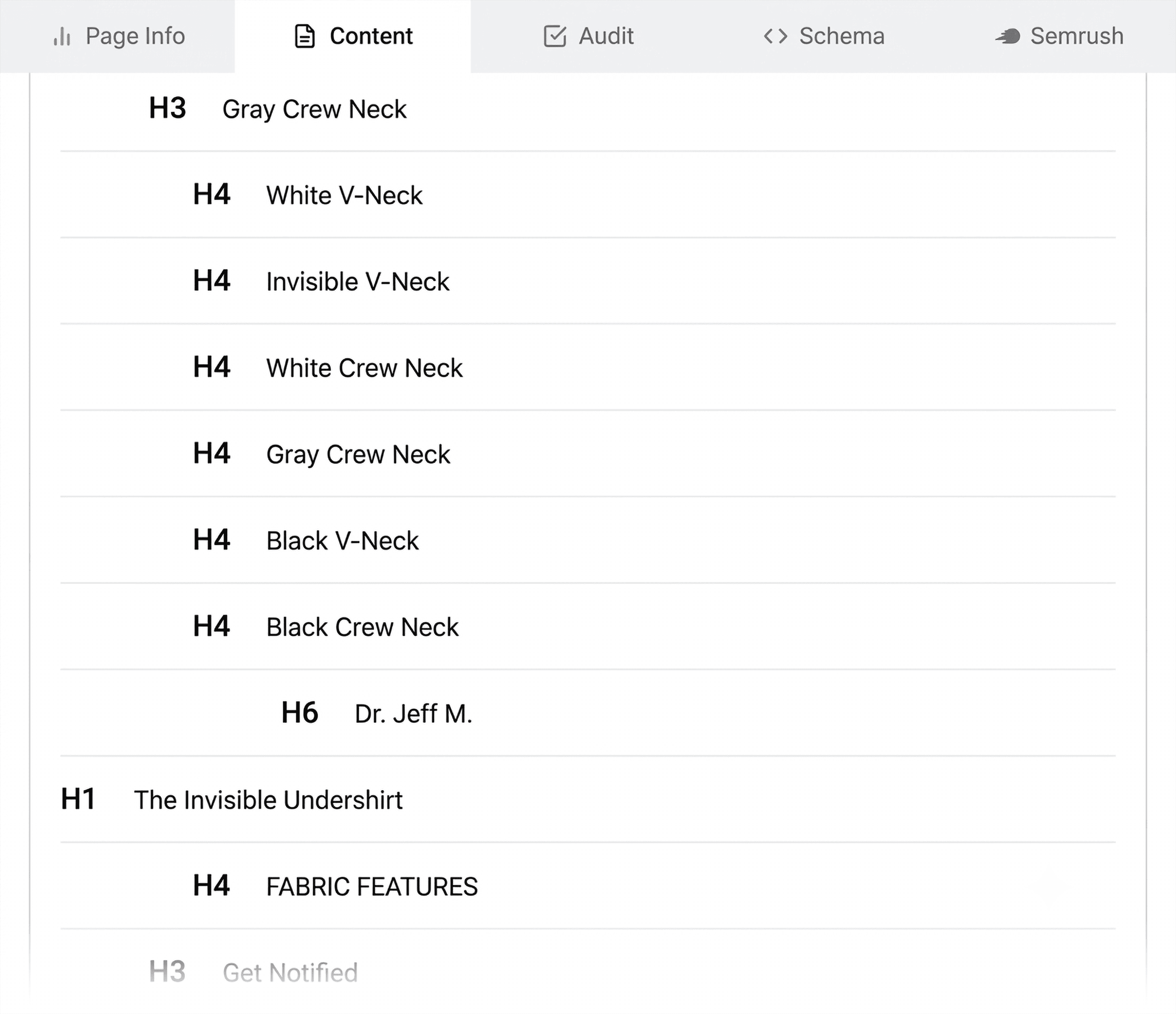
- Content Tab: Use this to verify that the page is structured logically for both users and search engine crawlers. A page with a chaotic heading structure (e.g., jumping from an H1 to an H4) is a prime candidate for optimization.
Diagnosing Issues: The Full Report (Minutes Two and Three)
If the Quick View reveals red or orange flags, it is time to transition from triage to diagnosis using the Full Report. By clicking "View Full Report," you unlock a deeper level of analytical detail.
Investigating Technical Hurdles
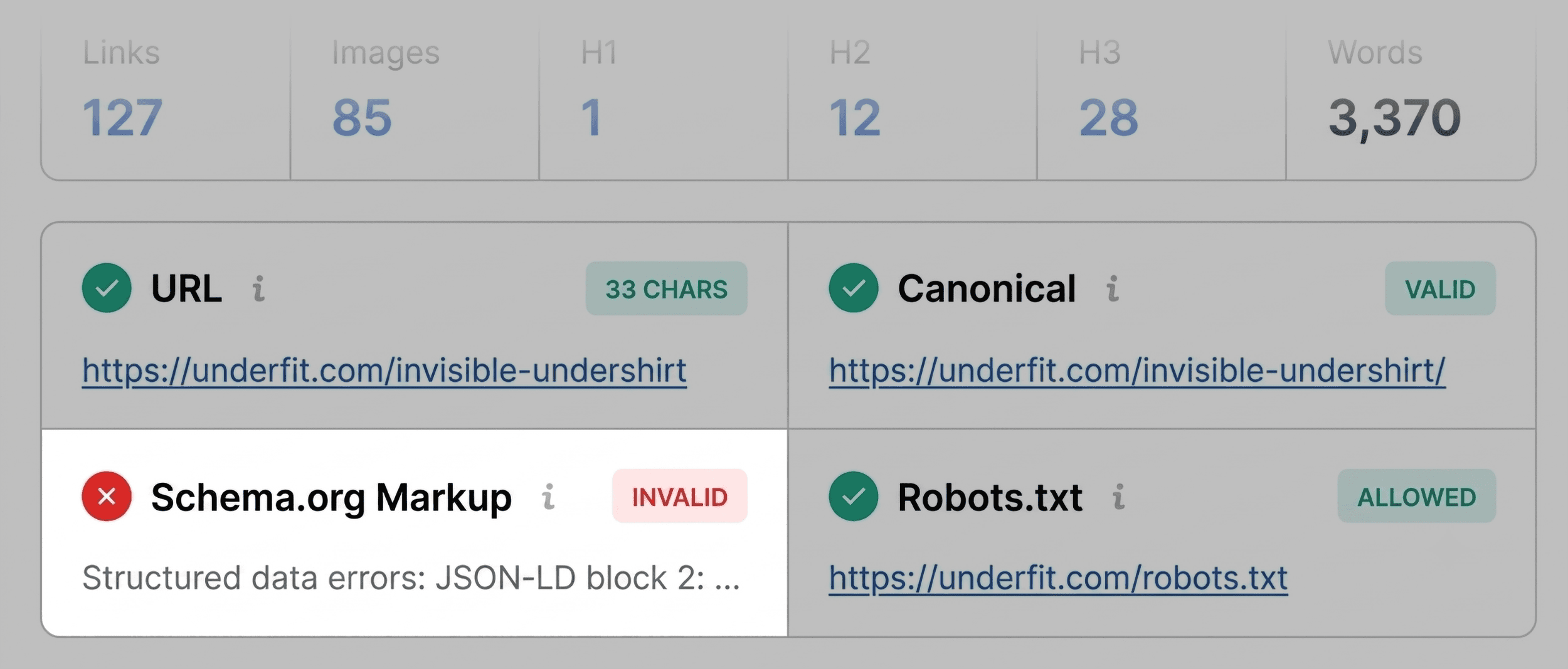
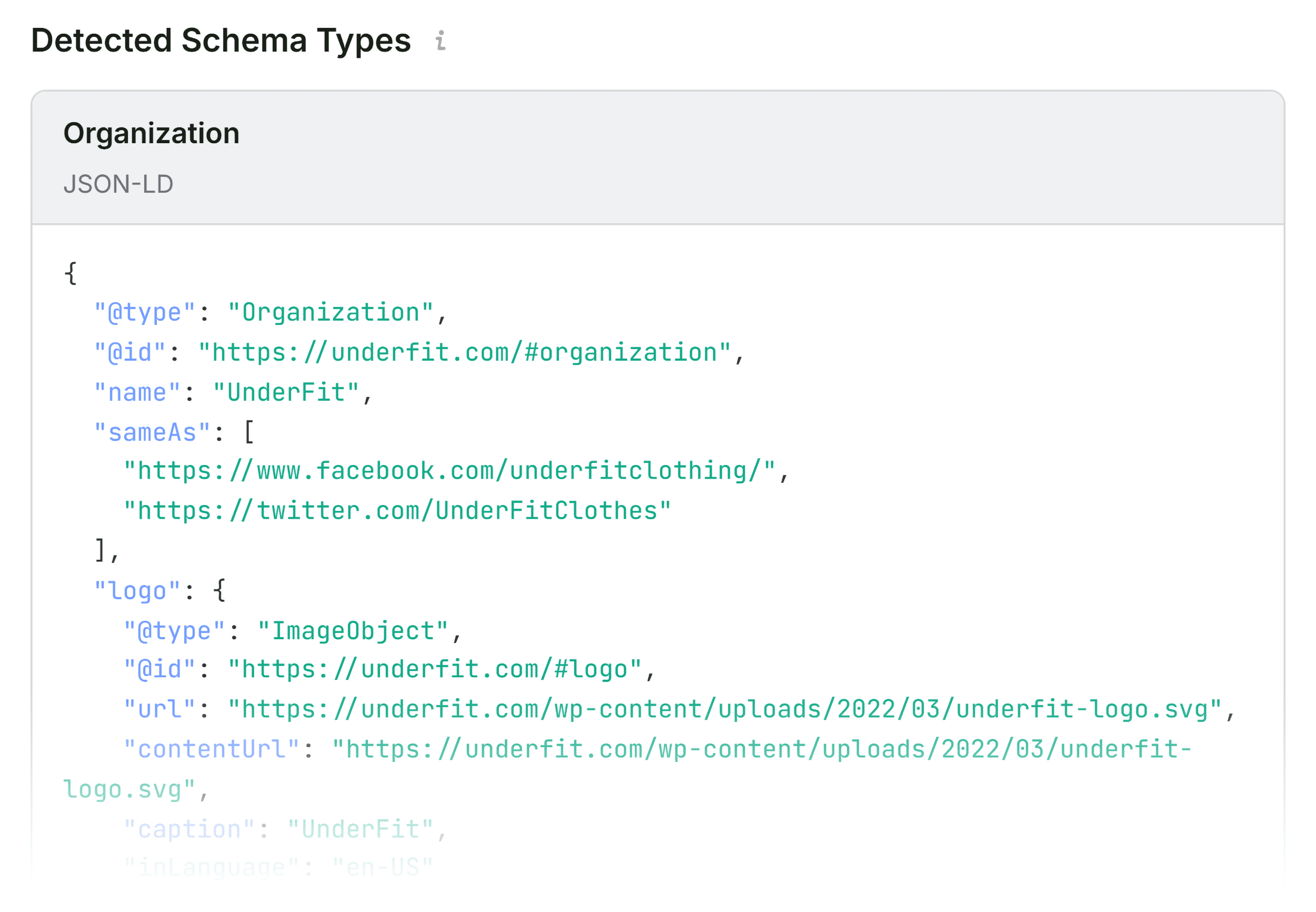
In the Audit panel of the Full Report, you can drill down into specific technical deficiencies. For example, if your Schema markup is flagged in red, it often indicates JSON-LD errors. Invalid Schema can render a page ineligible for "rich results" in Google Search—meaning you lose the ability to display price, availability, or star ratings directly in the SERPs.

When you see these flags, use the "Test in Rich Results" link provided within the report. This will push the URL to Google’s official testing tool, confirming whether the structured data is truly broken or just improperly implemented.
Analyzing Keyword Density and Topic Coverage
If a page is technically sound but still failing to rank, the issue often lies in content relevance. The Keyword Density panel provides a "Keyword Cloud," which visualizes the most prominent terms on the page.
- The Check: Does the keyword cloud match the intent of your target audience? If you are trying to rank for "high-quality leather boots" but the cloud is dominated by "shipping," "cart," and "checkout," you have a content-to-intent mismatch.
- The Nuance: Be aware that SEOquake extracts text from the entire HTML. You may see "zoom" or "click" appear as top keywords; these are often artifacts from image-viewing widgets or navigation buttons. Focus your analysis on the core descriptive copy.
Link Health and External Authority
The Links panel is your primary resource for identifying broken paths. A single 404 error on a page can frustrate a user and signal to a search engine that the page is unmaintained. SEOquake allows you to export your link data to CSV, making it simple to hand off a "fix list" to your development team.
Implications: Page-Level vs. Site-Wide Issues
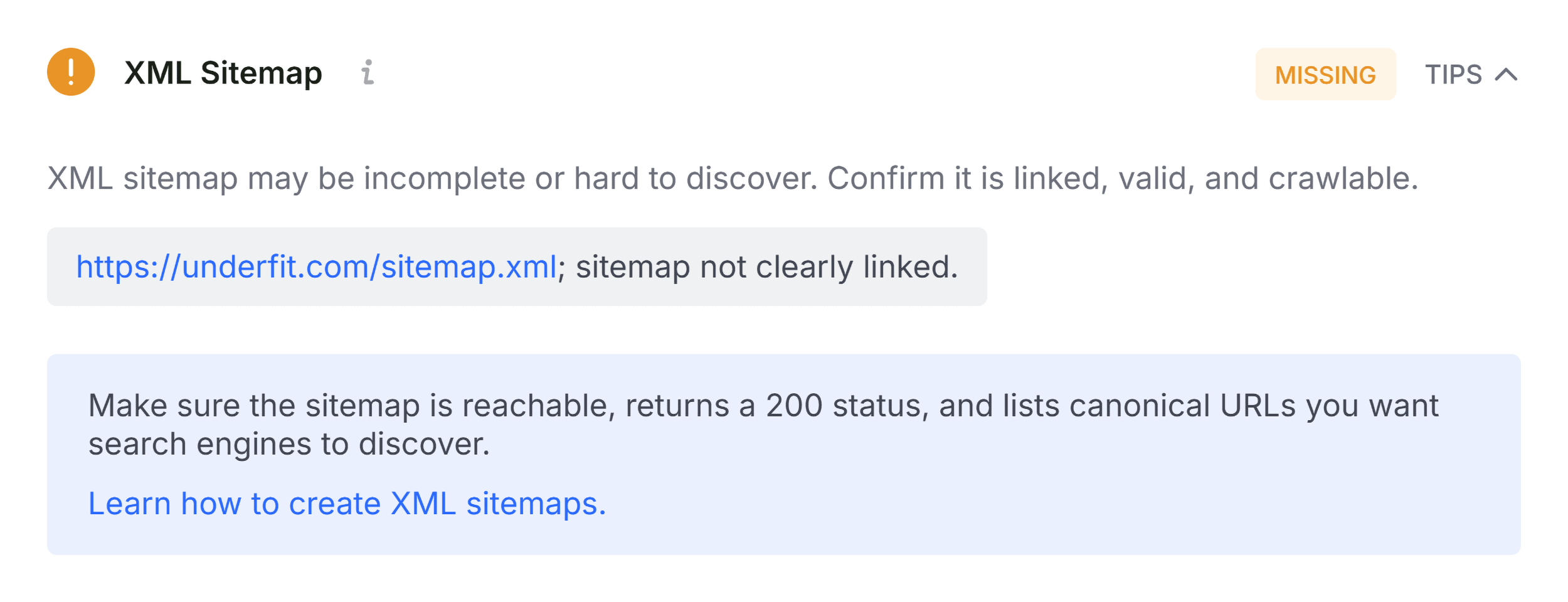
The most important skill in SEO auditing is determining the scope of the problem. If you identify a missing XML sitemap or a site-wide issue with Hreflang tags, that is not a page-level problem; it is a structural failure.
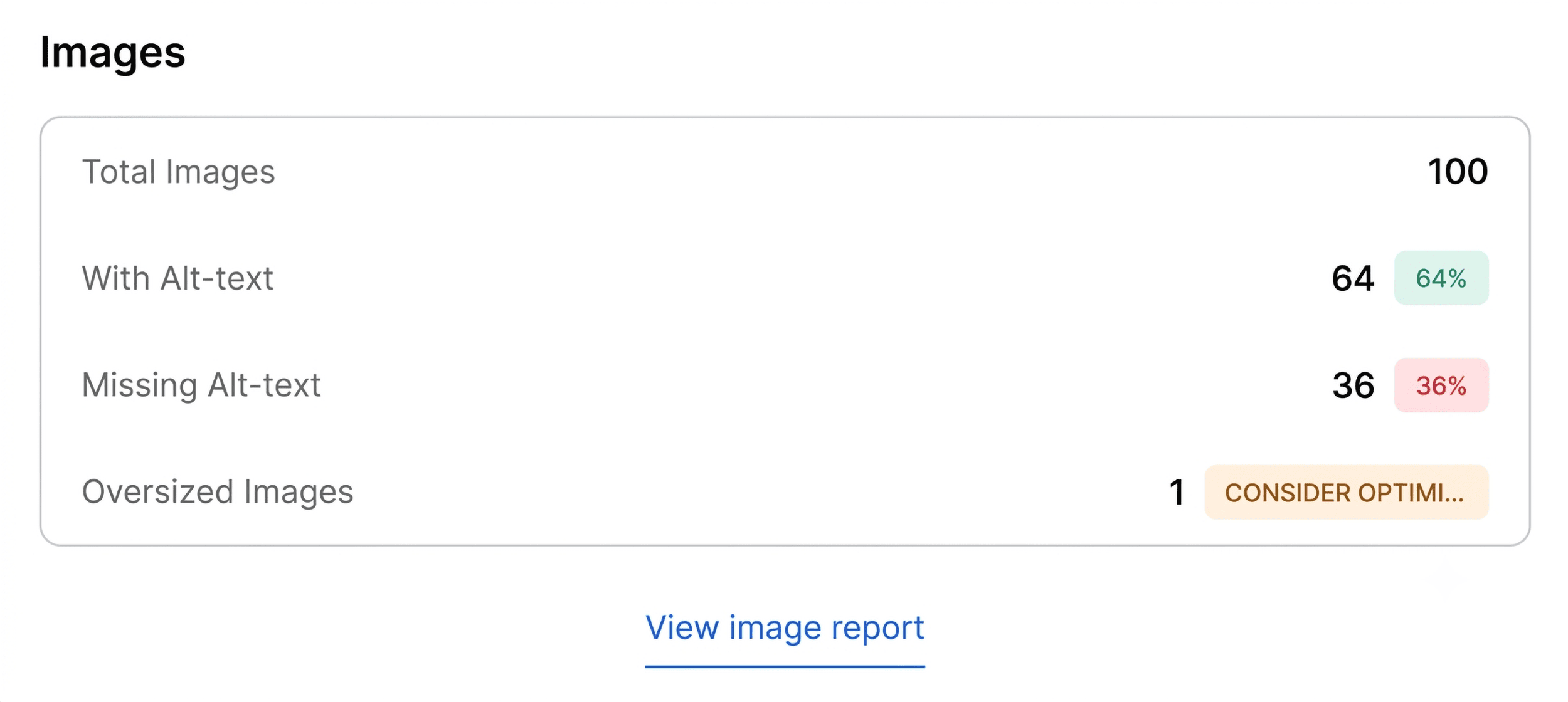
- Page-Level Fixes: If the issue is a missing image alt-tag or a poorly optimized H1, fix it immediately. These are "quick wins" that can yield fast improvements.
- Site-Wide Audits: If the Full Report shows that your entire category structure has broken Schema or missing metadata, do not waste time fixing pages one-by-one. Use the data from your SEOquake report to justify a larger technical audit using a tool like the Semrush Site Audit.
Official Perspective: The Role of Browser-Based Tools
The philosophy behind tools like SEOquake is that SEO should not be an abstract, behind-the-scenes activity. By bringing data directly to the webpage you are looking at, marketers can better empathize with the user experience.
As noted by the development teams at Semrush, the goal is to bridge the gap between complex search algorithms and the day-to-day reality of web management. When you can see the meta-tags, links, and schema as you read the content, you make better, more informed decisions about how to refine your site.
Conclusion: Turning Insights into Action
The three-minute SEO audit is not about replacing deep-dive technical analysis; it is about prioritizing your efforts so that you spend your time where it matters most.
By leveraging the SEOquake Chrome extension, you can:
- Triage: Identify the most damaging issues in under 60 seconds.
- Diagnose: Use the Full Report to pinpoint exactly what needs to be fixed.
- Prioritize: Distinguish between page-level tweaks and structural site-wide repairs.
In an industry that moves as fast as search, having the ability to "see" the technical state of a page instantly is a competitive advantage. Whether you are an agency professional managing dozens of client sites or an in-house marketer keeping your e-commerce storefront in shape, the key to success is consistent, efficient, and data-driven maintenance.
Ready to start? Install the SEOquake extension from the Chrome Web Store today. Once you’ve mastered the page-level audit, you can take your strategy to the next level by starting a free 14-day Semrush trial to access deep-site crawling and competitive intelligence features that go beyond the page.
Disclaimer: Backlinko is owned by Semrush. This content was produced to provide educational insights into SEO workflows and best practices.