In the rapidly evolving landscape of Generative AI, the most significant bottleneck has long been the "walled garden" effect. AI models, while brilliant in their reasoning, were historically confined to a static chat window, unable to touch your local files, query your production databases, or interact with your live code repositories. The Model Context Protocol (MCP), introduced by Anthropic, has dismantled these barriers. By providing a universal standard for AI-to-tool communication, MCP transforms Claude from a mere chatbot into an autonomous agent capable of executing real-world tasks.
This article serves as your definitive guide to understanding, implementing, and optimizing MCP within your professional workflow.
What Is MCP and Why Does It Matter?
The Model Context Protocol (MCP) is an open-source standard designed to solve the "N×M" connectivity problem. Historically, if you wanted to connect an AI model (N) to various external tools like GitHub, Slack, or a PostgreSQL database (M), you needed to build a bespoke integration for every single combination. This resulted in fragmented, high-maintenance codebases.
MCP shifts this paradigm to an "N+M" model. By standardizing how an AI client (the host) communicates with an external service (the server), Anthropic has ensured that a single MCP server built for GitHub can be utilized by Claude Desktop, Cursor, Windsurf, and any other MCP-compliant application.
The Three Pillars of MCP Architecture
Understanding the architecture is critical for troubleshooting and efficient deployment:
- The Host: This is the AI application you interact with, such as Claude Desktop or Claude Code. It manages context, security, and the orchestration of available tools.
- The Client: An internal protocol handler embedded within the host that manages communication with MCP servers.
- The Server: A lightweight, external process that exposes specific capabilities (tools, resources, or prompts) to the AI.
When you issue a command like, "Check my open GitHub PRs," the host identifies the GitHub MCP server, sends the request via the protocol, the server executes the API call, and returns the result to Claude—all in under a second.
Chronology of Development
- November 2024: Anthropic launches the Model Context Protocol, marking the transition from static LLMs to agentic AI.
- Early 2026: Introduction of "Desktop Extensions" (.mcpb files), moving beyond manual JSON configuration for non-technical users.
- April 2026: Official deprecation of SSE (Server-Sent Events) transport in favor of the more efficient Streamable HTTP, standardizing high-speed communication.
- May 2026: The ecosystem expands to over 2,300 public MCP servers, ranging from simple file explorers to complex browser automation tools.
Claude Desktop: Step-by-Step Setup
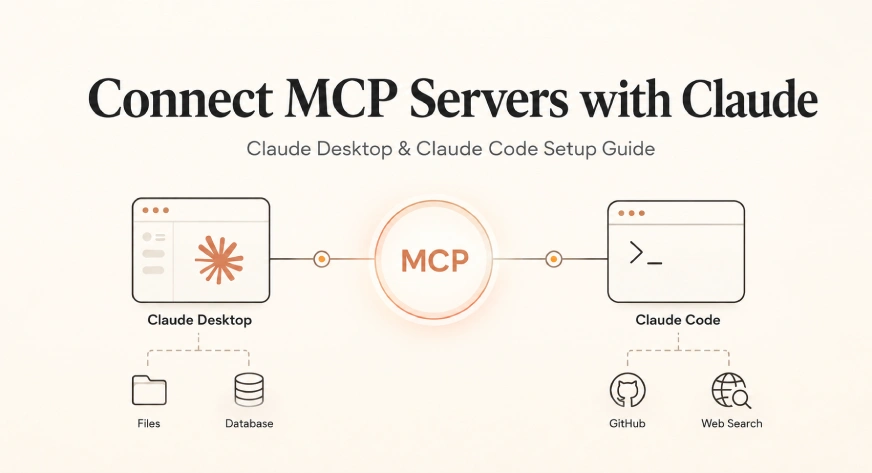
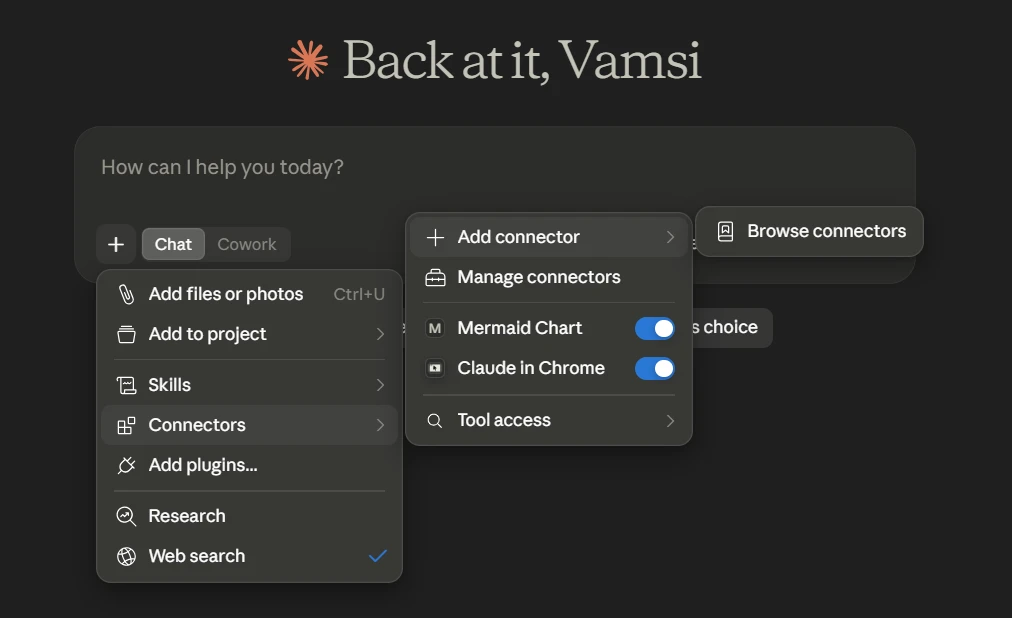
Claude Desktop serves as the primary gateway for most users. You can configure it via the user-friendly Desktop Extensions or the granular JSON configuration file.
Method 1: Desktop Extensions (The "Set and Forget" Approach)
Designed for accessibility, Desktop Extensions (.mcpb files) allow you to install tools with a simple double-click. This eliminates common pitfalls like pathing issues or missing Node.js dependencies. It is the ideal path for standard integrations where custom environment variables are not required.
Method 2: The JSON Configuration Method
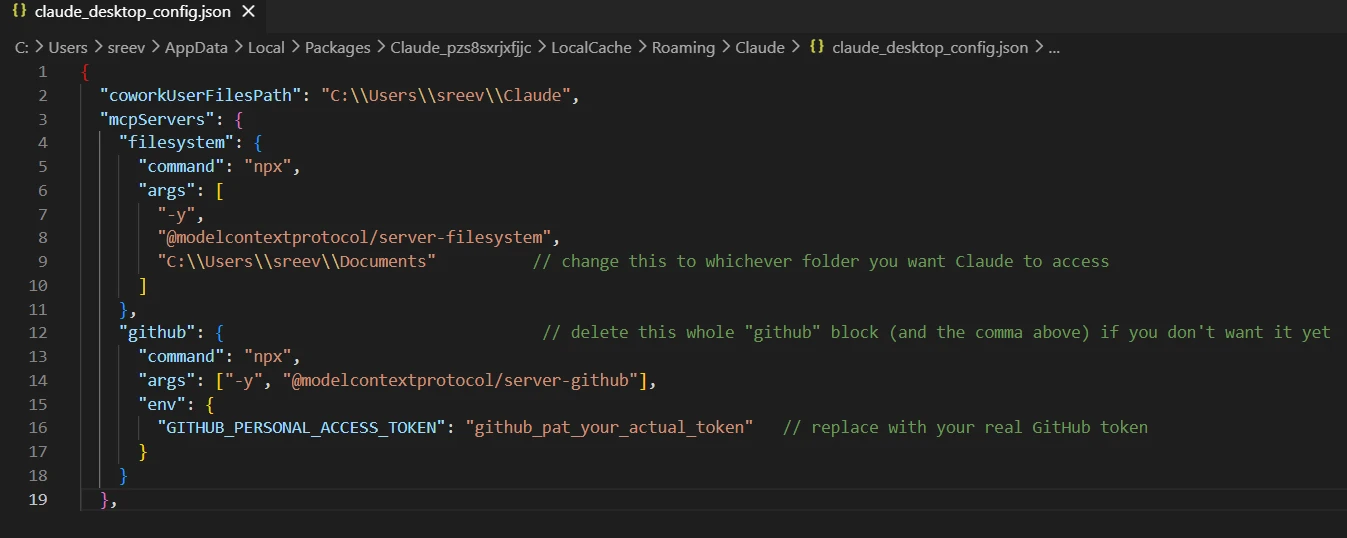
For power users, system administrators, or developers managing complex local environments, the claude_desktop_config.json file is the source of truth.
Locating the File:
- macOS:
~/Library/Application Support/Claude/claude_desktop_config.json - Windows (Standard):
%APPDATA%Claudeclaude_desktop_config.json - Windows (Store/MSIX): Often redirected to a specific app-package folder. If the standard path fails, use the Settings > Developer > Edit Config menu inside the Claude Desktop app to let the system generate the file at the correct location.
Pro Tip: When working in Windows, ensure all backslashes in paths are escaped (e.g., C:\Users\Project). A single backslash will trigger a JSON syntax error, causing the entire configuration to fail silently.
Claude Code: CLI-Driven Productivity
For developers living in the terminal, Claude Code provides a more robust, command-line-first experience. Unlike the Desktop app, Claude Code allows for project-specific configurations via an .mcp.json file, ensuring that your tools follow your codebase.
Adding a Server:
To add a tool, use the command:
claude mcp add <server-name> -- <command> [args...]
Deployment Scopes:
- Local (Default): Stored in
~/.claude.json. Best for your personal machine-wide tools. - Project: Stored in
.mcp.jsonat the project root. Essential for team-shared tools (e.g., Jira or Linear). - User: Applied globally across all projects, perfect for core utilities like Git or filesystem access.
Supporting Data: Recommended MCP Servers
Not all servers are created equal. With thousands of options available, bloating your environment can lead to performance degradation, as the AI must parse every tool definition, consuming valuable context window space.
| Server | Use Case | Recommended For |
|---|---|---|
| GitHub | PR reviews, issue management | All developers |
| Filesystem | Local file manipulation | Everyone |
| Brave Search | Real-time web research | Research tasks |
| Postgres | Database querying | Backend/Data teams |
| Playwright | Browser automation | QA/Frontend engineers |
Optimization Strategy: Limit your active MCP servers to 3–5. Excessive tool definitions consume 30–40% of the context window, which can make Claude feel "sluggish" or lead to hallucinations in tool selection.
Official Responses and Security Implications
Anthropic emphasizes that while MCP empowers the AI, it places the responsibility of security on the user. Always adhere to the principle of least privilege.
- Scoped Permissions: When setting up a server, grant only read access if writing is not required.
- Environment Variables: Never hardcode sensitive tokens in the JSON file. Use environment variables to inject your API keys at runtime.
- Human-in-the-loop: Treat MCP-enabled AI as an assistant, not a manager. Review all PRs, database deletions, or file system changes initiated by the AI before confirming them.
Troubleshooting Common Failures
If your integration isn’t working, follow this hierarchy of debugging:
- Validate JSON: If your configuration file has a single missing comma, no servers will load. Use tools like
jsonlint.comto verify syntax. - Use Absolute Paths: Never use
~/or./. Always provide the full absolute path (e.g.,/Users/username/projects/) to ensure the server starts correctly. - Check Terminal Errors: If a server fails to connect, do not rely on the Claude UI. Run the exact command defined in your config directly in your terminal. The standard output (stdout) will almost always reveal the specific failure (e.g., "Command not found" or "Auth token missing").
- Timeout Adjustments: For heavy servers, use
MCP_TIMEOUT=60000to allow the process more time to initialize.
Implications for the Future of Work
The rise of MCP signals a move toward Agentic Workflows. We are shifting away from the era of "Copy-Paste AI"—where you copy code from a chat, paste it into an IDE, run it, and see it fail—toward an era of Integrated Execution.
By allowing Claude to "see" your file structure, read your logs, and run tests, you are essentially providing it with an eyes-on, hands-on understanding of your project. This reduces the cognitive load on the developer, as the AI no longer requires you to describe the state of your system; it can simply query it.
As the ecosystem matures, we expect to see more "enterprise-grade" MCP servers that integrate with internal proprietary tools, further cementing the role of AI as a collaborative partner rather than a standalone tool.
Conclusion
The Model Context Protocol is not just a feature; it is the infrastructure that will define the next generation of software development. By following the steps outlined in this guide—starting with a lean set of servers, maintaining secure configuration practices, and utilizing the correct installation methods—you can turn your development environment into a high-octane, AI-augmented workspace.
Start small, prioritize security, and let Claude handle the plumbing while you focus on the architecture.