
The artificial intelligence landscape has shifted decisively from passive chat interfaces to active, agentic workflows. At the forefront of this revolution is Claude Code, an advanced command-line interface (CLI) tool designed to transform your local terminal into a powerhouse of development productivity. While the buzz surrounding its rapid consumption of usage limits has dominated social media discourse, the true value of Claude Code lies in its ability to execute complex coding tasks, debug repositories, and manage project files directly from your machine.
For many developers accustomed to the web-based Claude interface, the jump to a terminal-centric workflow can feel intimidating. This guide bridges that gap, providing a meticulous, step-by-step walkthrough to get you up and running with Claude Code, ensuring you understand not just how to install it, but how to integrate it securely into your daily development cycle.
The Rise of Agentic Coding: Understanding the Core Value
Claude Code is not merely a chatbot in a shell; it is an intelligent agent capable of reading, writing, and executing code within your local filesystem. By moving the interaction from a browser window to your terminal, you remove the latency of copy-pasting code snippets and allow the AI to interact with your environment directly.
The "usage limit" conversation, while anecdotal, underscores a critical reality: Claude Code is highly efficient and capable of performing deep architectural tasks in seconds that would take a human developer hours. As such, it is designed for power users who need to automate repetitive tasks, perform bulk refactoring, or troubleshoot complex dependency issues.
Installation: A Multi-Platform Approach
Installing Claude Code is a streamlined process that avoids the traditional overhead of complex environment management. It is designed to be lightweight and platform-agnostic, provided you have a Unix-like environment or Windows.
1. The Installation Command
No administrative privileges are required for the installation, as the tool is designed to live within your user directory. Depending on your operating system, use the corresponding command:
- For macOS, Linux, and WSL (Windows Subsystem for Linux):
Open your terminal and run:
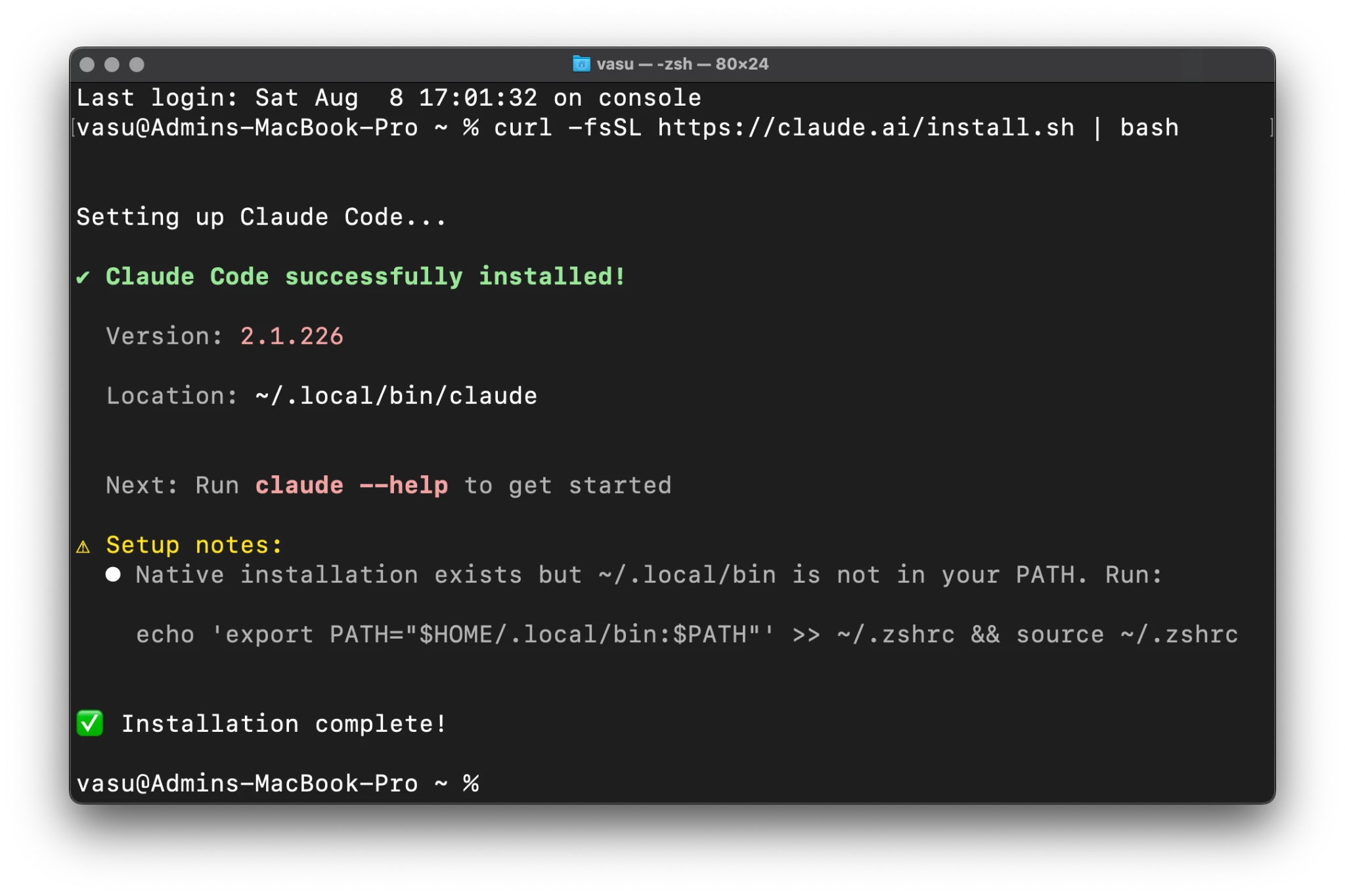
curl -fsSL https://claude.ai/install.sh | bash - For Windows (PowerShell):
irm https://claude.ai/install.ps1 | iex - For Windows (CMD):
curl -fsSL https://claude.ai/install.cmd -o install.cmd && install.cmd && del install.cmd
Upon execution, the terminal will confirm the installation. If you receive a yellow setup notification, take note of it—it indicates that your system may require manual path configuration to ensure the command is globally accessible.
2. Configuring your PATH
If, after installation, your terminal returns a "command not found" error, it is likely because the installation directory is not in your system’s PATH. To rectify this on macOS (using Zsh), run:
echo 'export PATH="$HOME/.local/bin:$PATH"' >> ~/.zshrc && source ~/.zshrc
(For Bash users, simply substitute ~/.zshrc with ~/.bashrc.)
3. Verification and Diagnostic Tools
Once installed, verify the installation by checking the version:
claude --version
If you encounter unexpected behavior, Anthropic has included a diagnostic tool. Run claude doctor to receive a comprehensive health check of your installation, including configuration issues and network connectivity statuses.
First Run and Configuration
Once the installation is complete, navigate to the root directory of the project you wish to work on:
cd ~/your-project
Launch the tool by simply typing claude.
The Setup Wizard
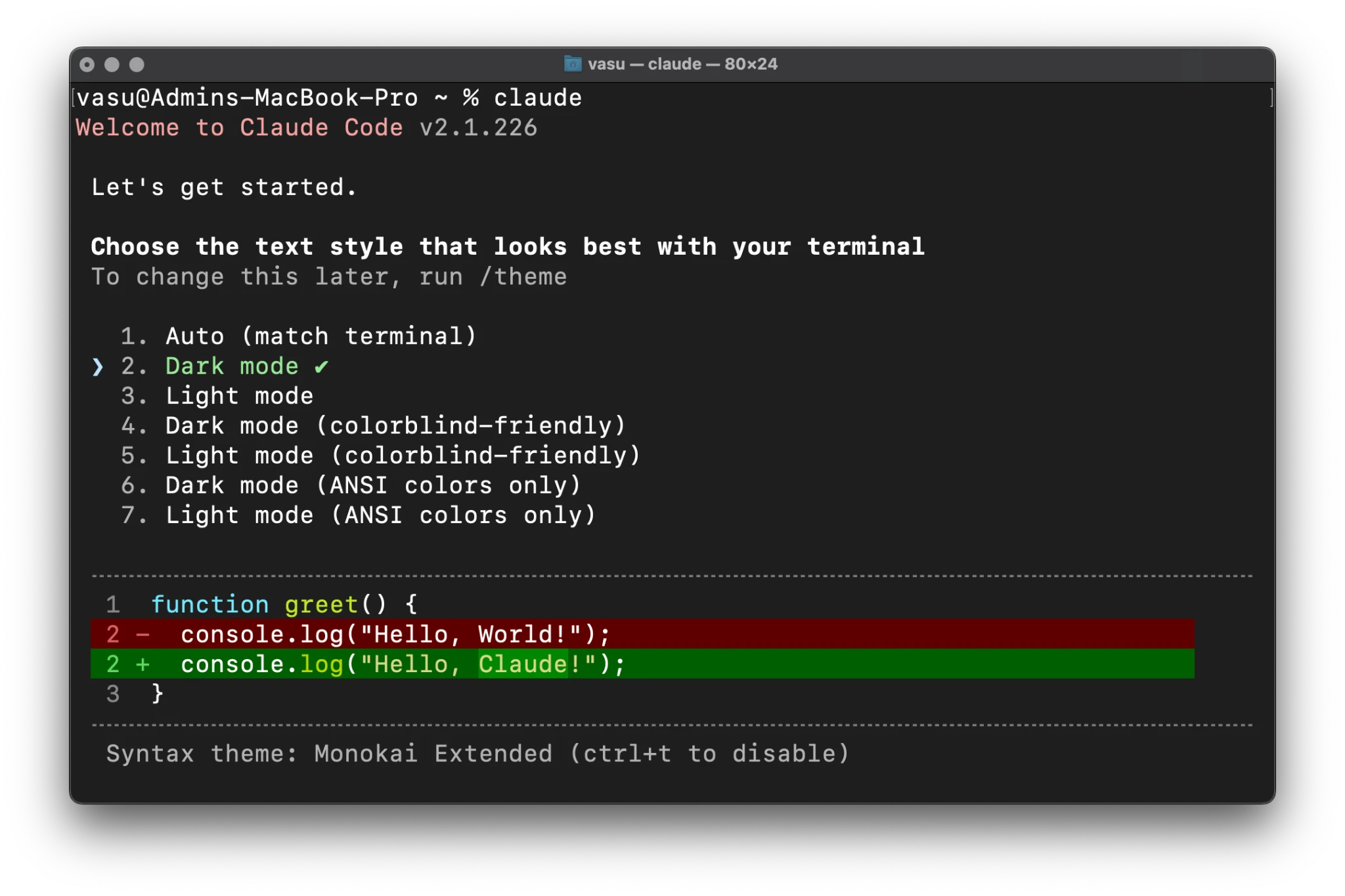
The initial launch will guide you through a series of setup steps to personalize your experience:
- Theme Selection: You will be prompted to select a color theme using your arrow keys. This is fully customizable later via the
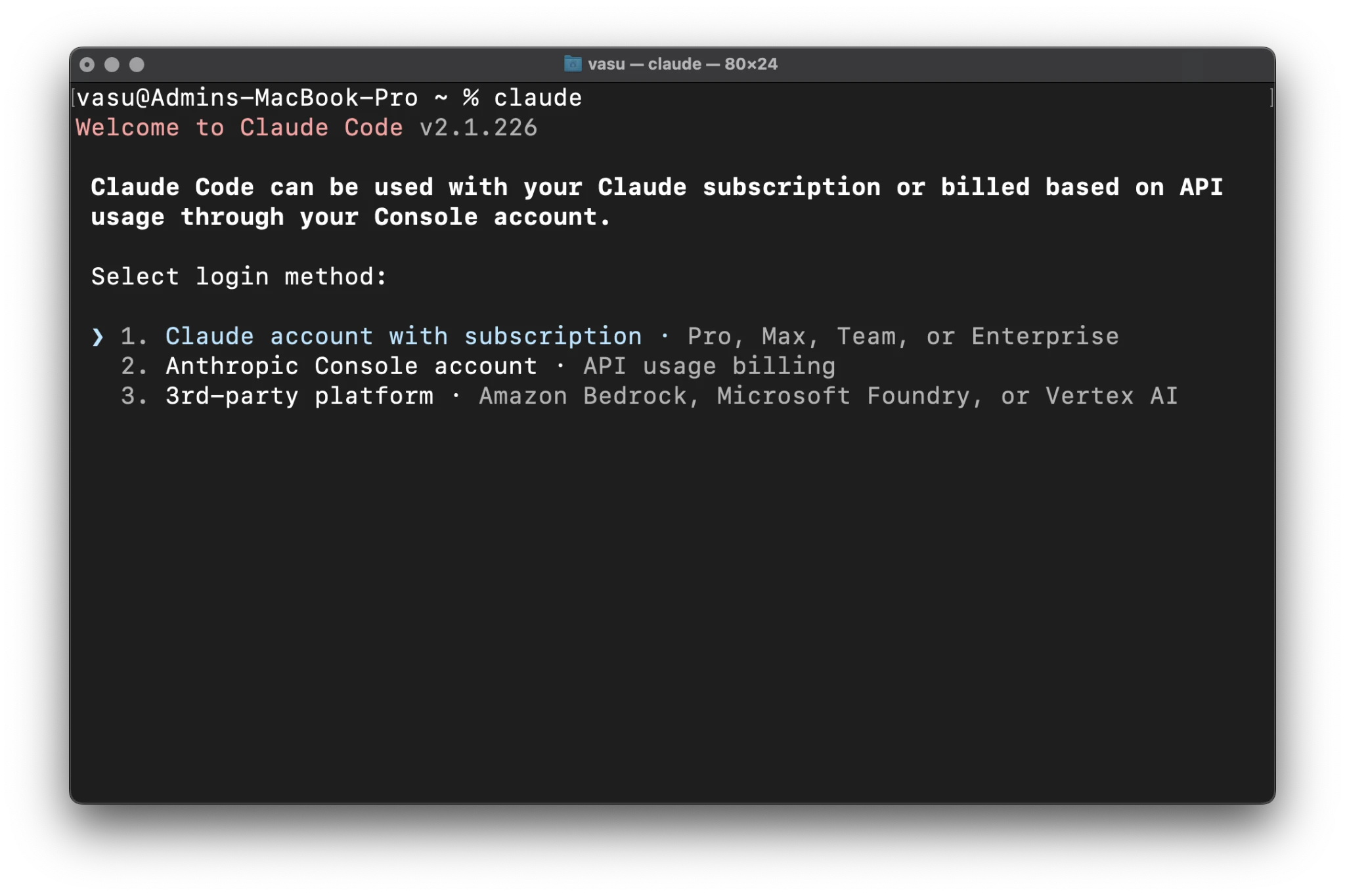
/themecommand. There are specific options for colorblind users and standard ANSI-only modes. - Authentication: Claude Code requires an active subscription. You will choose between a standard Claude Pro/Team subscription or an API-billing model through the Anthropic Console.
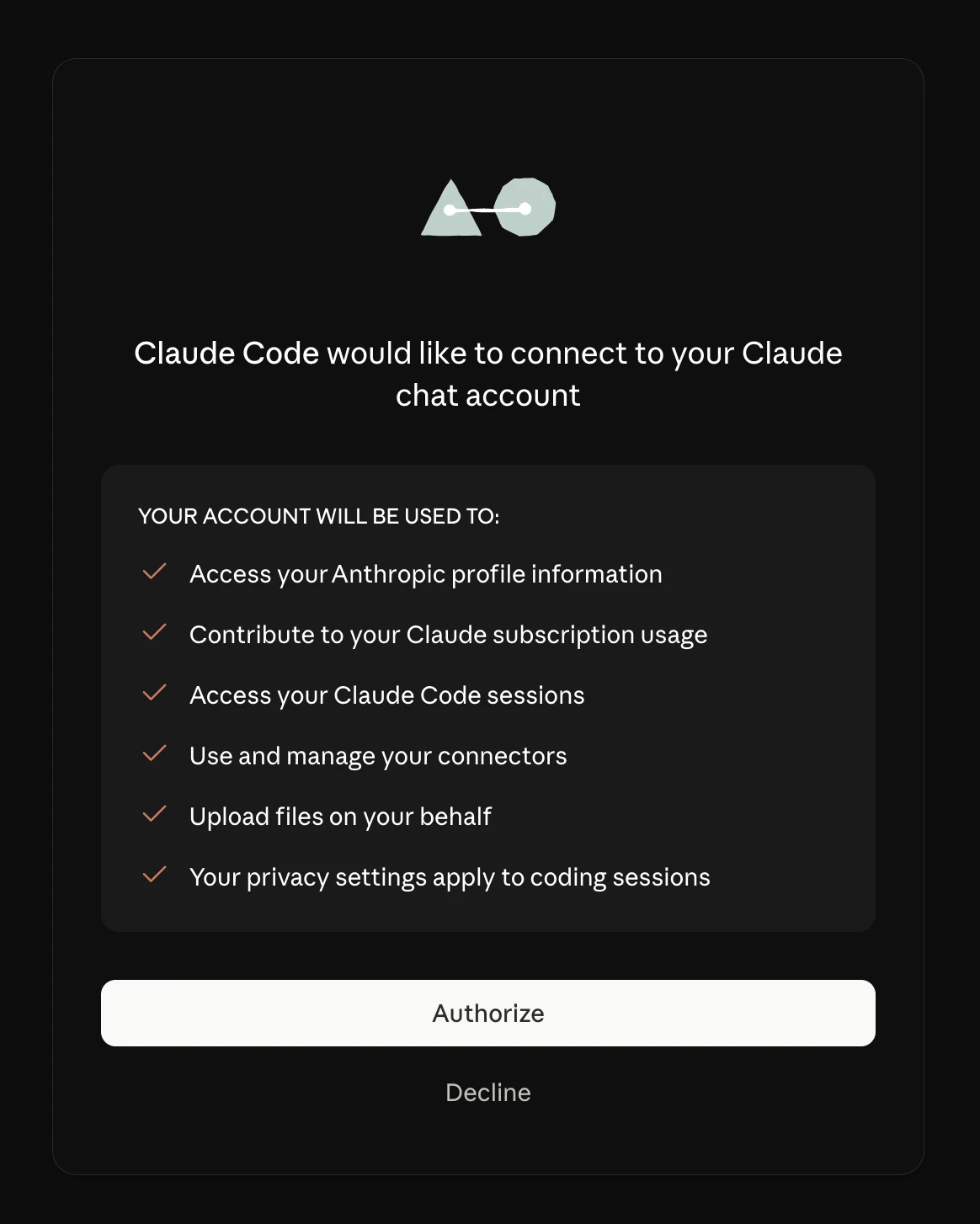
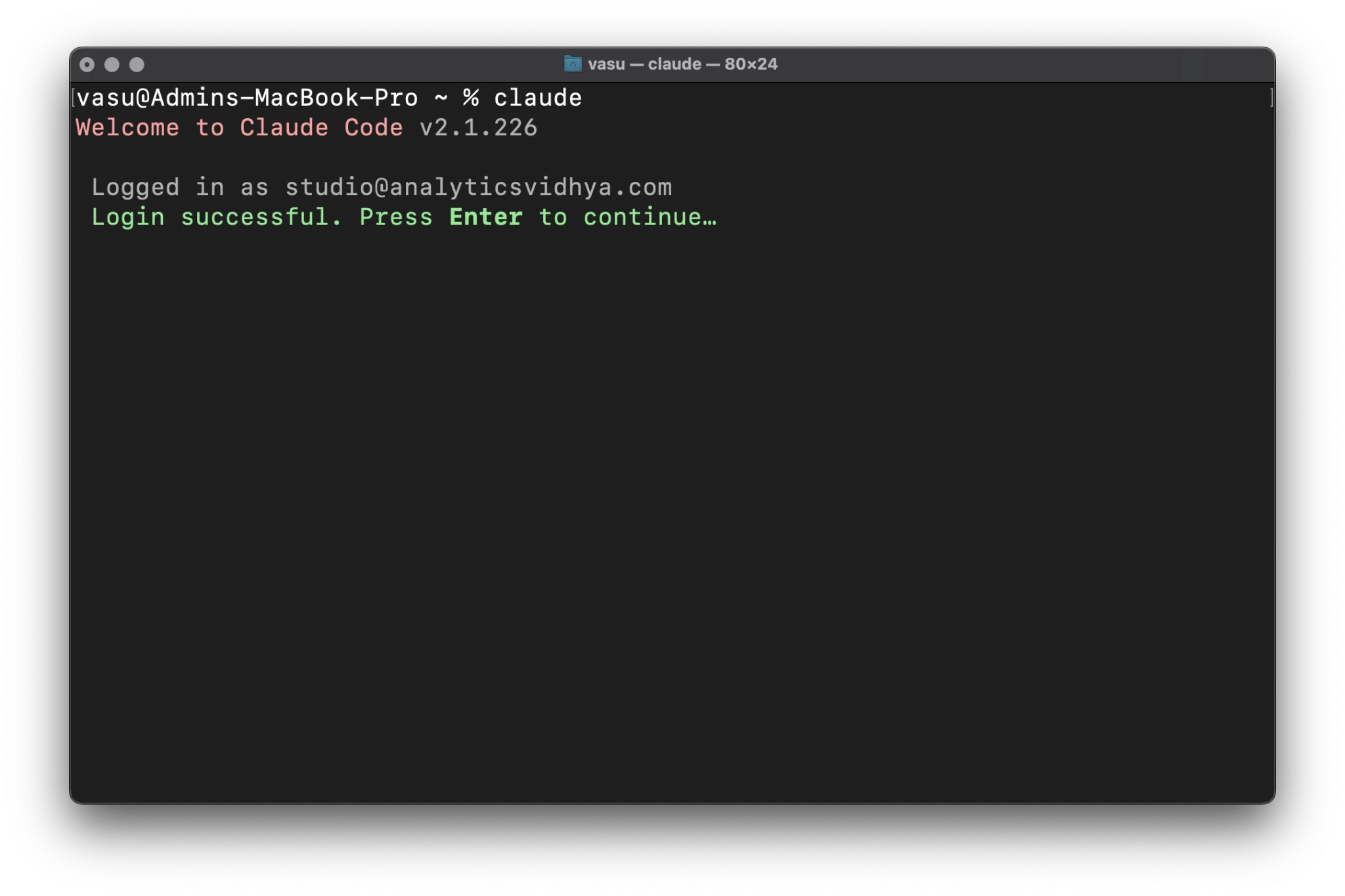
- Browser Authorization: Upon selecting your login method, a browser window will trigger a consent screen. Click Authorize to grant the CLI access to your account.
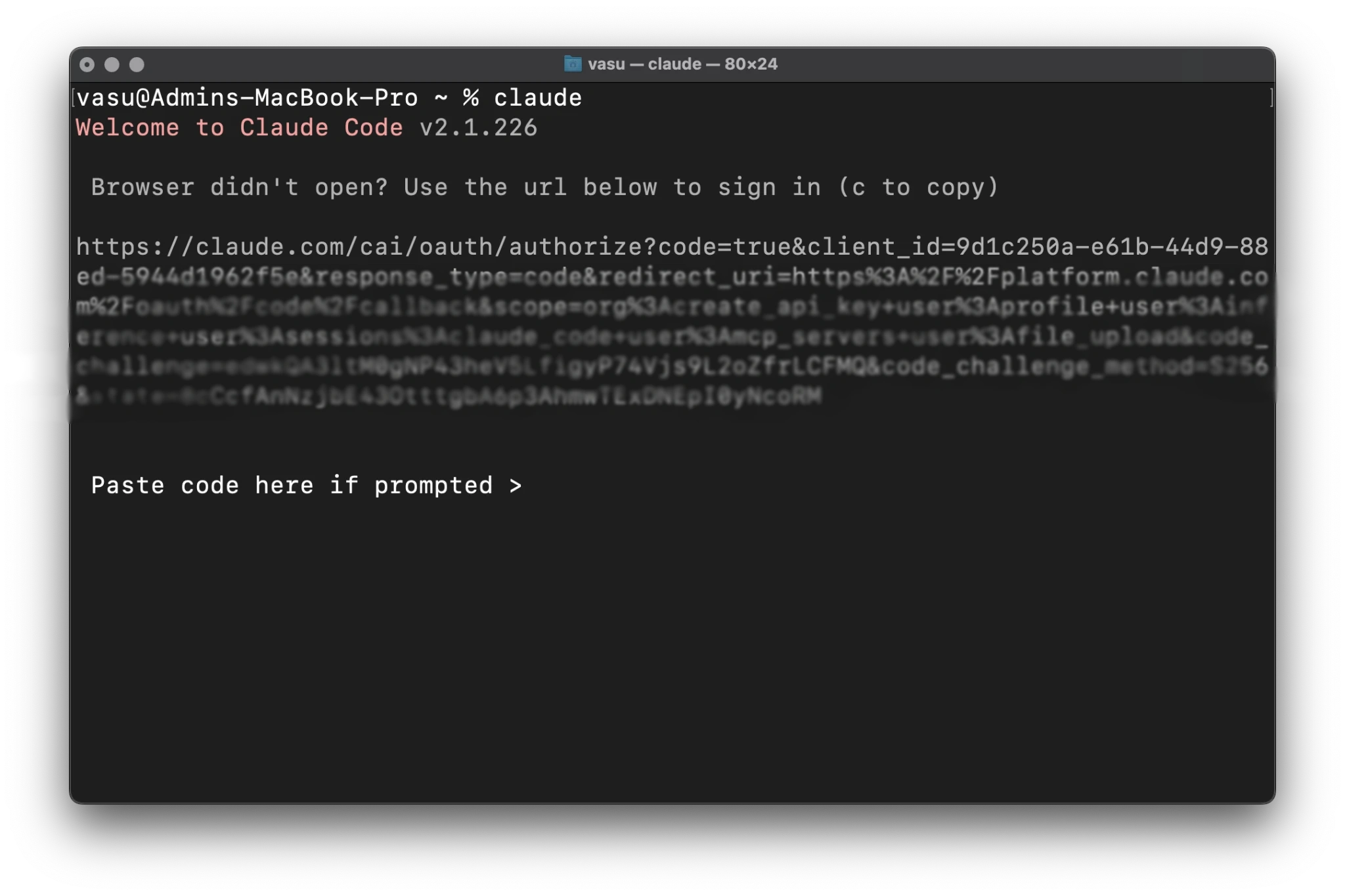
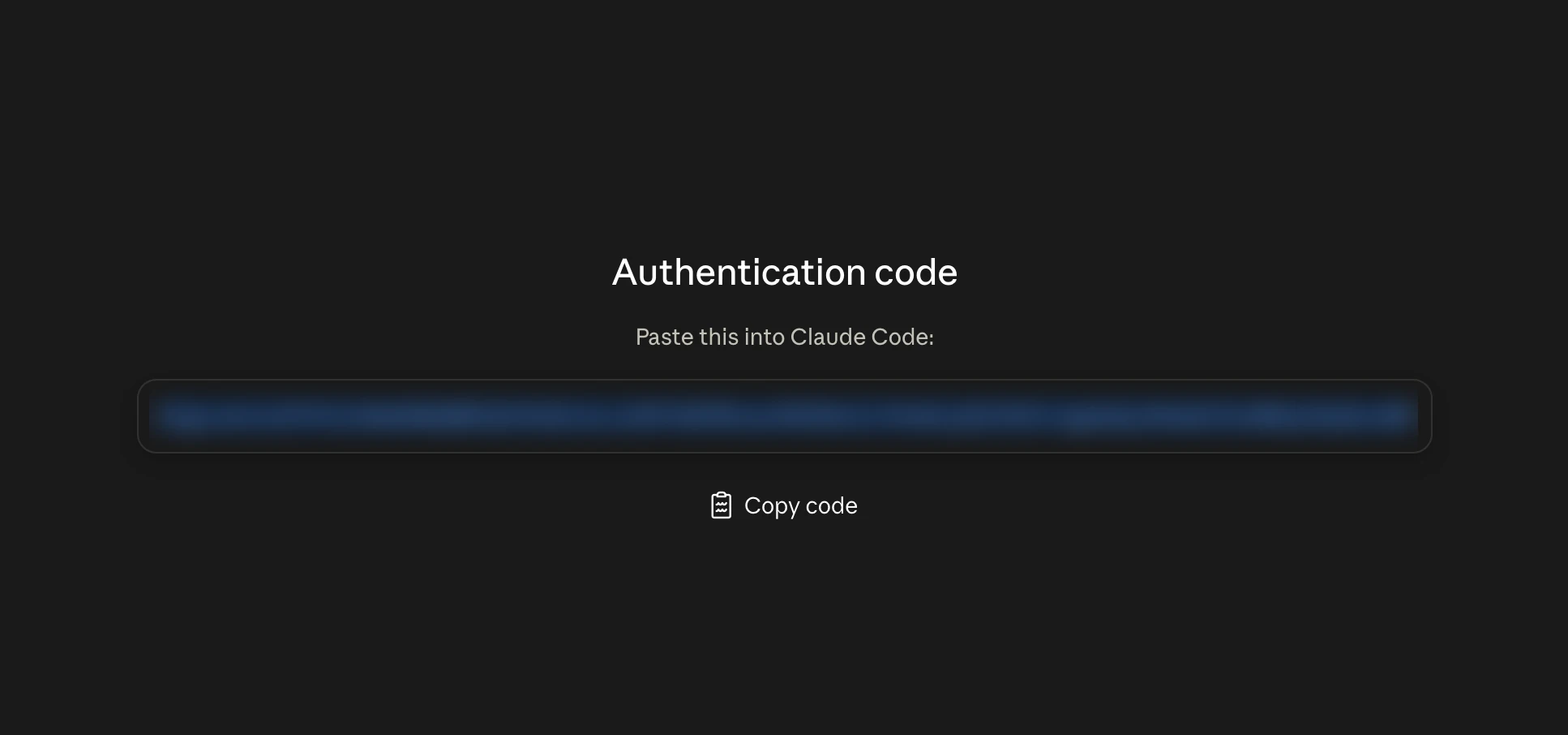
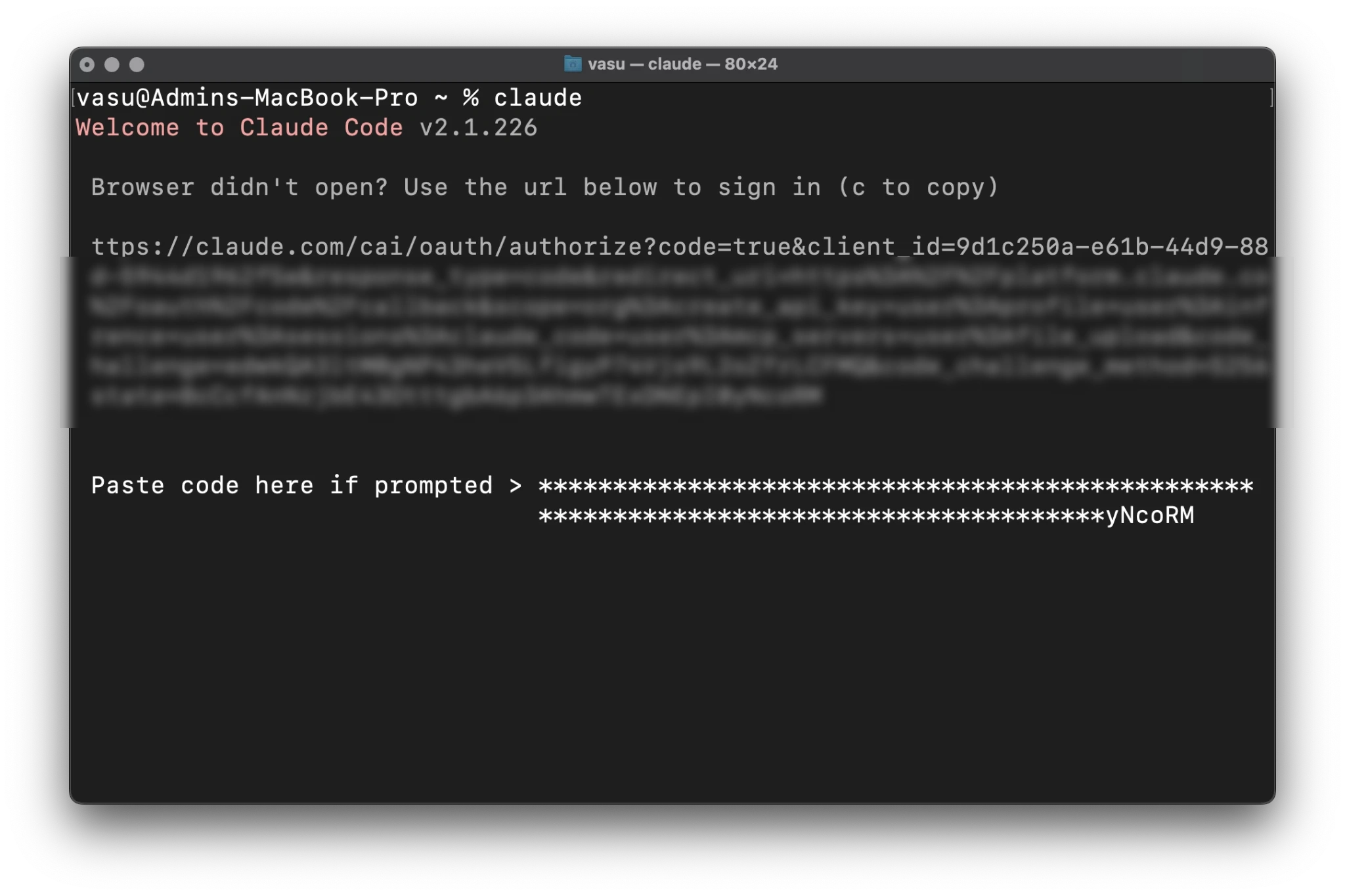
- Manual Flow: If you are working on a headless server, container, or remote SSH session, the tool will provide a URL. Copy this into a browser on your local machine, complete the authentication, and paste the resulting one-time code back into your terminal.
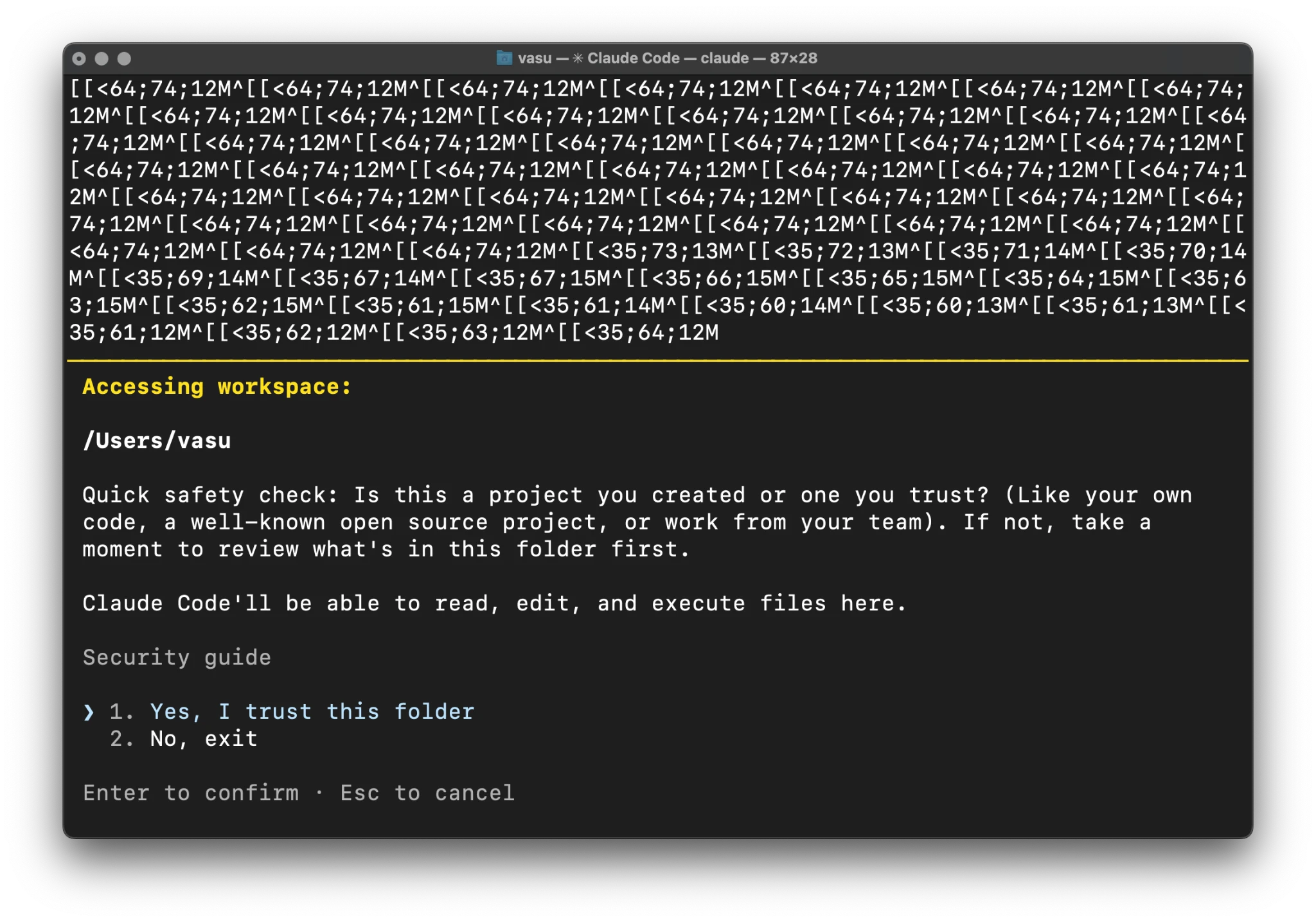
- Workspace Trust: This is a critical security step. You will be asked if you trust the directory. By granting trust, you allow the agent to read and modify your files. Ensure you are in a secure project folder before proceeding.
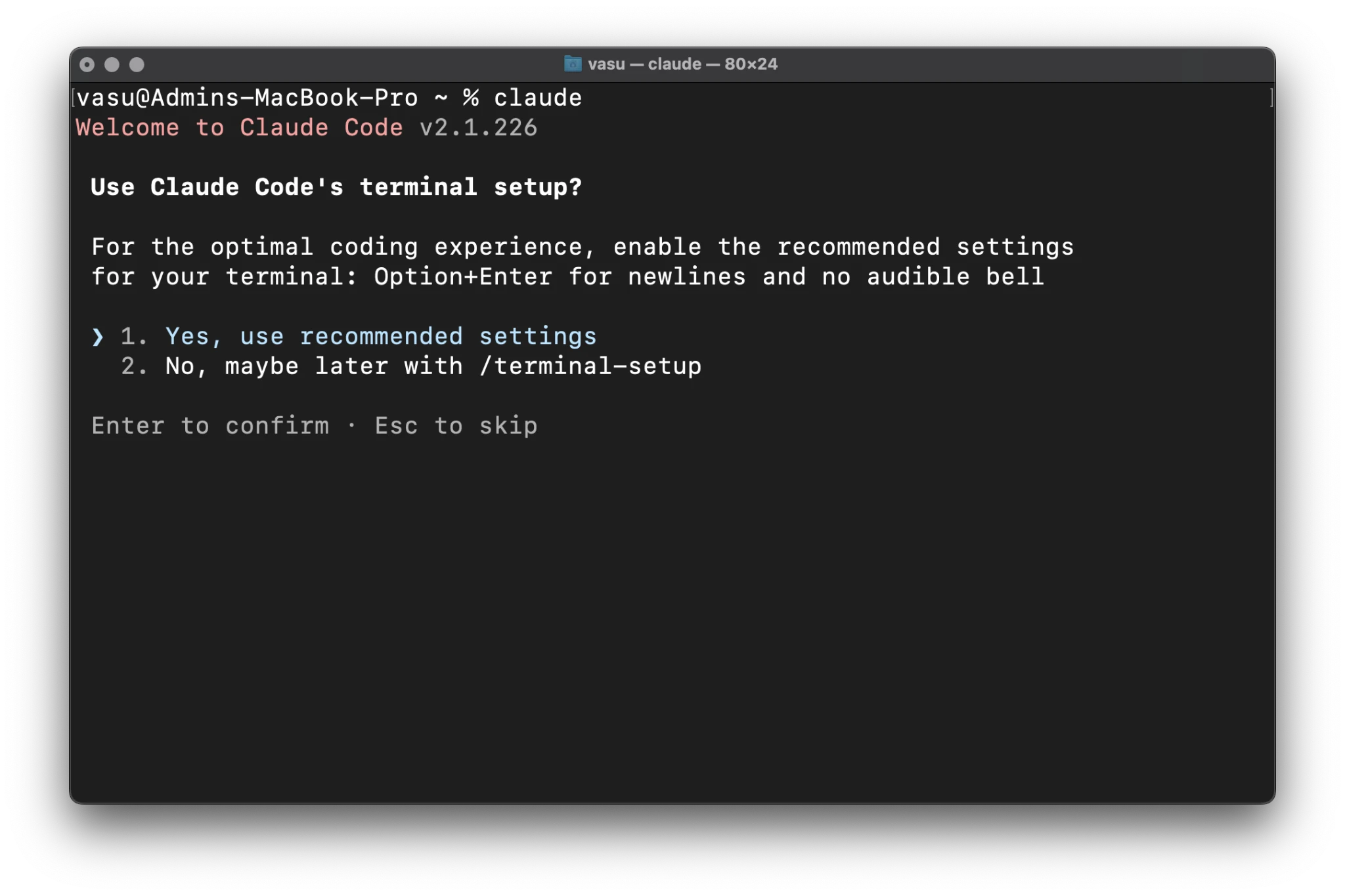
- Terminal Settings: Opt for the "recommended settings" to enable advanced features like
Option+Enterfor multi-line inputs, preventing the accidental sending of incomplete commands.
Implications: Security and Usage
The power of Claude Code comes with the responsibility of managing AI access to your local machine. Because the agent can execute commands, it is essential to treat it as a trusted colleague.
Understanding Permissions
When you authorize Claude Code, you are granting it permission to perform tasks on your behalf. The "Consent Screen" detailed during installation outlines exactly what these permissions entail. In essence, it allows the tool to use your subscription’s quota to read your files, execute terminal commands, and perform file operations.
Monitoring Usage
Because the tool is so effective, it is easy to inadvertently burn through your rate limits. Anthropic provides an internal command, /usage, which you should run periodically. Monitoring your usage ensures that you remain within your plan’s boundaries and prevents service interruptions during critical development phases.
Security Best Practices
- Narrow Scoping: Only launch Claude Code inside specific, relevant project directories. Avoid running it from your home root directory.
- Initialization: Use the
/initcommand within projects to define specific configurations and ignore-rules. - Verification: Always review the commands Claude suggests before executing them. While the agent is highly accurate, the "human-in-the-loop" model remains the safest way to manage code changes.
Frequently Asked Questions (FAQ)
Q1. Can I use Claude Code on the free plan?
No. Access to Claude Code requires a paid subscription (Pro, Max, Team, or Enterprise) or an account linked to the Anthropic Console with active, funded API usage.
Q2. Do I need to install Node.js?
The modern native installer is self-contained and includes its own runtime. You do not need to install Node.js separately. (The legacy npm package, however, does require Node.js version 22+).
Q3. How do I keep the tool updated?
Native installations are designed to update automatically. If you prefer manual control, you can force an update by running claude update.
Q4. Is there a GUI alternative?
Yes. For users who prefer a graphical interface over the terminal, the Claude desktop application now includes integrated Claude Code features.
Q5. How can I safely uninstall the tool?
To completely remove Claude Code, delete the binary located at ~/.local/bin/claude and the data directory at ~/.local/share/claude. To clear all session histories and settings, also remove ~/.claude.
Conclusion
Claude Code represents a significant leap forward in developer tooling. By bringing the intelligence of Claude directly into the terminal, Anthropic has provided a seamless way to automate the "boring" parts of programming.
The installation process—while seemingly complex—is designed to be robust and secure. By following the steps outlined above, you can ensure a clean, stable, and productive environment. Remember to keep your scopes narrow, monitor your usage via /usage, and leverage the /help or ? shortcuts to discover the full range of agentic capabilities at your fingertips.
As you become more comfortable, explore the advanced features like custom skills and MCP (Model Context Protocol) configurations to tailor Claude Code to your specific technical stack. The terminal is no longer just a place for command execution; with Claude, it has become a partner in the creative process of building software.
For further documentation and technical specifications, please visit the official Anthropic Documentation.