For any digital marketer, the “zero-impression” notification in Facebook Ads Manager is the equivalent of a silent alarm. You have invested time in creative strategy, meticulously crafted your copy, and defined your target audience—only to find that your campaign is not delivering. The “Not Delivering” status is more than a technical glitch; it is a signal that your campaign has hit a bottleneck in Meta’s complex advertising ecosystem.
When ads fail to serve, it isn’t always a sign of a broken platform. Most often, it is a mismatch between your campaign settings and the algorithmic requirements of the Meta auction system. Understanding why these discrepancies occur is the first step toward restoring your campaign’s reach and performance.
Defining the "Not Delivering" Status
In the Meta Ads Manager environment, the "Delivery" column is the pulse of your marketing efforts. When you see a status of "Not Delivering," it indicates that your active ads are failing to generate any impressions among your target audience.
This issue can manifest in two ways: it may occur immediately upon launching a new campaign, or it may strike an existing, high-performing campaign without warning. If the platform detects a specific technical configuration error, it will often label the status as "Update Required." While this can be daunting, it is rarely terminal for your campaign. By navigating the diagnostic tools within Ads Manager, you can systematically isolate the root cause and apply a corrective measure.
1. The Post Availability Crisis
The most frequent, yet often overlooked, reason for delivery failure is the unavailability of the underlying ad creative. An ad is essentially a bridge between your account and a piece of content (the post). If that bridge is broken, the traffic cannot flow.
The Chronology of the Issue:
Typically, this occurs when an organic post used as an ad is deleted, hidden, or has its privacy settings modified. It can also happen if the page permissions for the Ad Account manager have changed, or if the post violates platform policies.
The Fix:
The most efficient remedy is to audit the post associated with the ad. Navigate to the ad level in Ads Manager, verify the post ID, and ensure the original content is still live and public on your Facebook Page. If you are using a third-party tool to manage your posts, ensure that the connection between that tool and your Facebook Page remains active. Once you have re-verified the creative, toggle the ad set status to "Active" to force a re-crawl of the content.
2. The Bottleneck of the Review Process
Meta’s commitment to safety and quality assurance means that every ad undergoes a rigorous review process. While Meta aims to complete these reviews within 24 hours, this timeline is not a guarantee.
Supporting Data:
During peak retail seasons—such as Black Friday, Cyber Monday, or major holidays—the volume of ad submissions surges. Consequently, the automated systems and human review teams face significant backlogs. Ads that are manually flagged or those containing complex media may sit in the "In Review" queue for 48 to 72 hours.
The Fix:
The best defense is a proactive scheduling strategy. Always plan to launch your campaigns at least 72 hours before the intended start date. Furthermore, avoid editing your ad sets while they are pending review. Every edit—from changing a headline to adjusting a budget—restarts the automated review clock, potentially pushing your ad to the back of the queue.
3. Policy Rejection and Compliance
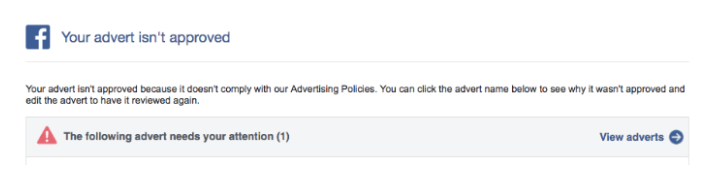
Facebook maintains strict advertising policies. If your ad is rejected, it will cease delivery immediately. Rejections are usually accompanied by an email notification, but you can always find the specific reasoning in the "Account Quality" tab of your Business Manager.
Official Stance:
Meta requires that all ad content, including landing pages, adheres to community standards. Common triggers for rejection include the use of sensationalist claims, excessive "before and after" imagery, or the use of profanity and aggressive copy.
The Fix:
If your ad is rejected, do not simply resubmit it without changes. Edit the creative to align with policy guidelines. If you believe the rejection was an algorithmic error, use the appeal process in the Account Quality dashboard. Ensure your landing page is also compliant; Meta’s bots scan the final destination of your link. If the landing page is broken, misleading, or lacks a clear privacy policy, your ad will be suppressed.
4. The Account Spending Limit
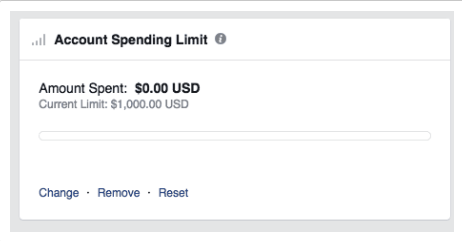
For many businesses, a budget limit is a safety feature, but it can become an accidental kill-switch. If you have previously set an "Account Spending Limit" to manage overhead, that limit is global. Once your total spend across all campaigns reaches that number, Meta will stop every single ad in your account.
The Fix:
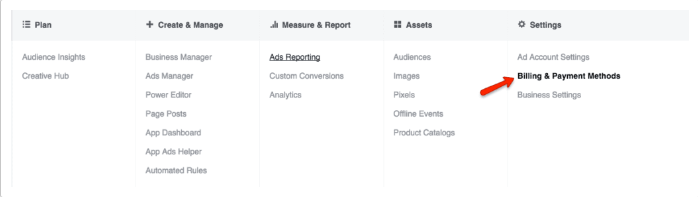
Navigate to Billing & Payments in your Ads Manager settings. Check the current spend against your limit. If you have reached the threshold, you must either reset the limit or increase it to accommodate your current campaign needs. Once the limit is adjusted, ad delivery usually resumes within a few minutes.
5. Algorithmic Suffocation: Bid and Budget Constraints
The Meta algorithm requires "learning data" to function effectively. When your daily budget is too low, or your bid cap is too restrictive, you prevent the machine from finding the optimal audience.
Implications:
If you set a budget of $5 per day but target a broad audience, the algorithm cannot gather enough data points (clicks, views, or conversions) to understand who is actually interested in your product. Similarly, if you set a manual bid cap that is significantly lower than the current market rate for your audience, your ads will simply lose every auction, resulting in zero delivery.
The Fix:
Use a "Lifetime Budget" for smaller campaigns to give the system flexibility. For bid strategies, start with "Highest Volume" (formerly known as Lowest Cost) to allow the algorithm to test the waters. Only move to "Bid Caps" once you have established a clear historical cost-per-acquisition (CPA).
6. The "Too Small" Audience Trap
While hyper-segmentation sounds efficient, it can be detrimental. Meta’s algorithm requires a minimum pool of users to effectively optimize delivery.
The Fix:
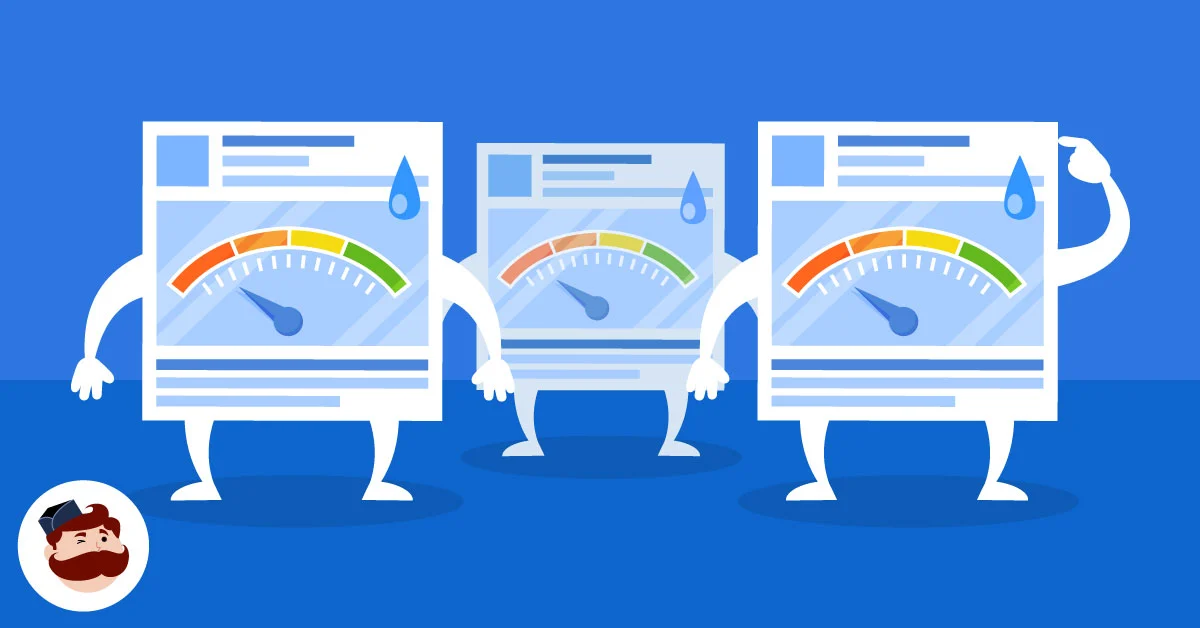
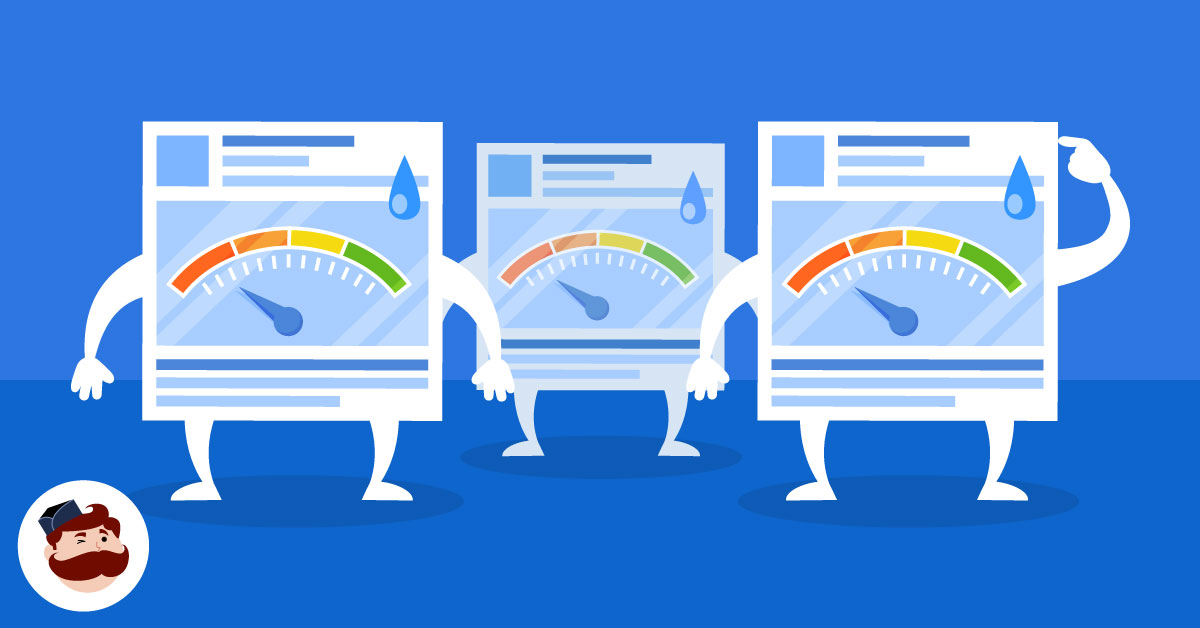
If your target audience is too narrow, you will see a warning in the Audience Definition gauge. Expand your reach by removing restrictive interests, broadening your age range, or using "Advantage+" audiences. If you are using a custom audience or a customer list, ensure the list is large enough to be actionable—generally, a minimum of 1,000 matches is recommended to ensure reliable delivery.
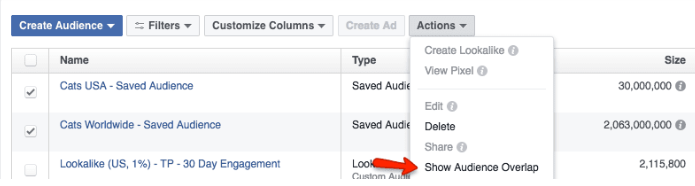
7. Auction Overlap: Fighting Yourself
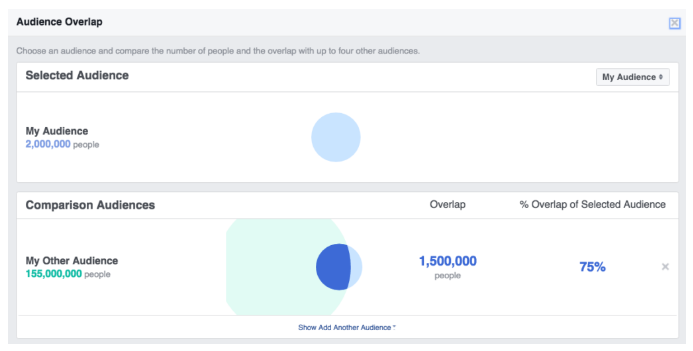
Auction overlap occurs when multiple ad sets from your account target the same people. When this happens, Meta’s system will automatically pause the ads with the lowest performance to prevent you from driving up your own costs.
The Fix:
Use the "Audience Overlap" tool located in the Audiences tab. If you find significant overlap, you have two options: consolidate your ad sets into one, or increase your audience exclusion settings to ensure your campaigns are distinct.
8. Low Ad Engagement Scores
Meta ranks ads based on "Ad Relevance Diagnostics." If your ad is deemed low-quality, irrelevant, or spammy, the platform will deprioritize it.
The Fix:
Review your Quality Ranking, Engagement Rate Ranking, and Conversion Rate Ranking. If these are "Below Average," your creative is not resonating. Refresh your visual assets, rewrite your hook, and ensure your landing page experience is mobile-optimized. Shifting from "Low" to "Average" is often the most significant jump you can make to restore delivery.
9. Scheduling Oversights
It sounds basic, but many campaigns fail to deliver simply because the campaign window has expired or the start date is in the future.
The Fix:
Check the "Delivery" column in the Ads Manager. If the status is "Scheduled" or "Ended," verify your campaign level date settings. Ensure your time zone matches the one set in your ad account to avoid accidental gaps in your delivery schedule.
10. The Conversion Optimization Paradox
Optimizing for a high-value action, such as a "Purchase," is a common goal. However, if your ads are new and you aren’t getting enough conversions, the algorithm will conclude that the ads aren’t working and stop delivery.
The Fix:
Start your campaign with a higher-funnel optimization goal, such as "Link Clicks" or "Landing Page Views." This helps the algorithm build a pool of data on who is interested in your brand. Once you have a steady stream of traffic and initial conversions, switch your optimization goal back to "Purchases." This allows the algorithm to learn from a larger, more active data set, ensuring long-term delivery success.